
How to Add Staff and Control What They Can Access in BillClap
Want your staff to make bills without seeing your reports? Give each person their own BillClap login with only the access they need. You decide what they can do and which tabs they can see.
Step 1: Open User Roles
- Go to Settings › User/Roles.
- Click Add New User.
Step 2: Enter the Staff Member's Details
Enter the person's name, phone number and email.
Step 3: Pick a Role
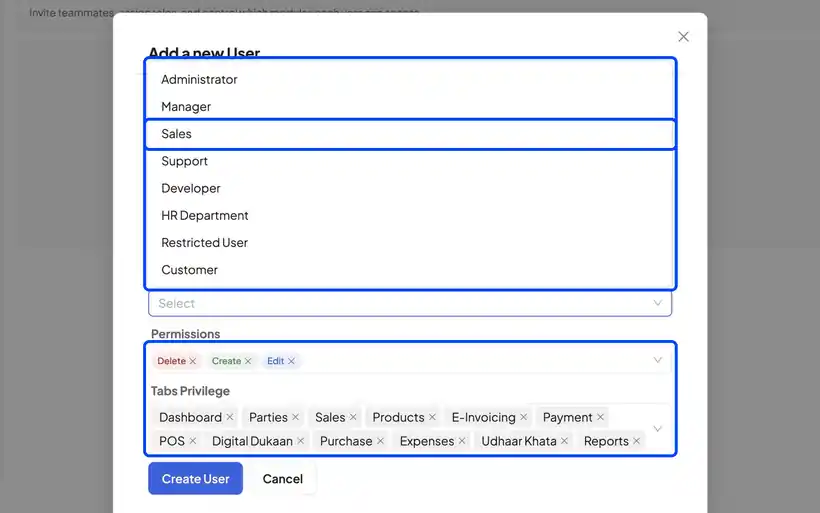
- Choose a role, such as Administrator, Manager, Sales, Support or Restricted User.
- By default, a new user gets every permission and every tab.
Step 4: Remove What They Don't Need
- Under permissions, remove Delete so they can create and edit bills but not delete them.
- Under tabs, remove sections they should not see, such as Purchase, Expenses and Reports.
- Click Create User to save.
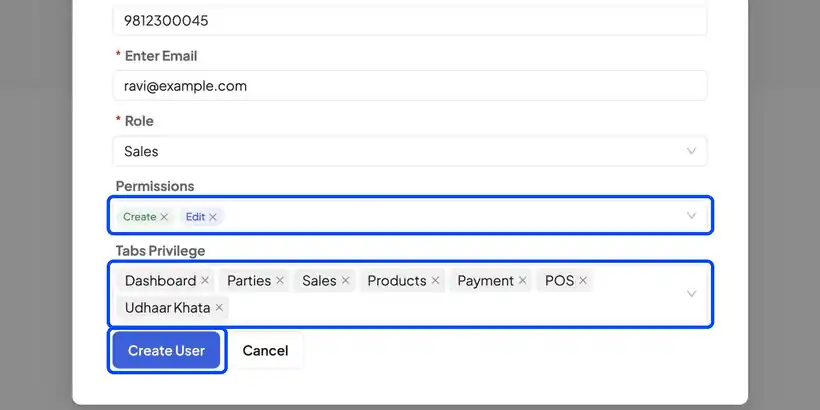
The staff member can now log in with their phone number and see only what you allowed.
Frequently Asked Questions
Q: Can I change a staff member's access later?
Yes. Open the user in Settings › User/Roles, change their permissions or tabs, and save.
Q: How many users can I add?
It depends on your BillClap plan. Check your plan details or contact support to add more users.
Q: Can I remove a staff member who has left?
Yes. Open the user in User/Roles and deactivate or remove them so they can no longer log in.
Need Help?
Our support team is available:
- 📞 Call/WhatsApp: 8882468190
- 📧 Email: support@billclap.com
- 🕐 Support Hours: Monday to Friday, 10 AM – 6:30 PM