
Bank Reconciliation (BETA) — Complete Guide
What is Bank Reconciliation?
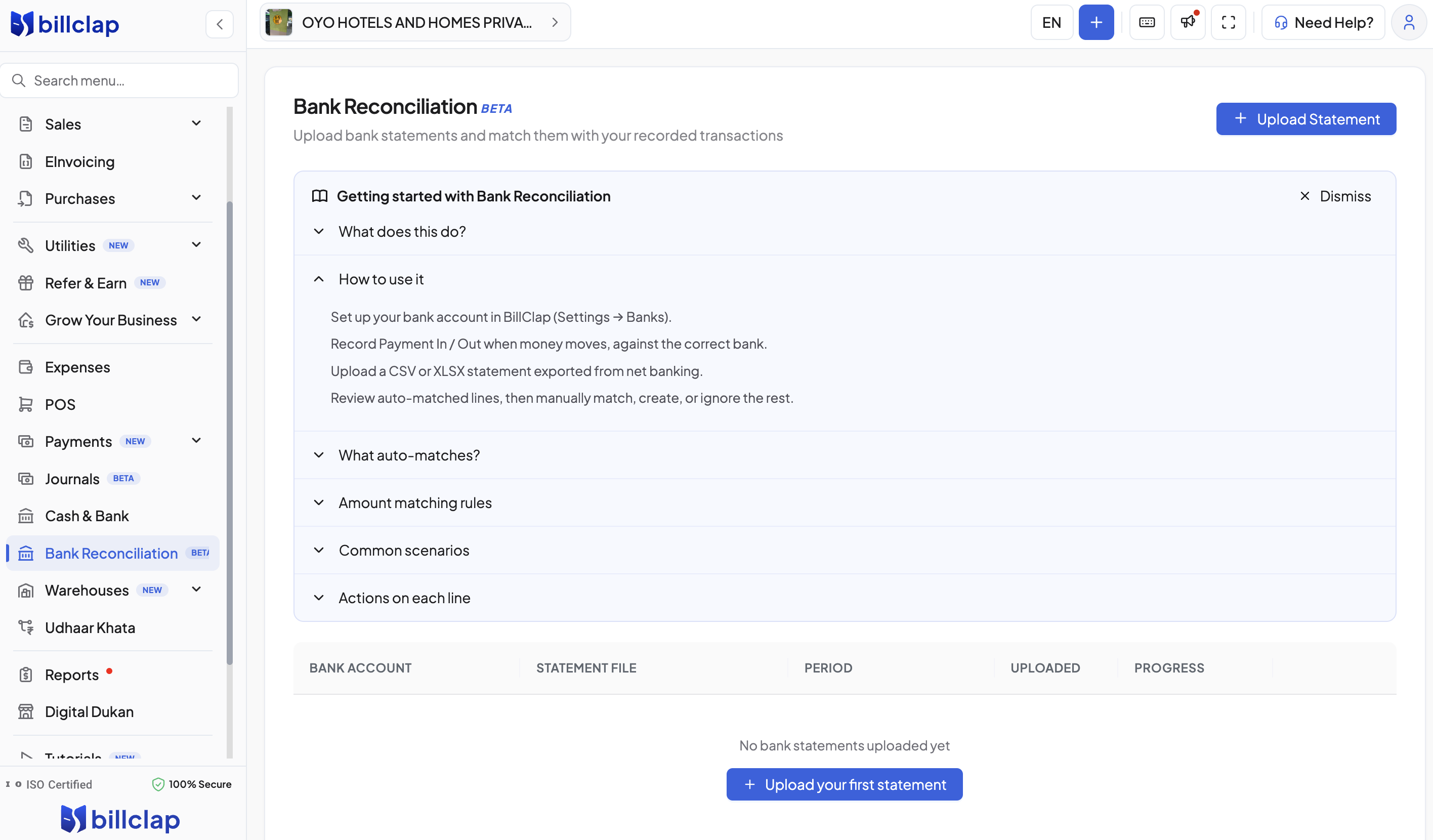
Bank Reconciliation lets you upload your bank statement and automatically match it against the Payment In / Payment Out entries you've already recorded in BillClap for that bank account. Instead of manually cross-checking rows in Excel against your bank's net banking portal, BillClap does the matching for you — flagging what's confirmed, what needs your attention, and what can be safely ignored (like bank charges or interest credits).
Important: Bank Reconciliation matches your recorded payments against the bank statement — it does not match invoices directly. Payments must already be linked to the correct bank account for matching to work.
Before You Start: Two Things You Need
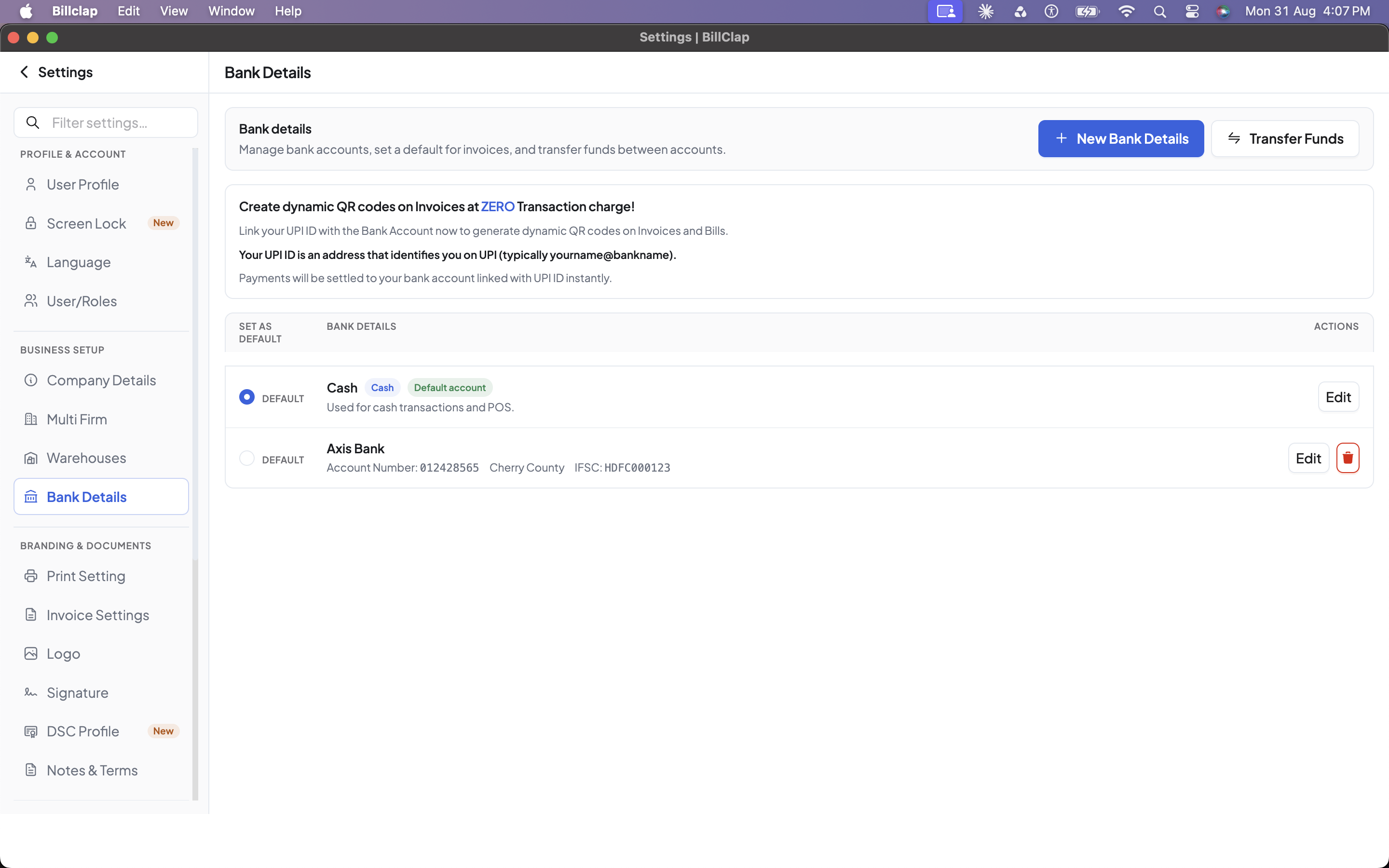
- Your bank account set up in BillClap
Go to Settings → Banks and add the bank account you want to reconcile. Make sure the account number matches your actual bank account exactly. - Payments recorded against that bank account
Every time money moves — a customer pays you, or you pay a vendor — record it as a Payment In or Payment Out in BillClap, and make sure it's tagged to the correct bank account. Bank Reconciliation can only match what's already recorded.
Step-by-Step: How to Reconcile Your Bank Statement
Step 1 — Export your statement
Log in to your bank's net banking portal and download your statement as a CSV or XLSX file for the period you want to reconcile.
Step 2 — Upload the statement
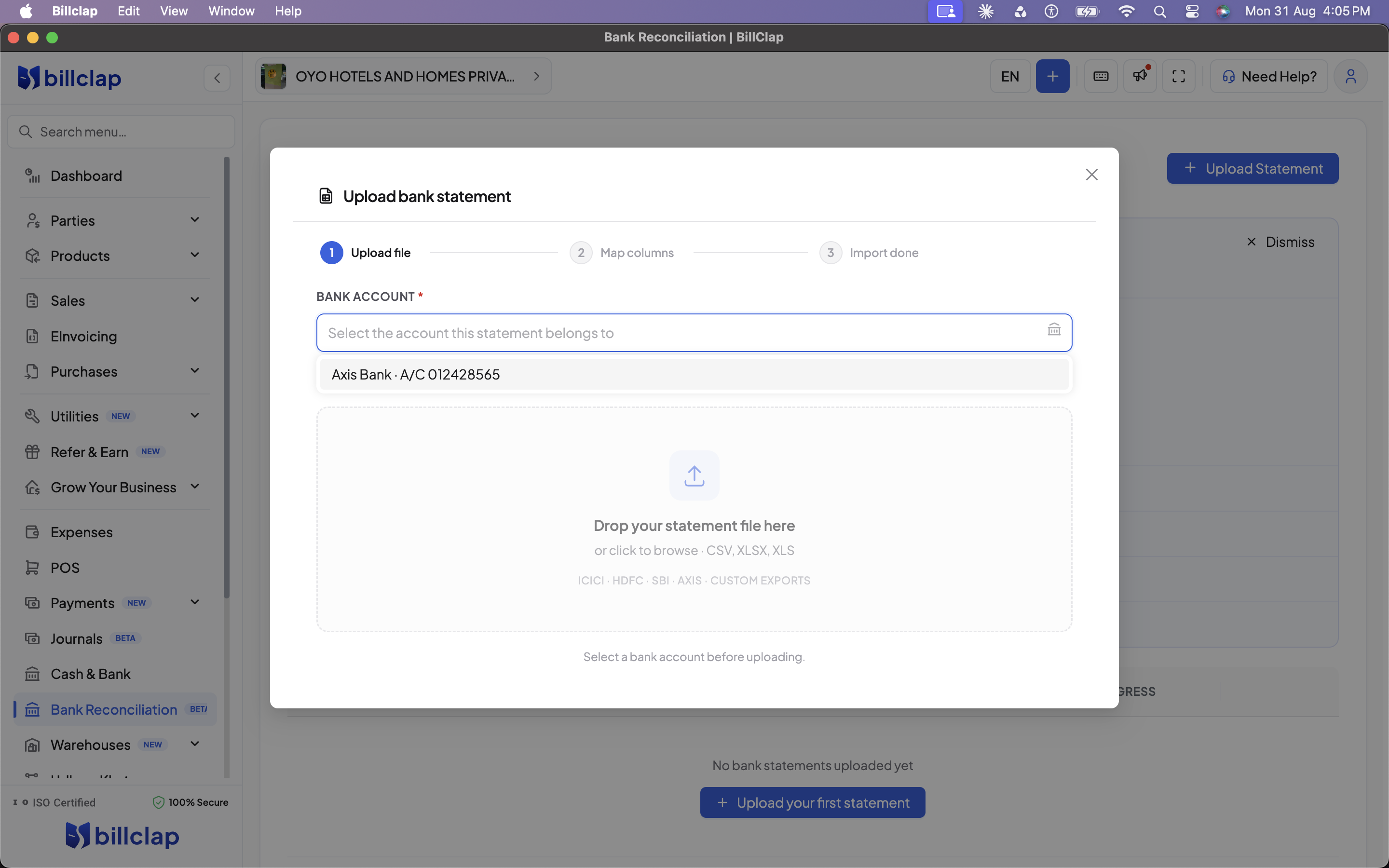
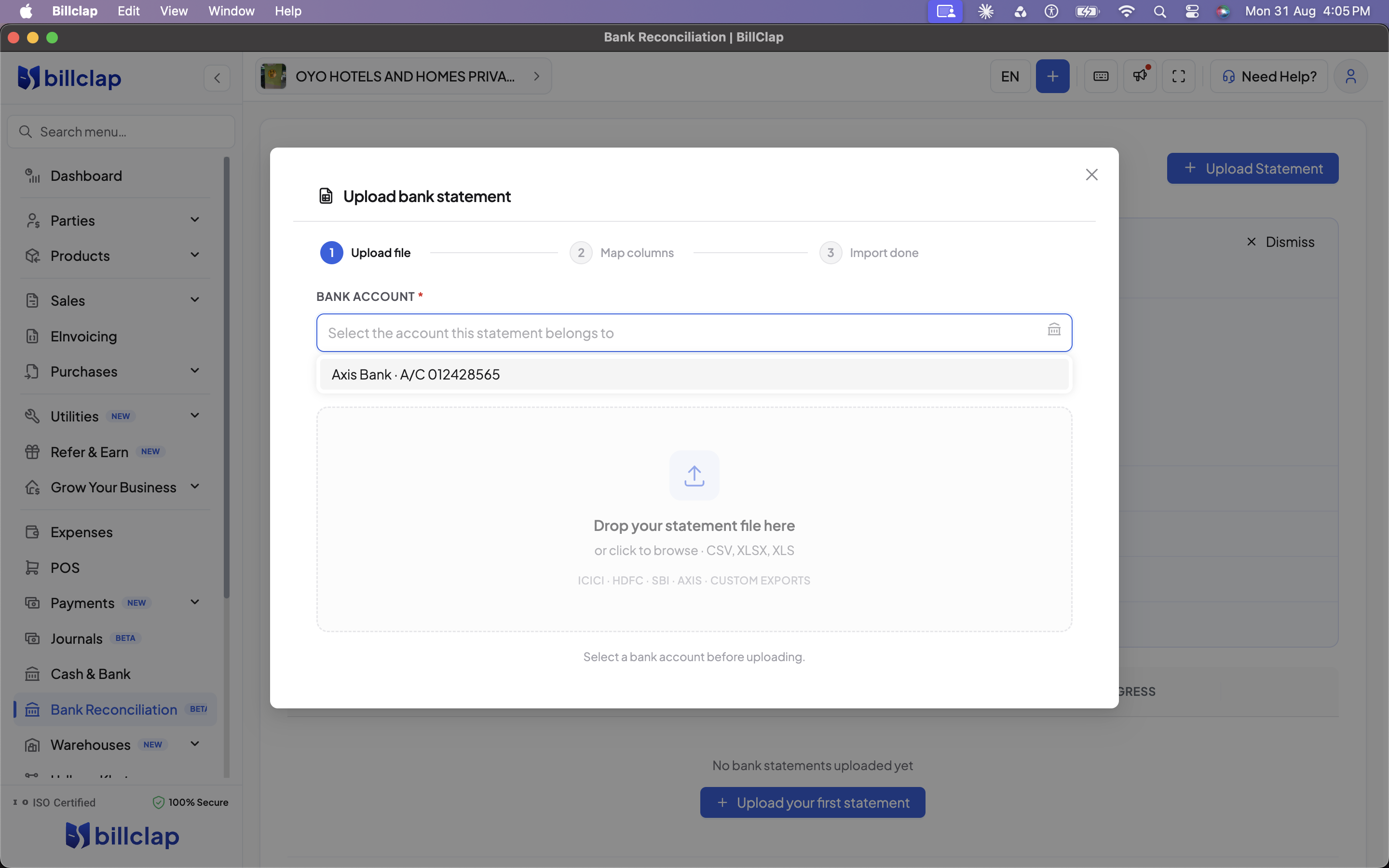
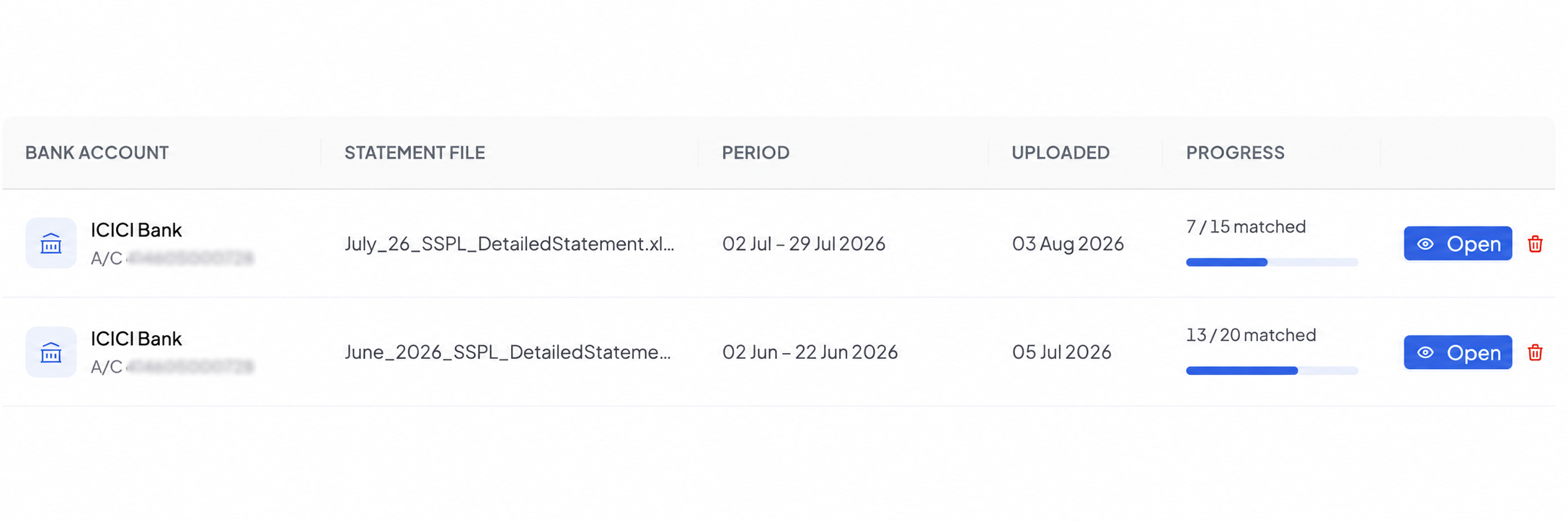
In BillClap, go to Bank Reconciliation in the left sidebar. Click + Upload Statement, choose the bank account this statement belongs to, and select your file.
Step 3 — Let BillClap auto-match
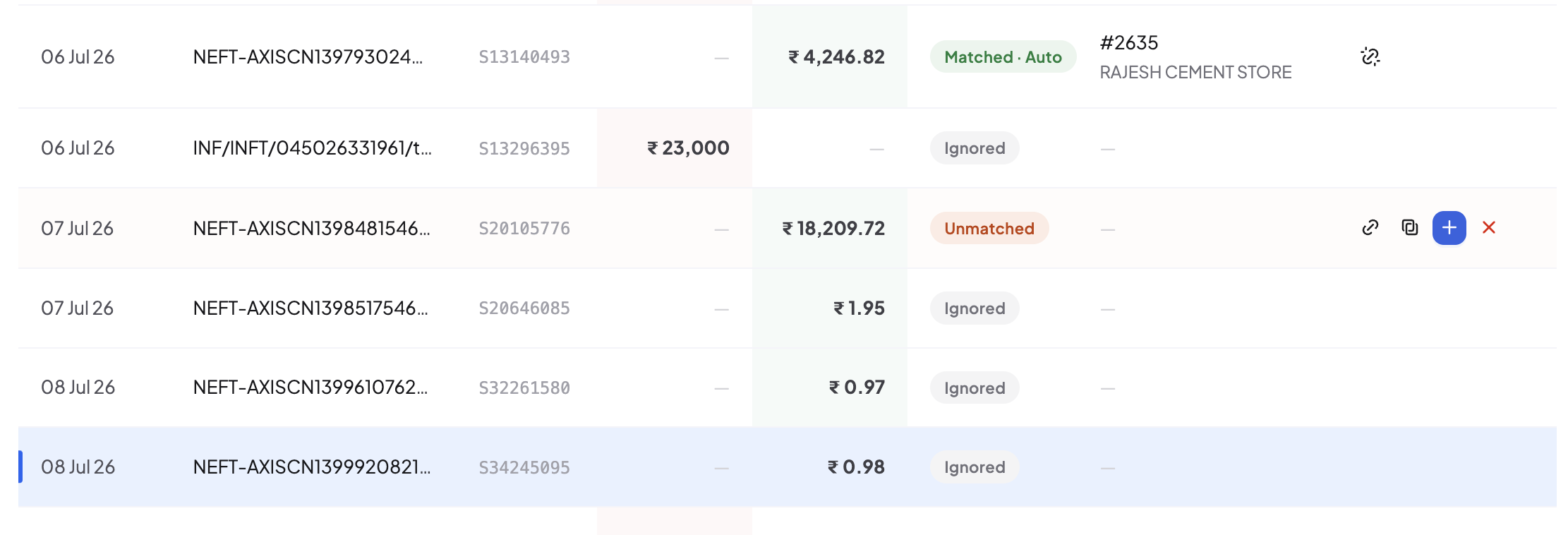
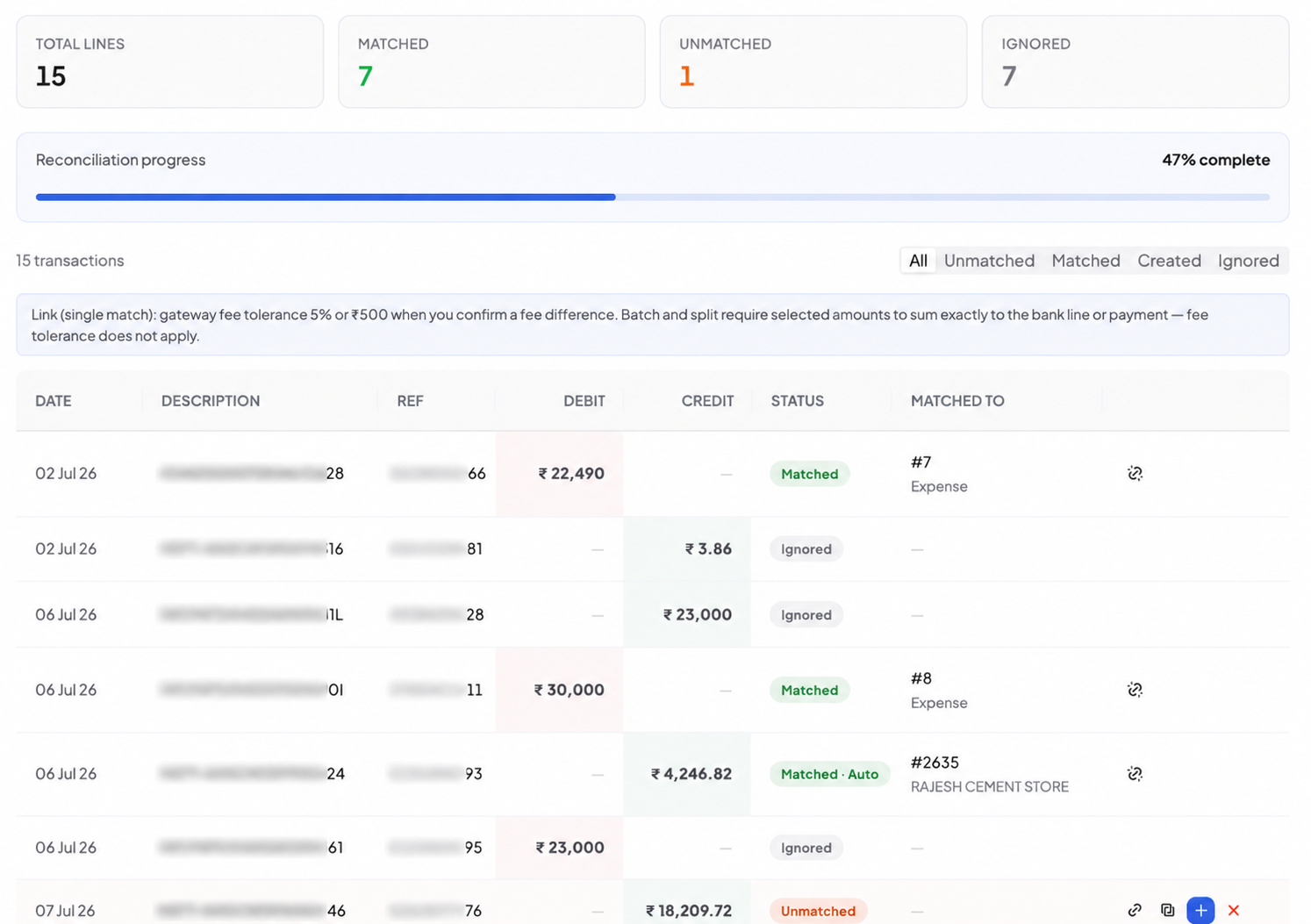
Once uploaded, BillClap automatically compares each line in your statement against your recorded payments. Lines that match exactly are marked Matched · Auto right away — no action needed from you.
Step 4 — Review what's left
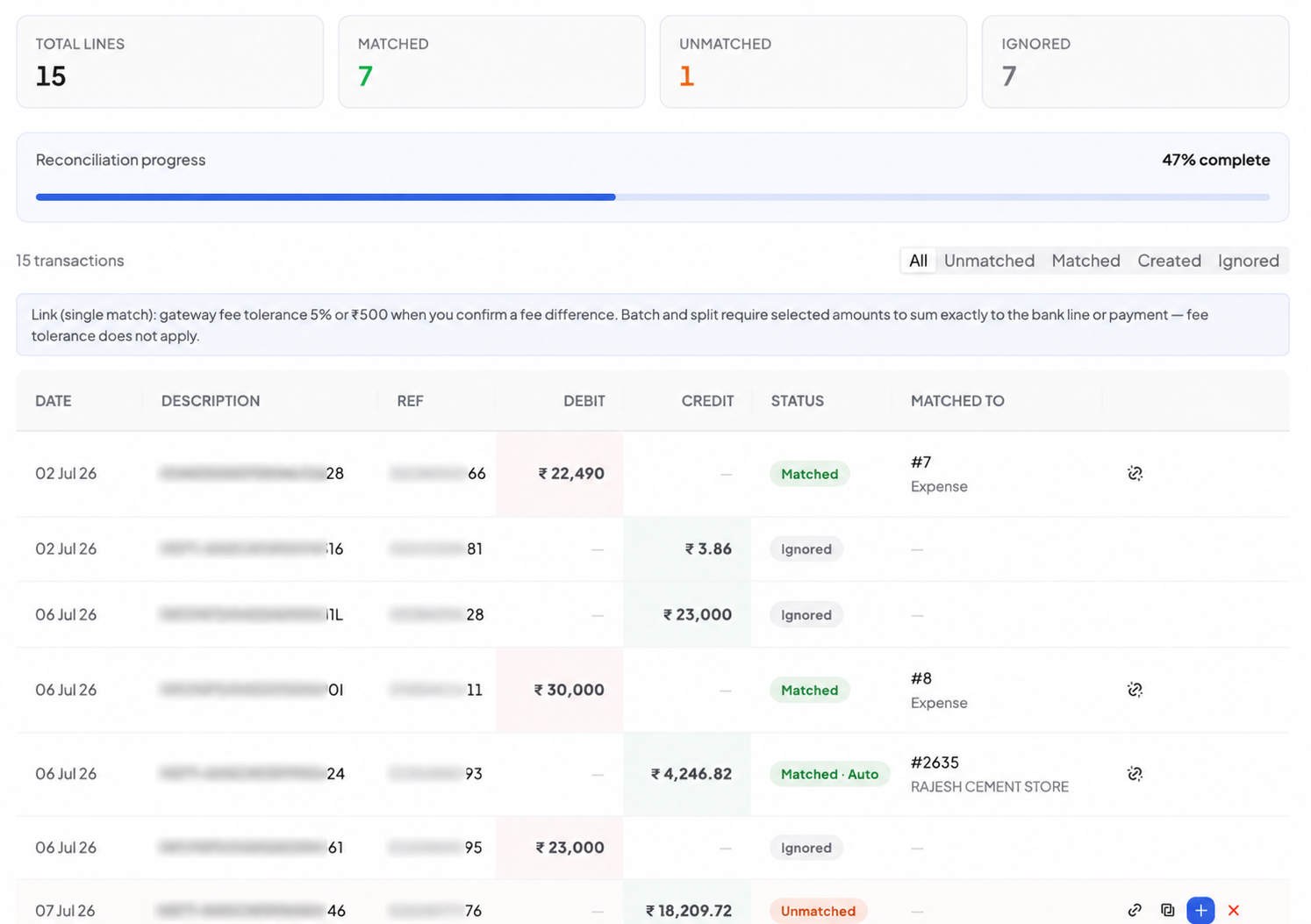
Open any statement to see the full breakdown:
- Total Lines — every transaction in your statement
- Matched — successfully linked to a recorded payment
- Unmatched — needs your attention
- Ignored — lines you've marked as not relevant (bank charges, interest, etc.)
A progress bar shows what percentage of your statement is reconciled.
Step 5 — Take action on each line
For every unmatched line, you have three options:
| Action | What it does |
|---|---|
| Link | Connect this bank line to an existing Payment In/Out entry you've already recorded |
| Create | Record a brand-new payment directly from this bank line (party is optional) |
| Ignore | Skip lines that aren't business payments — bank charges, interest credits, etc. |
What Counts as an Auto-Match?
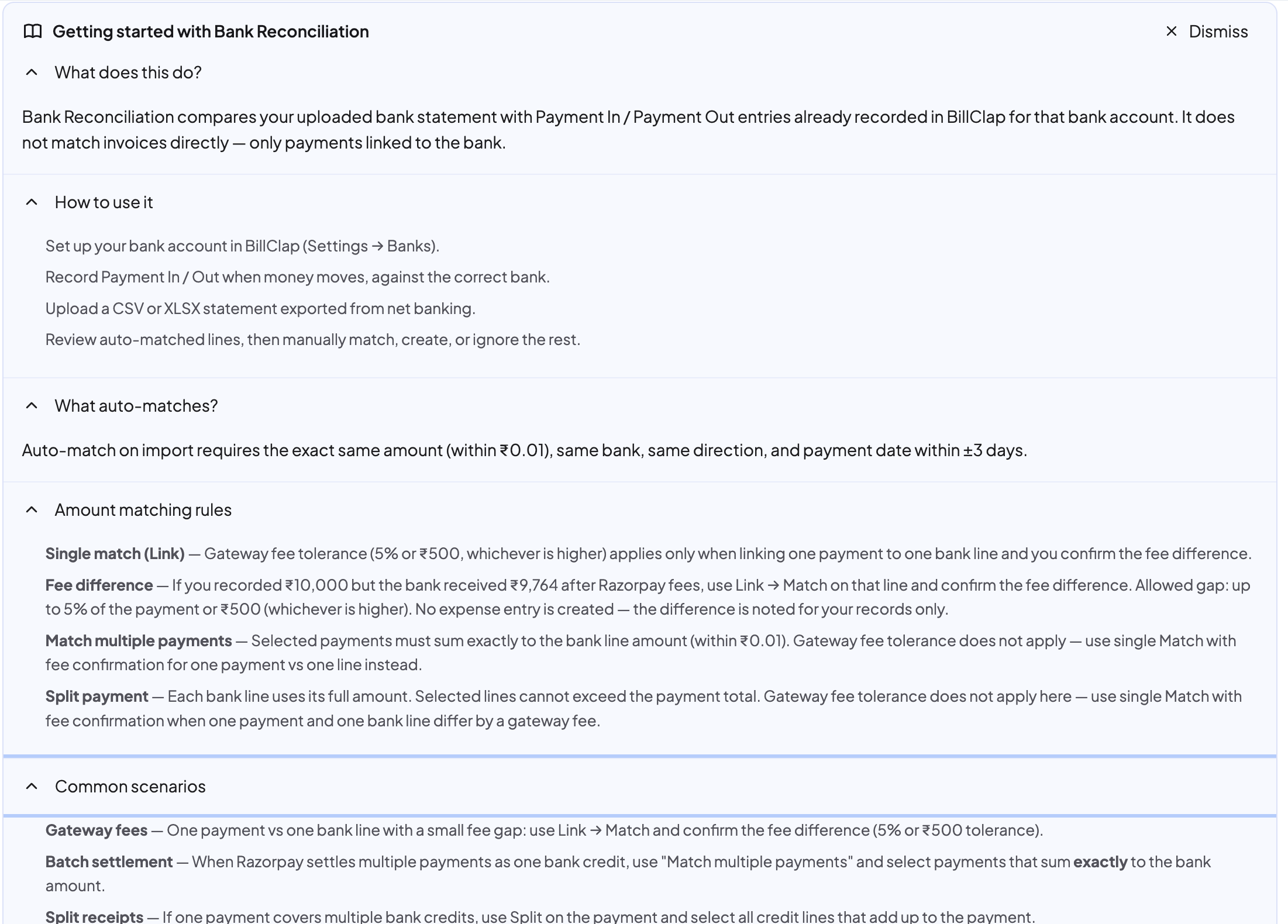
BillClap auto-matches a bank line to a recorded payment on import when all of these are true:
- The amount is the same (within ₹0.01)
- It's the same bank account
- The direction matches (money in vs. money out)
- The payment date is within ±3 days of the bank statement date
If a line doesn't meet all four conditions, it stays unmatched for you to review manually.
Understanding Amount-Matching Rules
Real-world payments rarely reconcile to the paisa — gateway fees, batch settlements, and split payments all create small mismatches. Here's how BillClap handles each case:
Single Match (Link) — Gateway Fee Tolerance
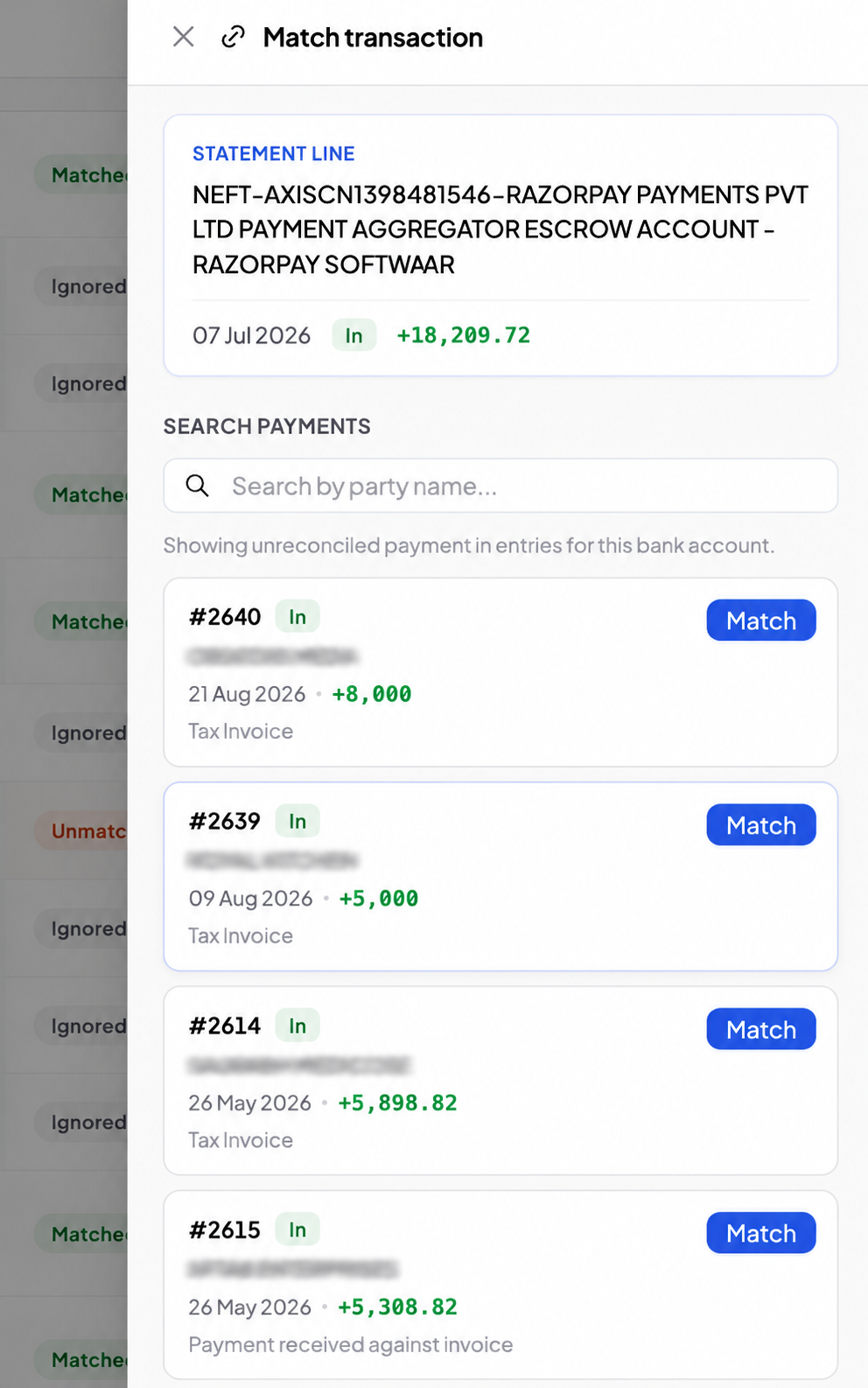
When linking one payment to one bank line, BillClap allows a tolerance of 5% or ₹500, whichever is higher — and asks you to confirm the fee difference before linking.
Example: You recorded a payment of ₹10,000, but your bank statement shows ₹9,764 credited (after Razorpay's fee deduction). Since the ₹236 gap is within the 5%/₹500 tolerance, you can use Link → Match, confirm the fee difference, and BillClap links them. No separate expense entry is created — the difference is noted for your records only.
Match Multiple Payments (Batch Settlement)
When your payment gateway settles several payments together as one bank credit (common with Razorpay/Cashfree), use Match multiple payments. Select all the individual payments that sum exactly to the bank line amount.
⚠️ Note: The gateway fee tolerance does not apply here — the selected payments must add up exactly (within ₹0.01). If there's a fee difference, use single Match with fee confirmation instead.
Split Payment
If one payment you recorded actually shows up as multiple separate credits in your bank statement, use Split on that payment and select all the bank lines that add up to it. Each bank line uses its full amount, and the selected lines cannot exceed the payment total. Gateway fee tolerance does not apply here either.
Common Scenarios
| Scenario | What to do |
|---|---|
| Gateway fees — one payment vs. one bank line, small fee gap | Use Link → Match, confirm the fee difference (5% or ₹500 tolerance) |
| Batch settlement — Razorpay settles multiple payments as one credit | Use Match multiple payments, select payments that sum exactly to the bank amount |
| Split receipts — one payment covers multiple bank credits | Use Split on the payment, select all credit lines that add up to it |
| Bank charges / interest — not a real business transaction | Use Ignore |
| Missed recording a payment | Use Create directly from the bank line to record it on the spot |
Frequently Asked Questions
Does this match my invoices directly?
No. Bank Reconciliation matches bank statement lines against your recorded Payment In / Payment Out entries — not invoices. If a payment hasn't been recorded against the right bank account, it won't show up as a match candidate.
What file formats are supported?
CSV and XLSX exported from your bank's net banking portal.
What happens if I upload the same statement twice?
Each upload is tracked separately by period and file, so re-uploading the same period will create a duplicate entry. Delete the earlier upload first if you need to re-import.
Can I undo a match?
Yes — open the statement and use the unlink/edit icon next to any matched line to reverse it.
Is this feature free?
Bank Reconciliation (BETA) is available on the Enterprise Plus plan.
Tips for Smooth Reconciliation
- Reconcile weekly or monthly rather than letting statements pile up — smaller batches are easier to review.
- Always record Payment In/Out entries against the correct bank account at the time of the transaction — this is what makes auto-matching work well.
- Use Ignore liberally for small bank-generated lines (interest, charges) so your "Unmatched" count reflects only what actually needs attention.