
How to Download GSTR-1 Report in BillClap (JSON, Excel, PDF)
How to Download Your GSTR-1 Report in BillClap
BillClap builds your GSTR-1 report automatically from the sales invoices you create. In a couple of clicks you can pick the return period, check every section, and download the report as JSON (for the GST portal), Excel or PDF — or send it straight to your CA.
What is GSTR-1?
GSTR-1 is the GST return in which a registered business reports its outward supplies — the sales invoices, credit notes and debit notes issued during a month or quarter. Because BillClap already has all your invoices, you don't need to type anything again: the report is ready whenever you need it.
Where to Find the GSTR-1 Report
- Log in to your BillClap account at app.billclap.com
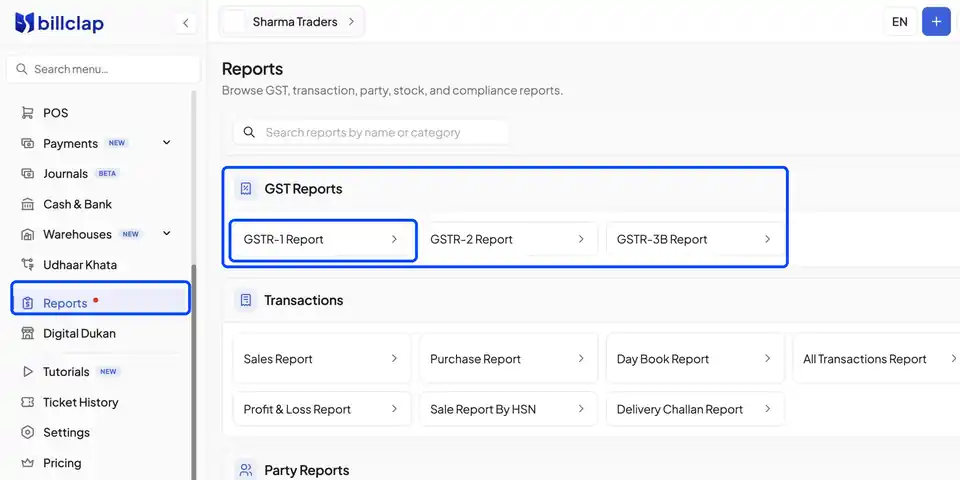
- In the left menu, click Reports (scroll down the menu if you don't see it)
- Under GST Reports, click GSTR-1 Report
💡 Tip: The same section also has the GSTR-2 and GSTR-3B reports.
Step 1: Pick the Return Period
The report opens for the current month. To change it:
- Click the date range box at the top left of the report
- Pick a ready-made period — Last Month, This Month, Last Quarter, Current FY and more — or select a start and end date on the calendar
💡 Tip: For a monthly return, Last Month is usually the one you need. Quarterly filers can use Last Quarter.
Step 2: Review the Report Sections
The report is split into tabs, one for each GSTR-1 section. Click a tab to see only that section:
| Tab | What it Shows |
|---|---|
| CONSOLIDATED | All invoices for the period in one list |
| B2B | Sales to GST-registered businesses (invoices with the buyer's GSTIN) |
| B2C | Sales to unregistered customers |
| B2CL | Large inter-state sales to unregistered customers |
| B2CS | All other (small) sales to unregistered customers |
| CDNR | Credit and debit notes issued to registered customers |
| CDNUR | Credit and debit notes issued to unregistered customers |
| HSN B2B / HSN B2C | HSN-wise summary of the goods and services you sold |
| NILL EXEMPTED | Nil-rated, exempted and non-GST supplies |
Each row shows the recipient's GSTIN/UIN, receiver name, invoice number, invoice date, invoice value, place of supply and reverse charge. Scroll down to see the Totals for the period — Total Amount, Taxable Value, CGST, SGST, IGST and CESS.
Step 3: Download the Report
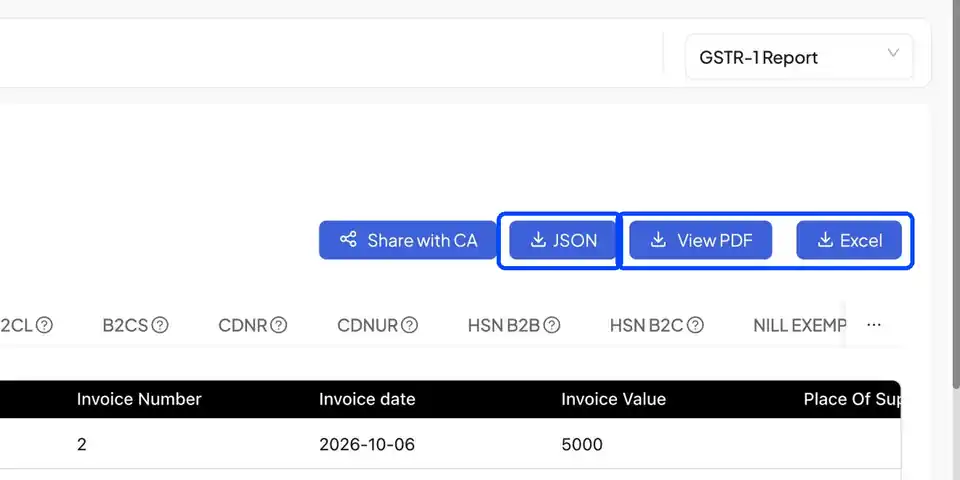
Use the buttons at the top right of the report:
| Button | Use it to |
|---|---|
| JSON | Download the file to upload on the GST portal. The report follows the format prescribed by the GST Offline Tool. |
| Excel | Download the data as a spreadsheet to check it line by line |
| View PDF | Open a PDF of the report to view, print or save |
| Share with CA | Send the report to your CA directly (see below) |
Step 4 (Optional): Share the Report with Your CA
If your CA files your returns, you can send the report without downloading anything:
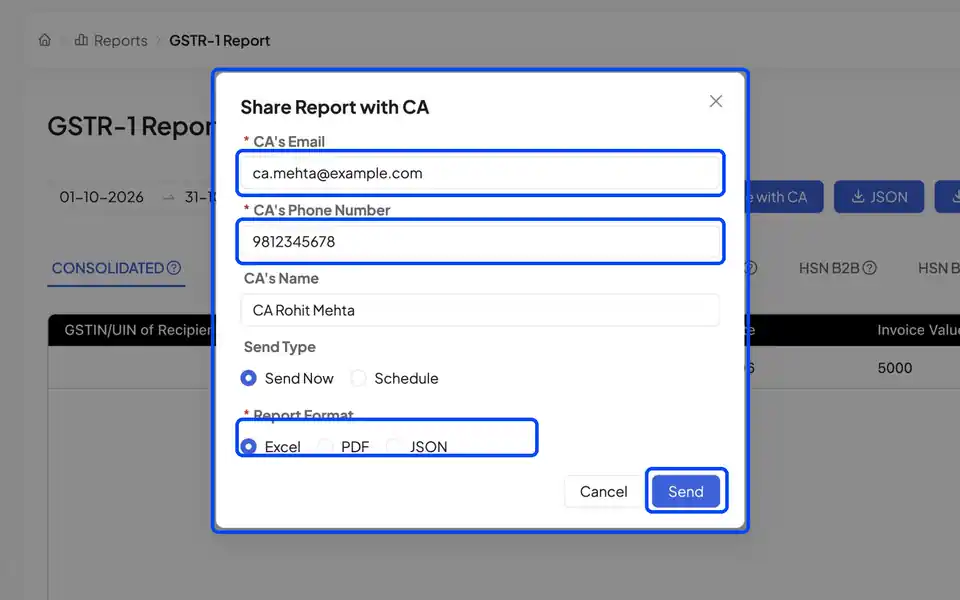
- Click Share with CA
- Enter your CA's email and phone number (both required) and, if you like, your CA's name
- Under Send Type, choose Send Now, or Schedule to send it later
- Under Report Format, pick Excel, PDF or JSON
- Click Send
Before You File: Quick Checklist
- ✅ The date range matches the return period you are filing
- ✅ All sales invoices for the period have been created in BillClap
- ✅ B2B invoices carry the correct GSTIN of your customer
- ✅ Every product has the right GST rate and HSN/SAC code
- ✅ Credit notes for sales returns are recorded, so they appear under CDNR/CDNUR
Frequently Asked Questions
Q: Does BillClap file my GSTR-1 on the GST portal?
No. BillClap prepares the report and the JSON file for you. You (or your CA) upload the JSON file and file the return on the GST portal.
Q: An invoice is missing from my GSTR-1. Why?
Check the date range at the top of the report — only invoices dated within the selected period are included. Also check that the invoice was saved and not left as a draft or cancelled.
Q: Why do the Taxable Value and GST totals show ₹0?
This happens when the invoices in the period have items without a GST rate. Open the product in Products, set the correct GST rate and HSN code, and use it on your invoices.
Q: How are credit and debit notes shown?
Credit and debit notes adjust the original invoice values. They are listed in the CDNR (registered customers) and CDNUR (unregistered customers) tabs. Review these sections to make sure the adjustments are reflected correctly in your return.
Q: Is the report final?
The report is derived from your records in BillClap and is meant for reference and filing preparation. Always review it before filing. Your final GSTR-3B is generated on the GST portal using your GSTR-1 and GSTR-2B data.
Need Help?
If you face any issues with the GSTR-1 report, our support team is available:
- 📞 Call/WhatsApp: 8882468190
- 📧 Email: support@billclap.com
- 🕐 Support Hours: Monday to Friday, 10 AM – 6:30 PM