
How to View and Download the GSTR-3B Report in BillClap
Your Monthly GSTR-3B Summary
GSTR-3B is the monthly summary return of your sales, purchases and the GST you owe. BillClap builds it for you from your invoices and purchase bills, so you can check the numbers and send the report to your CA in a click.
Step 1: Open the GSTR-3B Report
- Open Reports from the menu
- Under GST Reports, you'll find GSTR-1, GSTR-2 and GSTR-3B
- Click GSTR-3B Report
Step 2: Pick the Month and Download
- Pick the month at the top
- Click Excel or Download PDF to save the report for your CA
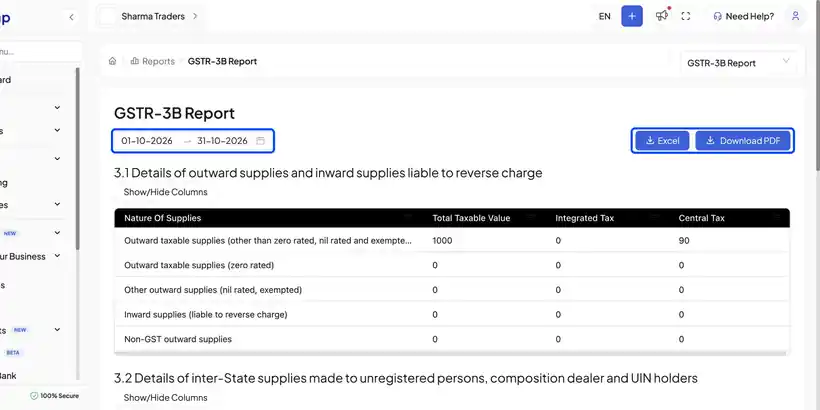
Step 3: Check Your Sales (Section 3.1)
Section 3.1 shows your outward supplies, that is, your sales. For example, a taxable value of ₹1,000 with ₹90 each of central tax (CGST) and state tax (SGST).
Step 4: Check Your Input Tax Credit
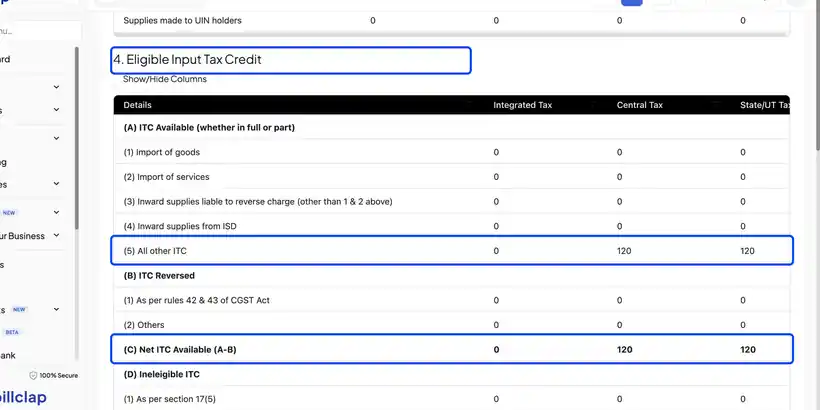
Scroll down to 4. Eligible Input Tax Credit. The GST you paid on purchases shows here, and Net ITC Available is what you can claim against the GST you owe.
Step 5: See Your Purchases in GSTR-2
Switch to GSTR-2 from the menu at the top of the report. It lists every purchase bill with its taxable value, CGST and SGST. Purchase returns have their own tab.
Frequently Asked Questions
Q: Why is my input tax credit zero?
ITC comes from your purchase bills. Record your supplier bills in Purchases with the right GST rate, and they will show in GSTR-3B and GSTR-2.
Q: Does BillClap file GSTR-3B for me?
BillClap prepares the summary. Download the Excel or PDF and file it on the GST portal, or share it with your CA.
Q: My numbers don't match my CA's numbers.
Check that the month is right and that all invoices and purchase bills for that month are saved, not left as drafts.
Need Help?
Our support team is available:
- 📞 Call/WhatsApp: 8882468190
- 📧 Email: support@billclap.com
- 🕐 Support Hours: Monday to Friday, 10 AM – 6:30 PM