
How to Add Google Reviews, Ratings and Shop Photos to Your BillClap Business Page
Customers trust a shop that shows real reviews and photos. In Grow Your Business you can bring your Google reviews into BillClap, add reviews yourself and upload photos of your shop. All of it appears on your free BillClap business page.
Not made your business page yet? Start with How to Create Your Free Online Business Page.
Part 1: Link your Google Business Profile
If your shop is on Google Maps, link it once and BillClap brings in your reviews, ratings and photos.
- In the left menu, click Grow Your Business, then Google Profile.
- In Business name, type your shop's name exactly as it appears on Google Maps.
- Pick your shop from the suggestions that appear.
- Click Save and fetch content.
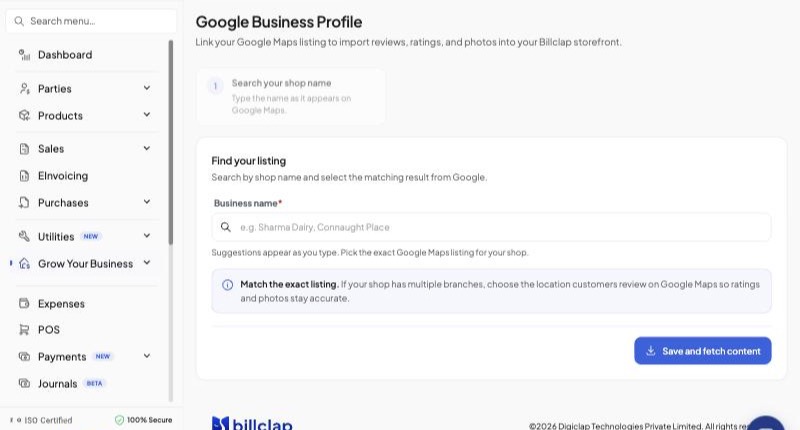
More than one branch? Choose the location your customers actually review on Google Maps, so the ratings and photos match the right shop.
Part 2: See and add reviews
- Click Grow Your Business, then Rating & Reviews.
- On the left you see your overall rating and how many 5-star, 4-star and other ratings you have. On the right is the list of all reviews.
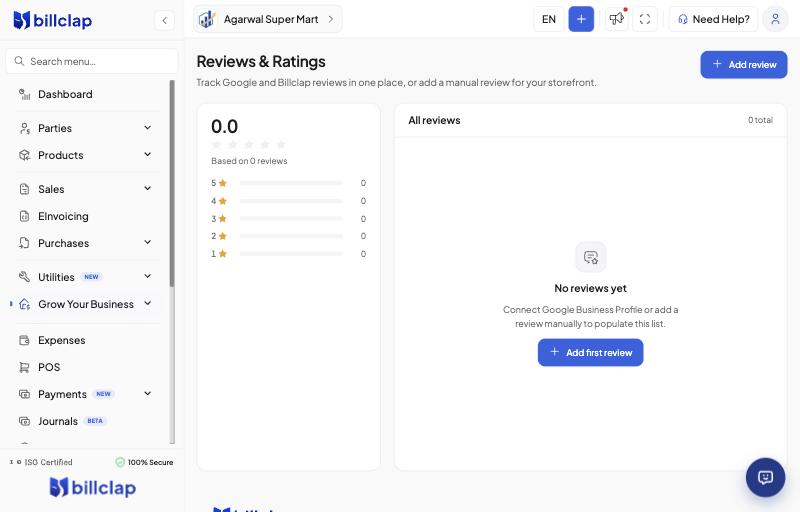
Add a review by hand
Got good feedback on WhatsApp or in person? You can add it yourself.
- Click Add review.
- Enter the Reviewer name. Email is optional.
- Click the stars to set the Rating.
- Type what the customer said in Review text (up to 500 characters).
- Click Save review.
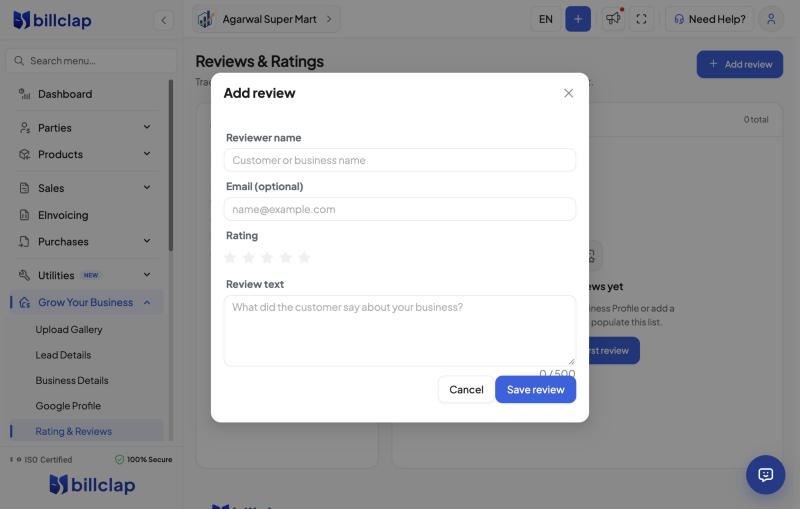
Add only real reviews from real customers, in their own words.
Part 3: Upload shop photos
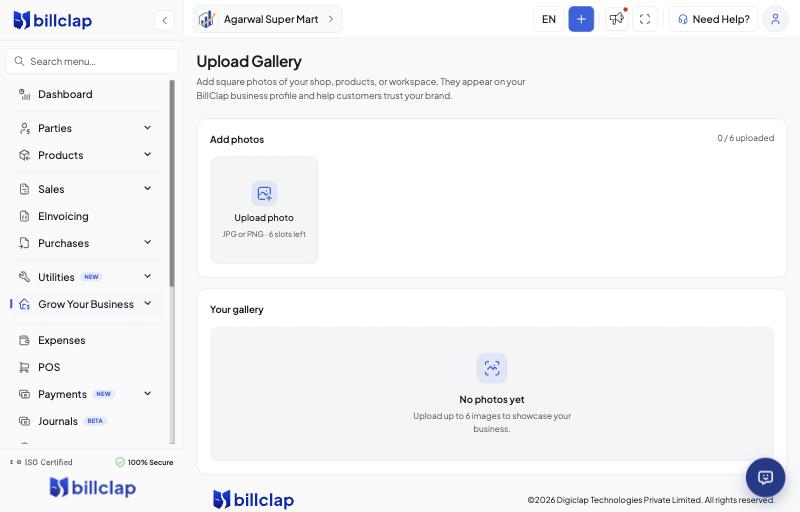
- Click Grow Your Business, then Upload Gallery.
- Click Upload photo and choose a picture. Use JPG or PNG, and square photos look best.
- Add up to 6 photos: your shop front, your shelves, your best products, your team.
Part 4: Check your enquiries
When someone sends an enquiry from your business page, it appears under Grow Your Business › Lead Details. You can also click Add Lead to note down an enquiry you received by phone, so all your leads are in one place.
Frequently Asked Questions
Q: My shop does not show in the Google suggestions. Why?
Your shop must already be listed on Google Maps. Type the name exactly as it shows there, and add your area if the name is common.
Q: Can I change which Google listing is linked?
Yes. Open Google Profile again, search for the correct listing and save.
Q: Where do customers see these reviews and photos?
On your BillClap business page, the public page you share with customers.
Need Help?
Our support team is available:
- 📞 Call/WhatsApp: 8882468190
- 📧 Email: support@billclap.com
- 🕐 Support Hours: Monday to Friday, 10 AM – 6:30 PM