
How to Create Your Free Online Business Page in BillClap and Get Enquiries
Your Free Online Business Page
Your customers search online before they visit a shop. BillClap gives your business a free online page with your photos, Google rating, products and contact buttons. Customers can send you an enquiry, call you or chat on WhatsApp straight from the page.
Every enquiry you get from your page is free. There is no commission and no middleman, and you are never charged for a lead.
Watch the video
Prefer to watch? See the full tutorial (1:49) on YouTube: https://www.youtube.com/watch?v=PDmQBTUTVYI
Step 1: Open Business Details and Copy Your Link
- In the left menu, open Grow Your Business, then Business Details
- At the top you will see your business link. This is the address of your online page
- Click Copy and share the link anywhere: WhatsApp status, Instagram bio, visiting cards or your shop's QR standee
- Set your store timings for each day. Your page shows your shop as open or closed on its own, based on the hours you choose
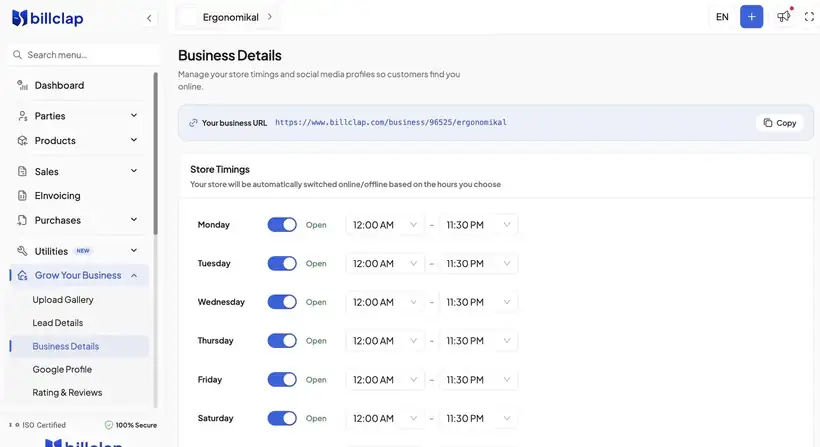
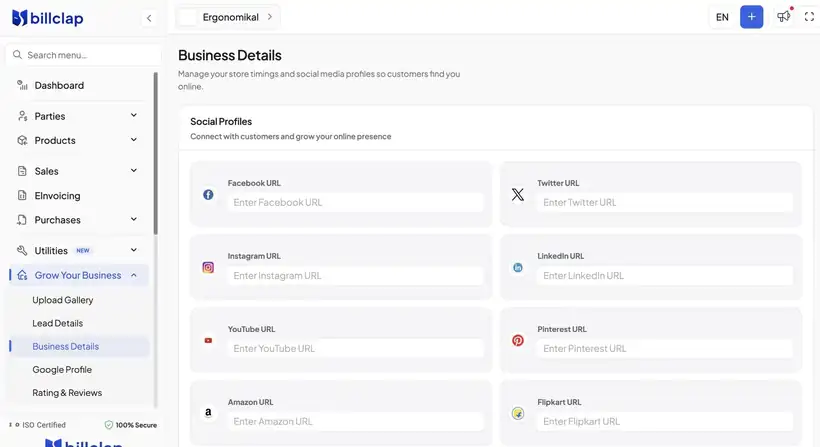
Step 2: Add Your Social Profiles
On the same page, add links to your Facebook and Instagram pages. If you also sell on Amazon or Flipkart, add those store links too. They show on your page so customers can follow you everywhere.
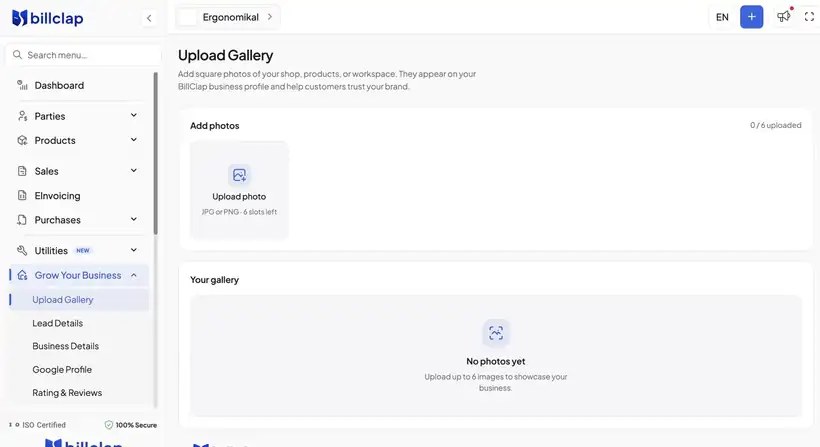
Step 3: Upload Photos to Your Gallery
- Open the Upload Gallery tab
- Add up to 6 photos of your shop or products
- Use square images in JPG or PNG format so they look neat on the page
💡 Tip: A clear photo of your shop front helps customers recognise it when they visit.
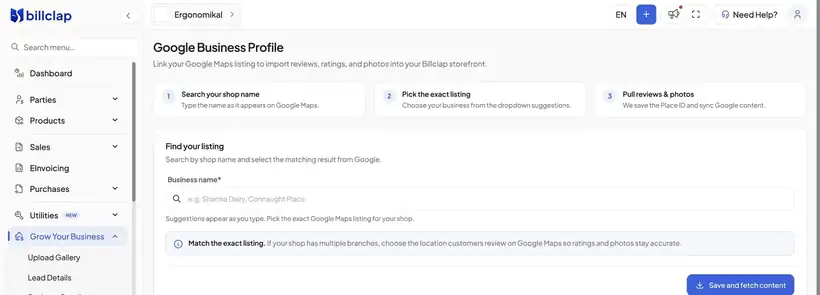
Step 4: Connect Your Google Profile
- Open the Google Profile tab
- Search for your shop name and pick your exact listing from the results
- Click Save and fetch content. BillClap brings in your Google reviews, rating and photos and shows them on your page
💡 Tip: Check the address in the search result before you select it, so you connect your own shop and not another branch with the same name.
Step 5: See What Your Customers See
Open your business link to see your page the way customers do. It shows your photos, your Google rating and reviews, your timings, and buttons to Enquire, Call or chat on WhatsApp.
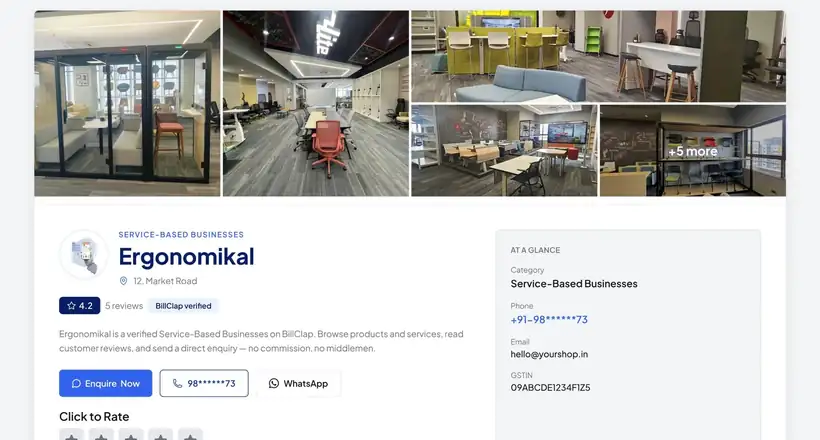
Your products appear on the page too, with their photos, so customers can see what you sell before they call. Products you add in BillClap show here automatically. To keep a product off your page, open Edit Product and turn on Hide Product from Shop.
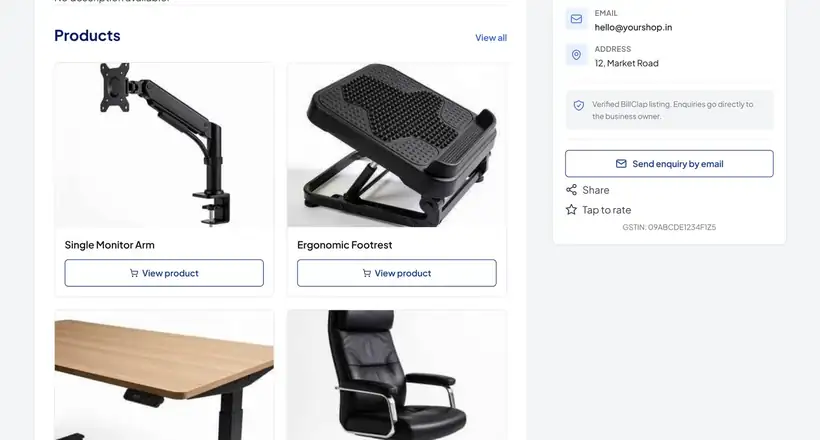
Your page is built with SEO best practices, which helps it show up when people search for your shop on Google.
Step 6: Works on Mobile Too
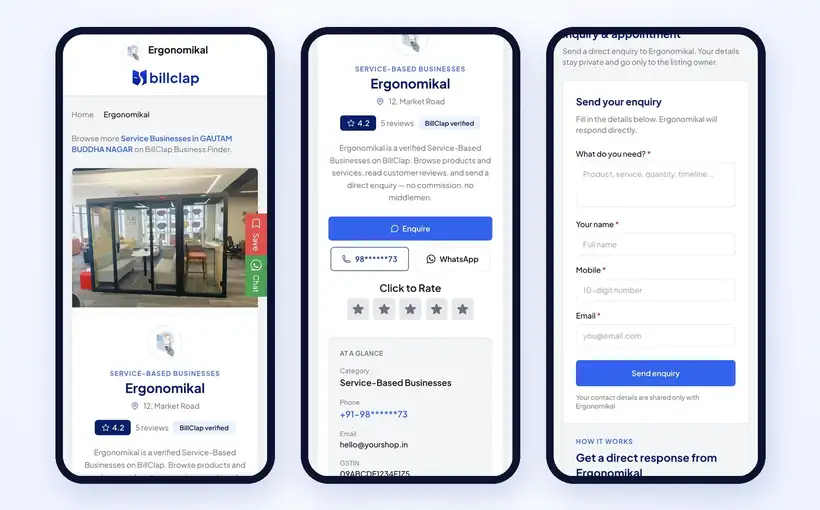
Most customers will open your page on their phone. The page fits any screen, and customers can call, chat on WhatsApp or send an enquiry right from their mobile.
Step 7: Get Free Enquiries in Lead Details
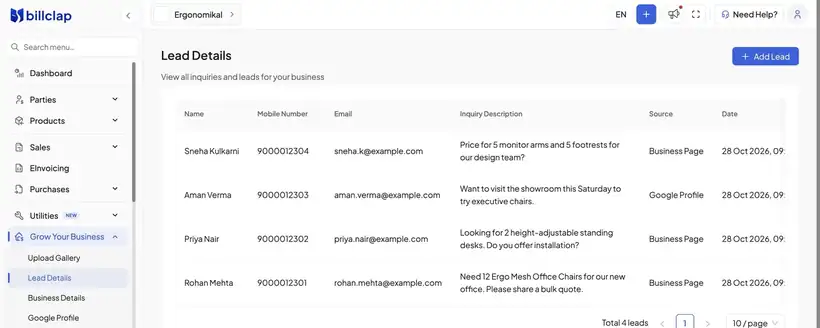
- When a customer sends an enquiry from your page, it comes straight to you
- In BillClap, open Lead Details to see each enquiry with the customer's name, phone number and what they need
- Call or WhatsApp them back quickly to turn the enquiry into a sale
- You can also add a lead yourself with Add Lead, for example when someone calls your shop
💡 Tip: Every lead is free. No commission, no middlemen, and no charge per enquiry.
Step 8: Keep an Eye on Rating and Reviews
Open Rating and Reviews to see your Google reviews and BillClap reviews in one place. Good reviews build trust with new customers who find your page.
Checklist
- ✅ Business link copied and shared
- ✅ Store timings set
- ✅ Social profiles added
- ✅ Up to 6 gallery photos uploaded
- ✅ Google Profile connected
- ✅ Products checked on your page
- ✅ Lead Details checked for new enquiries
Frequently Asked Questions
Q: Is the online business page really free?
Yes. The page is free, and so are the enquiries you get from it. BillClap does not take any commission on your leads.
Q: Where do I find my page link?
Open Grow Your Business, then Business Details. Your business link is at the top, with a Copy button.
Q: My Google reviews are not showing.
Open the Google Profile tab, search your shop name again, make sure you pick the exact listing for your shop, and save.
Q: Can I stop a product from showing on my page?
Yes. Open the product with Edit Product and turn on Hide Product from Shop.
Q: Does the page work on mobile?
Yes. It adjusts to any phone screen, and the call, WhatsApp and enquiry buttons work from mobile.
Need Help?
Our support team is available:
- 📞 Call/WhatsApp: 8882468190
- 📧 Email: support@billclap.com
- 🕐 Support Hours: Monday to Friday, 10 AM – 6:30 PM