
How to Set Up Low Stock Alerts in BillClap
Low stock alerts tell you when a product is running out, so you can reorder before you lose a sale. You set a warning level for each product, and BillClap highlights every item that falls to or below it.
Step 1: Open Inventory
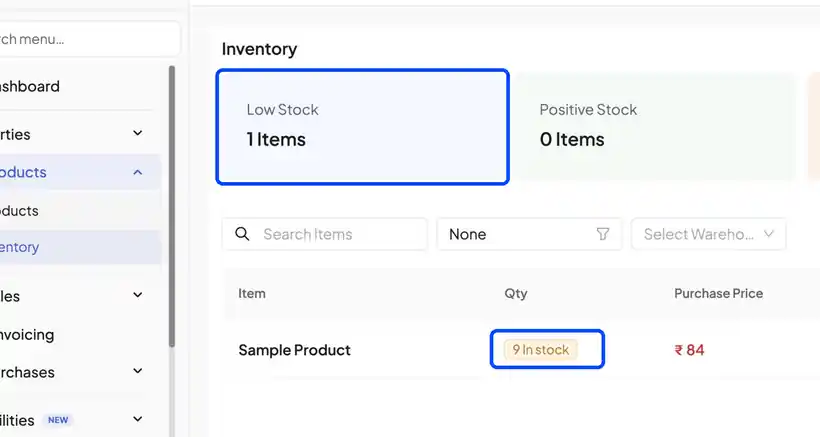
- Go to Products › Inventory.
- At the top you will see the Low Stock card, which shows how many products are running low.
- In the product list, quantities at or below the warning level are shown in orange.
Step 2: Turn On the Low Stock Warning
- Open Product Settings.
- Switch on Show Low Stock Warning.
- Click Update Settings.
Step 3: Set the Warning Level for a Product
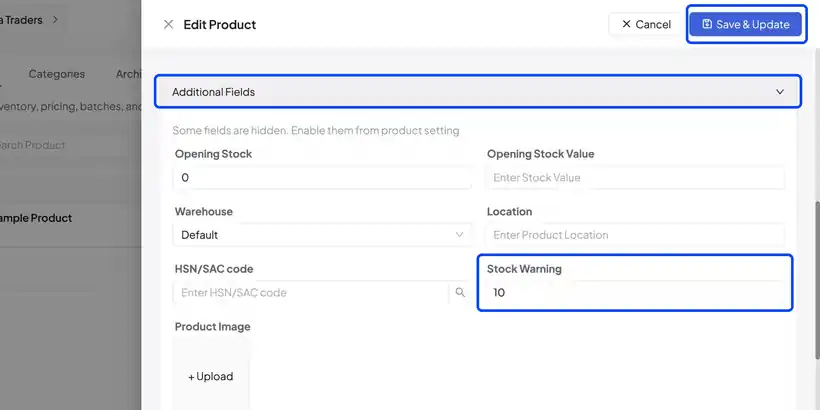
- Open the product you want to track and click Edit.
- Go to Additional Fields.
- Enter a number in Stock Warning, for example 10. When stock drops to 10 or less, the product is flagged as low stock.
- Save the product.
Step 4: Restock and Adjust
- Use Stock In on the Inventory screen to add stock you have received.
- Use Stock Out to remove damaged or used stock.
- Stock also updates automatically when you create sales and purchase invoices.
Frequently Asked Questions
Q: Do I have to set a warning level for every product?
No. Set it only for the products you want to track. Products without a Stock Warning value are not flagged.
Q: Why is a product not showing as low stock?
Check that Show Low Stock Warning is on in Product Settings and that the product has a Stock Warning value in Additional Fields.
Q: Does the alert remove the product from sale?
No. It is only a reminder. You can still bill the product.
Need Help?
Our support team is available:
- 📞 Call/WhatsApp: 8882468190
- 📧 Email: support@billclap.com
- 🕐 Support Hours: Monday to Friday, 10 AM – 6:30 PM