
How to Manage Multiple Warehouses and Transfer Stock in BillClap
If you keep goods in more than one place, such as a shop and a godown, add each place as a warehouse in BillClap. You can then see stock location-wise and move stock from one place to another with Stock Transfer.
Note: Warehouses and Stock Transfer are marked BETA in BillClap.
Part 1: Add a warehouse
Step 1: Open Manage Stores
In the left menu, click Warehouses, then Manage Stores. Every business starts with one warehouse called Default. Click Add Warehouse.
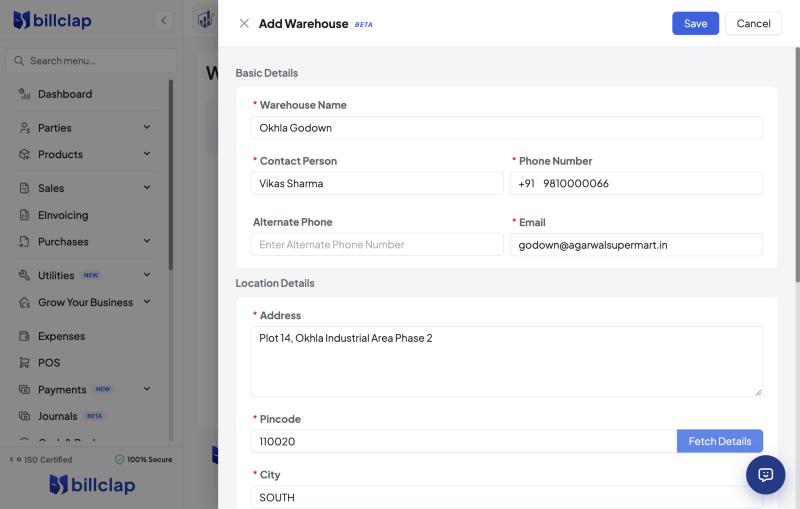
Step 2: Fill in the warehouse details
Fields with a red star are required:
- Warehouse Name, for example "Okhla Godown"
- Contact Person, Phone Number and Email
- Address and Pincode. Click Fetch Details to fill the city and state from the pincode.
Further down you can also add a warehouse code, GSTIN, opening and closing time and instructions. These are optional.
Step 3: Save
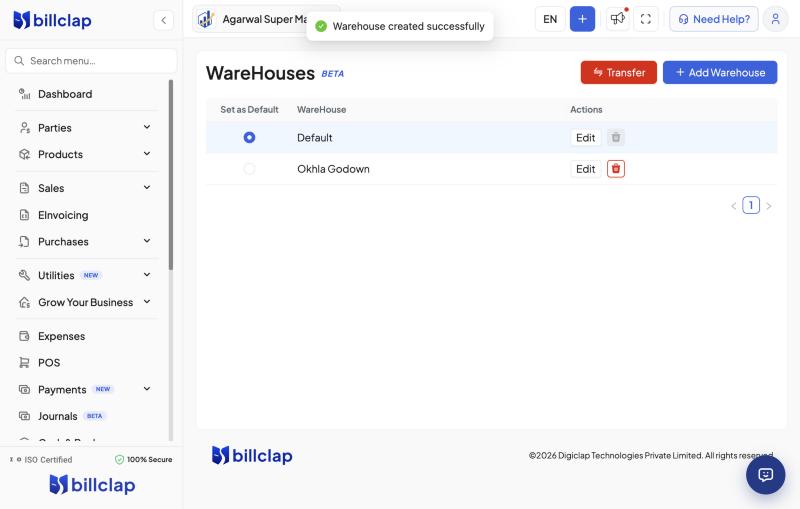
Click Save. The new warehouse appears in the list. Use Edit to change its details. The round button under Set as Default decides which warehouse is used by default.
Part 2: Transfer stock between warehouses
Step 1: Open the transfer form
Click the red Transfer button on the Warehouses or Stock Transfer page.
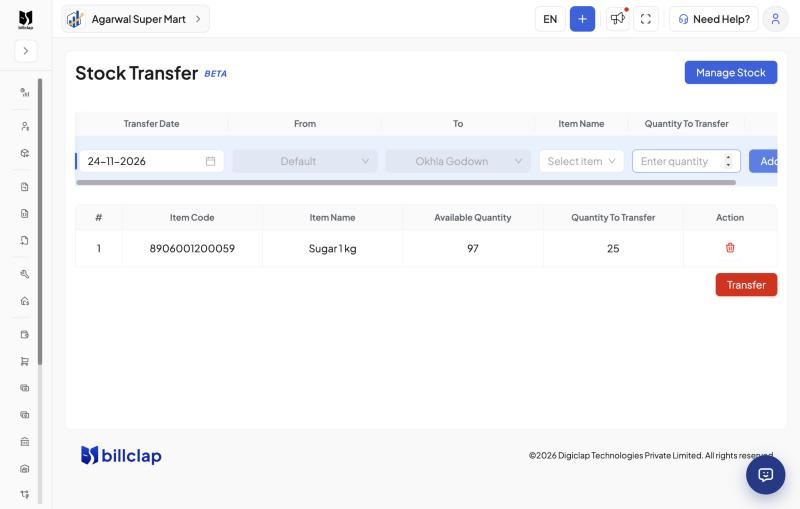
Step 2: Choose From, To and the items
- Check the Transfer Date.
- In From, choose the warehouse the goods are leaving.
- In To, choose the warehouse receiving them.
- Under Item Name, search and pick the product. Its available quantity is shown next to the name.
- Enter the Quantity To Transfer and click Add Item.
- Repeat for every item going in the same transfer.
Step 3: Click Transfer
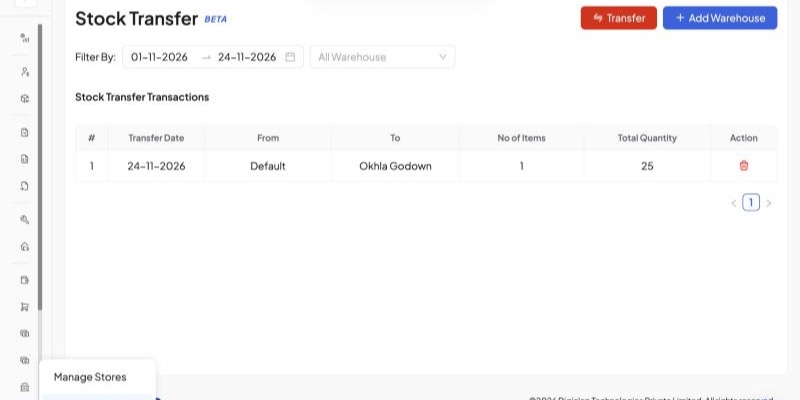
Check the list and click Transfer. You see the message "Stock transferred successfully" and the transfer is listed with its date, From, To, number of items and total quantity.
See stock warehouse-wise
- On Products › Inventory, use the Select Warehouse filter to see the stock at one location.
- When you use Stock In or Stock Out, choose the Warehouse the change applies to.
- In Reports, open the Stock Transfer Report for a full record of transfers.
Frequently Asked Questions
Q: Does a transfer change my total stock?
No. A transfer only moves quantity from one warehouse to another. Your total stock stays the same.
Q: I made a wrong transfer. What should I do?
Use the red bin icon next to the transfer in the Stock Transfer list to remove it, or make a transfer in the opposite direction.
Q: Do I need warehouses if I have only one shop?
No. All your stock stays in the Default warehouse and you can ignore this feature.
Need Help?
Our support team is available:
- 📞 Call/WhatsApp: 8882468190
- 📧 Email: support@billclap.com
- 🕐 Support Hours: Monday to Friday, 10 AM – 6:30 PM