
Product Categories, Bulk Add and Product Settings in BillClap
Once you have more than a few products, three tools on the Products page keep things tidy: Categories, More actions and Product Settings.
Part 1: Product categories
Categories group similar products, such as Groceries, Personal Care or Snacks. They make products quicker to find while billing and let you see sales and stock category-wise.
Add a category
- In the left menu, click Products, then Products.
- Open the Categories tab at the top.
- Click Add Category.
- Type the name in Category. You can also upload a Category Image.
- Click Submit.
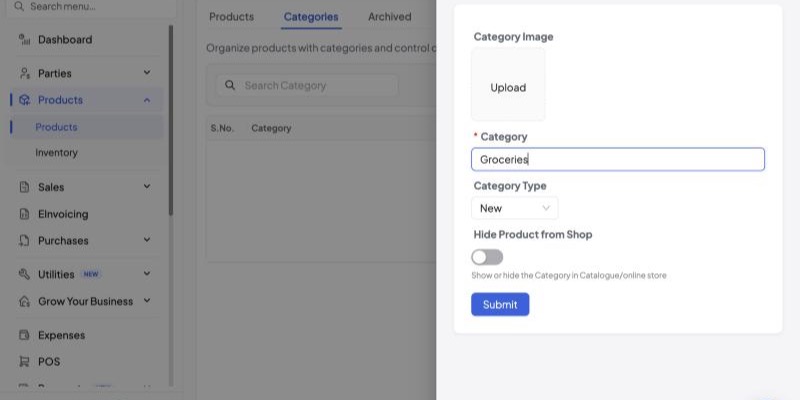
The Hide Product from Shop switch hides this category from your online catalogue or store. Leave it off to keep the category visible.
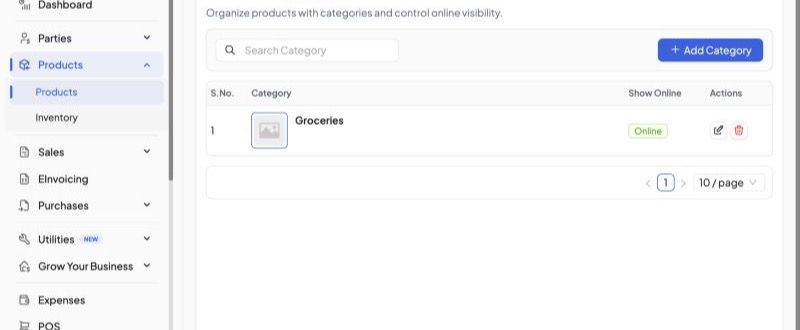
Use the pencil icon to rename a category and the bin icon to delete it.
Put products in a category
Choose the category when you add or edit a product. See How to Add a Product.
Where categories help
- On the Products page, the Category filter shows one category at a time.
- On the invoice form, the category box above the item table narrows the product search.
- In Reports, see Sale/Purchase by Item Category and Stock Summary Report by Item Category.
Part 2: More actions
On the Products tab, click More actions.
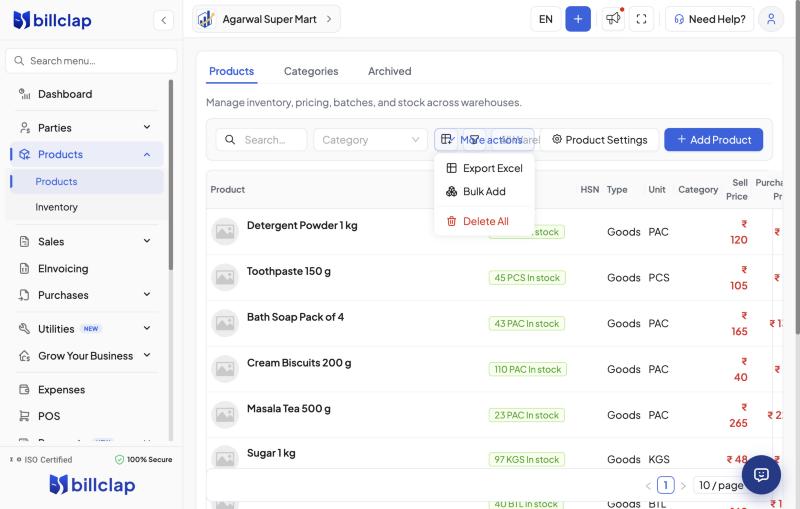
- Export Excel: download your full product list.
- Bulk Add: add many products in one go instead of one by one.
- Delete All: removes all your products. Use this only if you are sure, for example to clear test data before you start. Export your list first.
Part 3: Product Settings
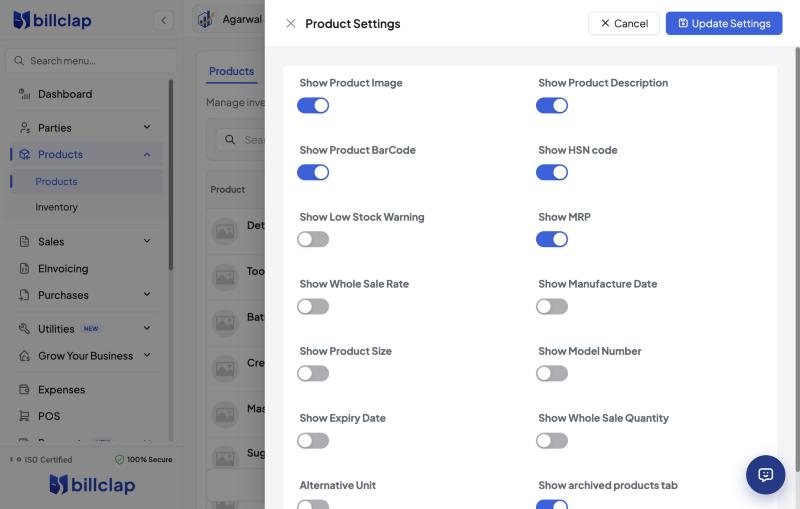
Click Product Settings to choose which product details BillClap shows. Switch on only what your business uses, then click Update Settings.
| Setting | Useful for |
|---|---|
| Show Product Image, Show Product Description | Shops that want pictures and details with each item |
| Show Product BarCode, Show HSN code | Barcode billing and GST invoices |
| Show MRP | Packaged goods sold below MRP |
| Show Low Stock Warning | Getting a warning when stock runs low |
| Show Whole Sale Rate, Show Whole Sale Quantity | Selling at a different rate for bulk orders |
| Show Expiry Date, Show Manufacture Date | Medicines, food and other dated goods |
| Show Product Size, Show Model Number | Garments, footwear, electronics |
| Alternative Unit | Buying in one unit and selling in another, such as box and piece |
| Show archived products tab | Keeping the Archived tab visible on the Products page |
Related guides
- How to Adjust Stock with Stock In and Stock Out
- How to Set Up Low Stock Alerts
- How to Print Barcode Labels
Need Help?
Our support team is available:
- 📞 Call/WhatsApp: 8882468190
- 📧 Email: support@billclap.com
- 🕐 Support Hours: Monday to Friday, 10 AM – 6:30 PM