
How to Adjust Stock with Stock In and Stock Out in BillClap
Your stock changes on its own when you make invoices and purchase bills. For everything else, such as damaged goods, free samples, a counting mistake or stock received without a bill, use Stock In and Stock Out to correct the quantity by hand.
Step 1: Open Inventory
In the left menu, click Products, then Inventory. You see every item with its current quantity, purchase price and sales price. The cards at the top show how many items are low on stock and the total value of your stock.
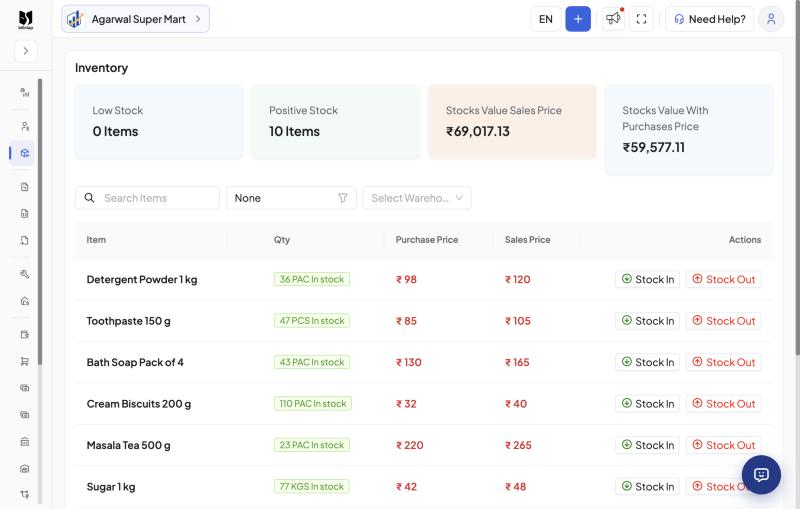
Use Search Items to find a product quickly, or the warehouse filter to see stock at one location.
Step 2: Add stock with Stock In
- Click Stock In on the item's row.
- Enter the Quantity you are adding. The current available quantity is shown below the box.
- Check the Record Time (date) and, if you use more than one, the Warehouse.
- Enter At Price, the rate you got this stock at (optional).
- Add Remarks so you remember why, for example "Stock received without bill".
- Click Add Quantity.
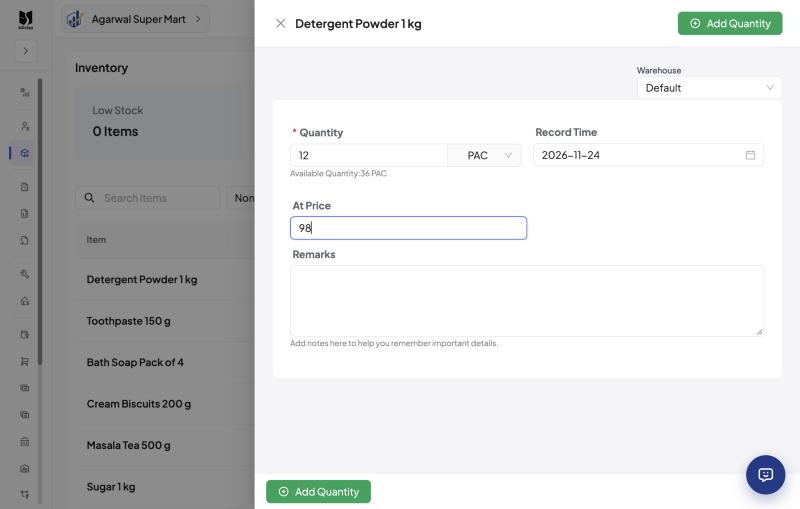
The quantity in the list updates straight away.
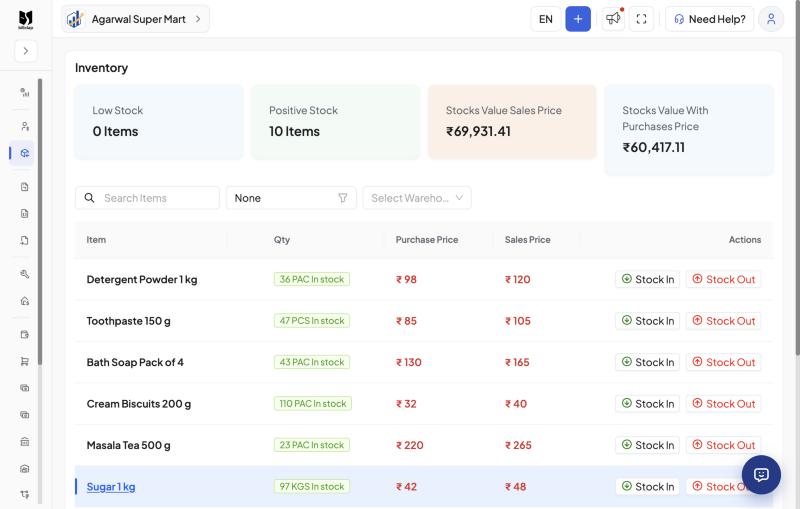
Step 3: Reduce stock with Stock Out
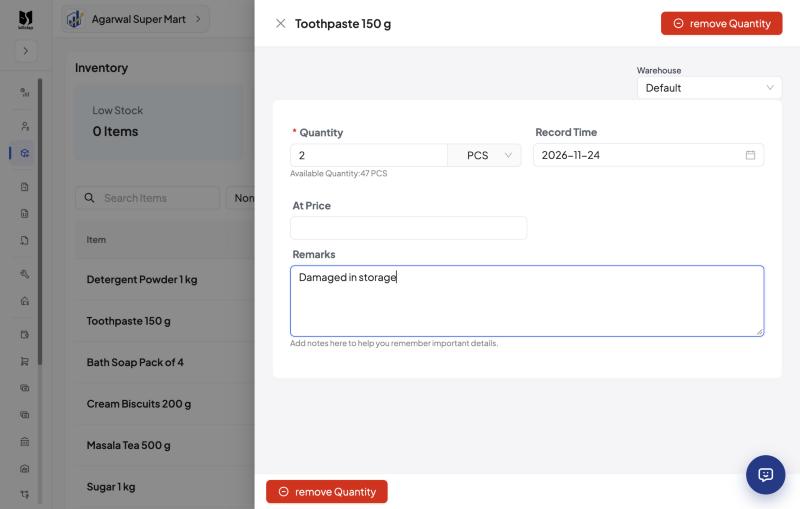
- Click Stock Out on the item's row.
- Enter the Quantity to remove.
- Add Remarks, for example "Damaged in storage" or "Free sample".
- Click remove Quantity.
Step 4: Check an item's stock history
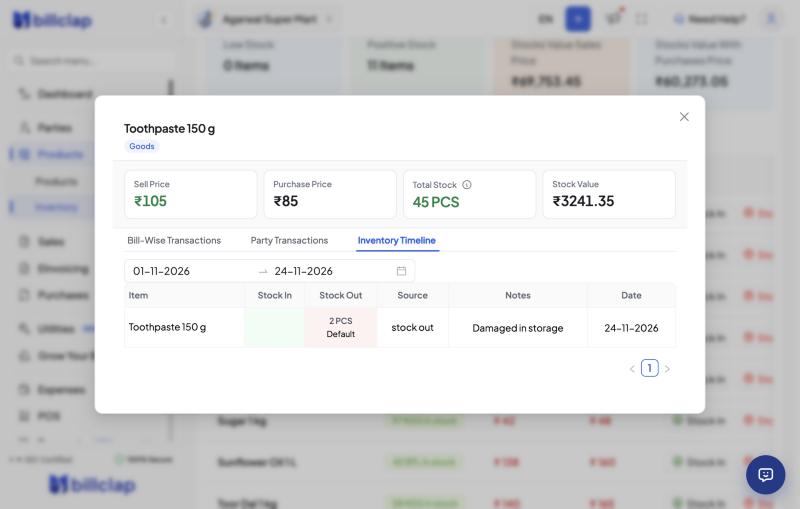
- On the Inventory page, click the item name.
- A window opens with the sell price, purchase price, total stock and stock value.
- Open the Inventory Timeline tab to see every stock movement: sales, sales returns, Stock In and Stock Out, each with its quantity, source, notes and date.
- Bill-Wise Transactions and Party Transactions show which bills and which customers the item was sold on.
When should I use Stock In / Stock Out?
- Use it for: damaged or expired goods, samples, own use, theft or loss, correcting a wrong count.
- Do not use it for normal buying and selling. Record a purchase bill when you buy and a tax invoice when you sell. Those update stock for you and keep your accounts right.
Frequently Asked Questions
Q: I entered the wrong quantity. How do I fix it?
Make the opposite entry. If you added 10 too many with Stock In, remove 10 with Stock Out, and mention the reason in Remarks.
Q: Where do I set the opening stock of a new product?
Enter it when you add the product. See How to Add a Product.
Q: How do I get a warning before an item runs out?
See How to Set Up Low Stock Alerts.
Need Help?
Our support team is available:
- 📞 Call/WhatsApp: 8882468190
- 📧 Email: support@billclap.com
- 🕐 Support Hours: Monday to Friday, 10 AM – 6:30 PM