
How to Use Delivery Challans, Sale Orders and Purchase Orders in BillClap
Not every deal starts with an invoice. Sometimes you send goods first, take an order to deliver later, or place an order with your supplier. BillClap has a document for each case, and each one converts to the final bill in one click, so you never type the items twice.
| Document | Use it when | Where |
|---|---|---|
| Delivery Challan | You send goods now and bill later | Sales › Delivery Challan |
| Sale Order | A customer confirms an order you will deliver later | Sales › Sale Order |
| Purchase Order | You order goods from a supplier | Purchases › Purchase Order |
All three forms work like the tax invoice form: pick the party, add items, save. If you are new to it, read How to Create a GST Tax Invoice first.
Part 1: Delivery Challan
Create a challan
- Go to Sales › Delivery Challan and click Create Delivery Challan.
- Select the customer.
- Add the items and quantities you are sending.
- Switch on Generate Eway Bill if the goods need an e-way bill.
- Click Save.
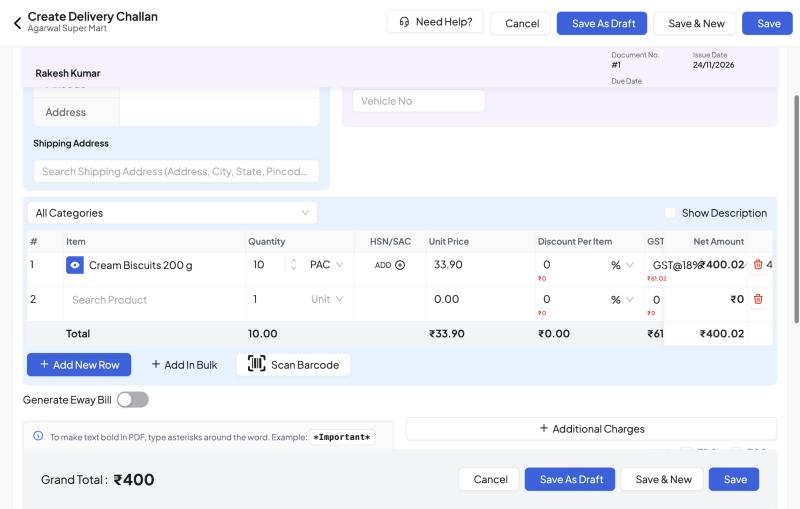
Tick Create Delivery Challan Without GST at the top if you do not want GST on the challan.
Convert the challan to an invoice
- Open the saved challan.
- Under Actions, click Convert, then Convert to Sales Invoice.
- Check the invoice and click Save.
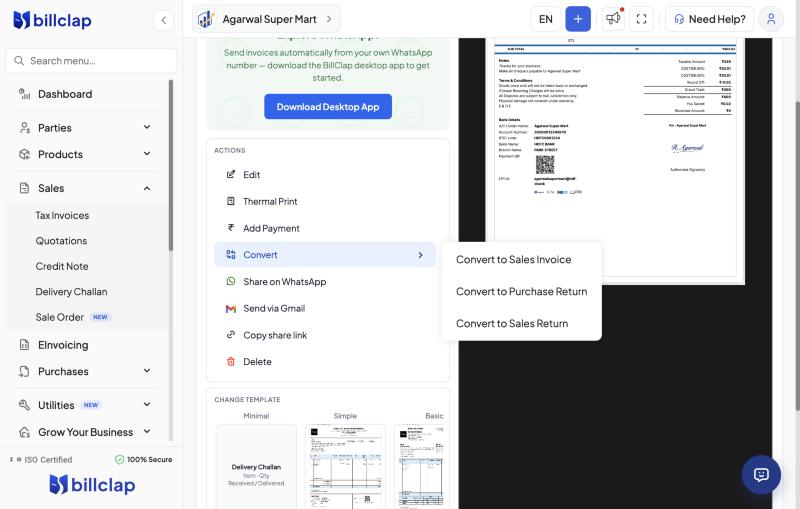
A delivery challan on its own does not change your stock. Stock reduces when the challan becomes a sales invoice.
Part 2: Sale Order
Create a sale order
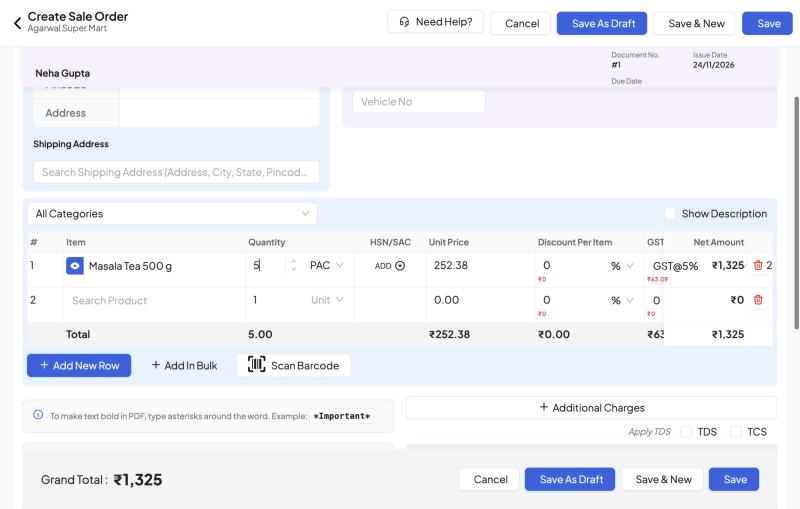
- Go to Sales › Sale Order and click Create Sale Order.
- Select the customer and add the items they ordered.
- Click Save. You can print the order or share it with the customer.
Convert the sale order
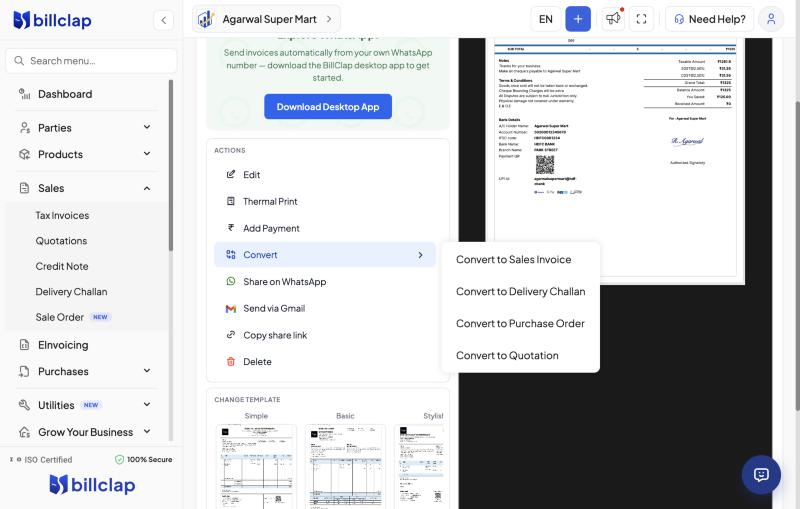
Open the sale order and click Convert. You can turn it into a:
- Sales Invoice, when you bill the customer
- Delivery Challan, when you dispatch the goods first
- Purchase Order, when you need to order the same items from your supplier
- Quotation
Part 3: Purchase Order
Create a purchase order
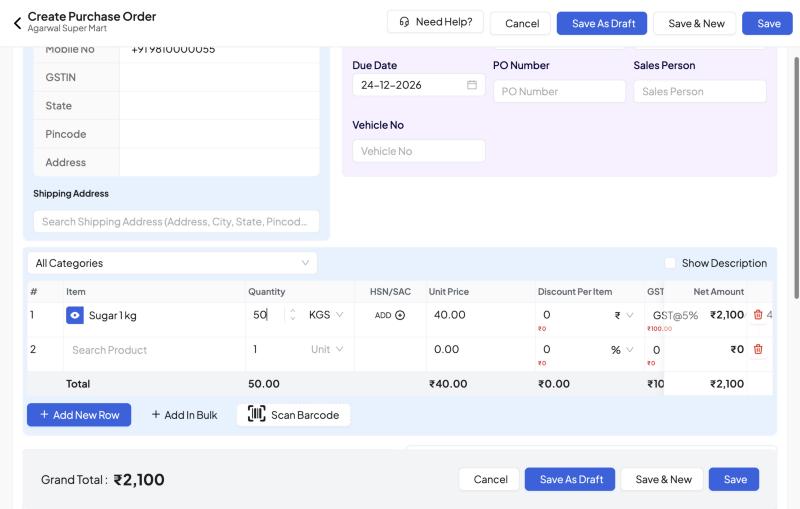
- Go to Purchases › Purchase Order and click Create Purchase Order.
- Select the vendor.
- Add the items and the quantity you want to order. The price is filled from the product's purchase price.
- Click Save, then print or share the order with your supplier.
Convert when the goods arrive
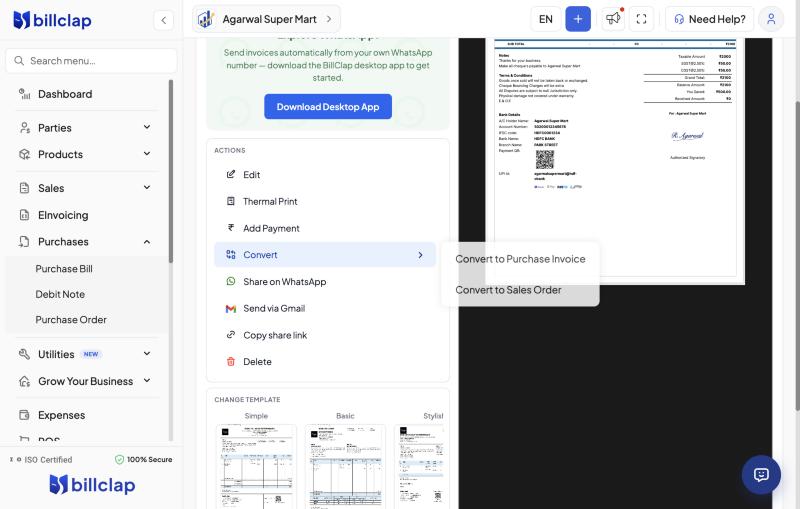
- Open the purchase order.
- Click Convert, then Convert to Purchase Invoice.
- Match the quantities and rates with the supplier's bill and save.
A purchase order does not add stock. Stock goes up when you save the purchase invoice.
Track your orders
Go to Reports to see the Delivery Challan Report, Sale Order Report, Sale Order Items Report, Purchase Order Report and Purchase Order Items Report.
Frequently Asked Questions
Q: Do I have to type the items again when I make the invoice?
No. Use Convert on the challan or order. The party and items are copied to the new document.
Q: Can I edit an order after saving?
Yes. Open it and click Edit under Actions.
Q: What about quotations?
See How to Create a Quotation and Convert It to an Invoice.
Need Help?
Our support team is available:
- 📞 Call/WhatsApp: 8882468190
- 📧 Email: support@billclap.com
- 🕐 Support Hours: Monday to Friday, 10 AM – 6:30 PM