
How to Create a Quotation and Convert It to an Invoice in BillClap
When a customer wants a price first, send them a quotation. Once they say yes, convert it into a tax invoice in one click, with the same customer, items and prices already filled in.
Step 1: Create a Quotation
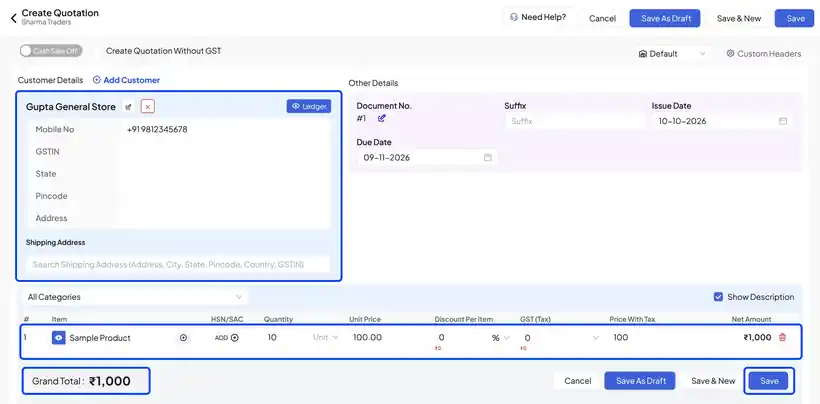
- Go to Sales › Quotations and click Create Quotation.
- It works just like an invoice. Select the customer, add items and quantities, and check the total.
- Click Save.
Step 2: Share It with the Customer
- The quotation opens with a preview.
- Click Share on WhatsApp to send it straight to the customer.
- Or click Copy share link and paste it anywhere, such as an email or SMS.
Step 3: Convert It to an Invoice
- When the customer approves, open the quotation.
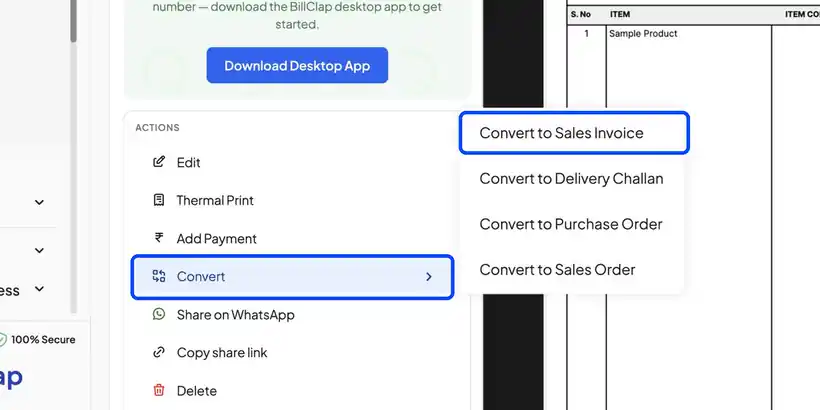
- Click Convert and choose Convert to Sales Invoice. You can also convert it to a Delivery Challan or a Sales Order.
- A new tax invoice opens, already filled with the same customer, items and prices. Check it and click Save.
Frequently Asked Questions
Q: Does a quotation reduce my stock?
No. Stock changes only when you convert the quotation into an invoice or delivery challan.
Q: Can I edit the invoice after converting?
Yes. Change quantities, prices or items on the new invoice before you save it.
Q: Is a quotation the same as an estimate?
Yes. Use quotations for estimates, price quotes and proforma offers.
Need Help?
Our support team is available:
- 📞 Call/WhatsApp: 8882468190
- 📧 Email: support@billclap.com
- 🕐 Support Hours: Monday to Friday, 10 AM – 6:30 PM