
How to Bill a Walk-In Customer with Cash Sale in BillClap
Bill a Walk-In Customer with Cash Sale
For counter sales to walk-in customers, you don't need to add the customer as a party first. Switch on Cash Sale, add your items and save. The bill is created and marked paid in one step, and your stock updates too.
Step 1: Switch Cash Sale On
- Open Sales, then Tax Invoices, and click Create
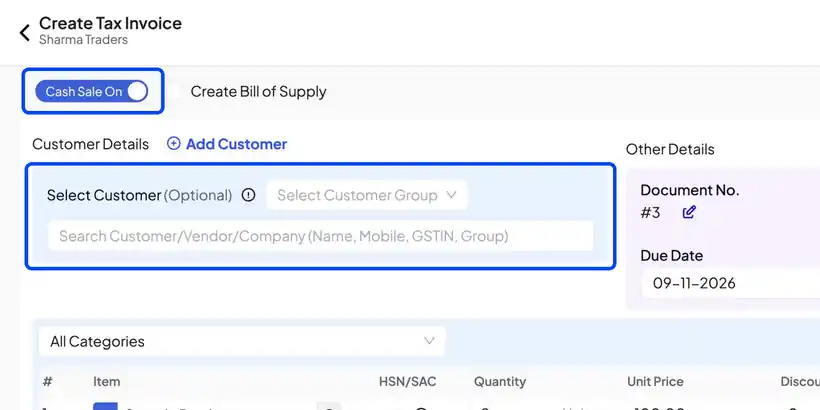
- At the top, switch Cash Sale on
- The customer is now optional, so you can leave it blank for a walk-in customer
Step 2: Add Your Items
- Search and add your items, just like any invoice
- Change the quantity if needed. BillClap works out the total for you
Step 3: Check the Payment and Save
- Scroll down to the payment section
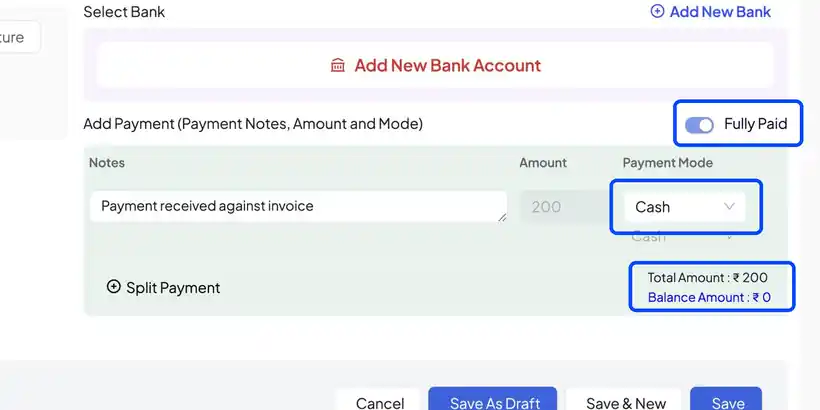
- With Cash Sale on, the bill is already marked Fully Paid, with Cash as the payment mode, so the balance is zero
- Paid by UPI or card instead? Pick it from the payment mode list
- Paid part cash, part UPI? Use Split Payment
- Click Save
Frequently Asked Questions
Q: Can I add the customer's name on a cash sale?
Yes. The customer is optional, not hidden. Pick or add a customer if they want their name on the bill.
Q: Does a cash sale reduce my stock?
Yes. A cash sale reduces stock just like any other invoice.
Q: Where do cash sales show up?
They appear in your Tax Invoices list and in your sales and GST reports, the same as other invoices.
Need Help?
Our support team is available:
- 📞 Call/WhatsApp: 8882468190
- 📧 Email: support@billclap.com
- 🕐 Support Hours: Monday to Friday, 10 AM – 6:30 PM