
How to Record a Sales Return (Credit Note) and Purchase Return (Debit Note) in BillClap
When a customer returns goods, you record a Credit Note (sales return). When you return goods to your supplier, you record a Debit Note (purchase return). BillClap corrects your stock for you in both cases.
| Situation | Document | Where | Stock |
|---|---|---|---|
| Customer returns goods to you | Credit Note | Sales › Credit Note | Goes up |
| You return goods to your supplier | Debit Note | Purchases › Debit Note | Goes down |
Part 1: Sales return (Credit Note)
Step 1: Open the original invoice and choose Convert
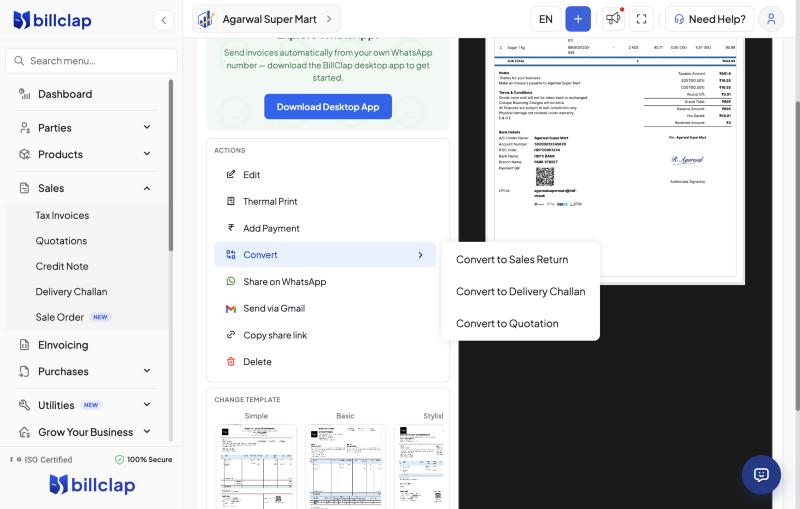
- Go to Sales › Tax Invoices and open the invoice the goods were sold on.
- Under Actions, click Convert, then Convert to Sales Return.
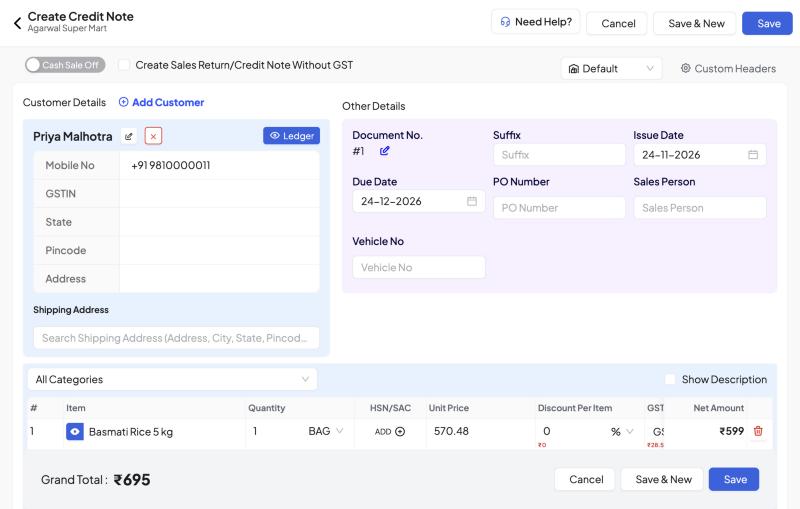
A credit note opens with the customer and all items from that invoice already filled in.
Step 2: Keep only what was returned
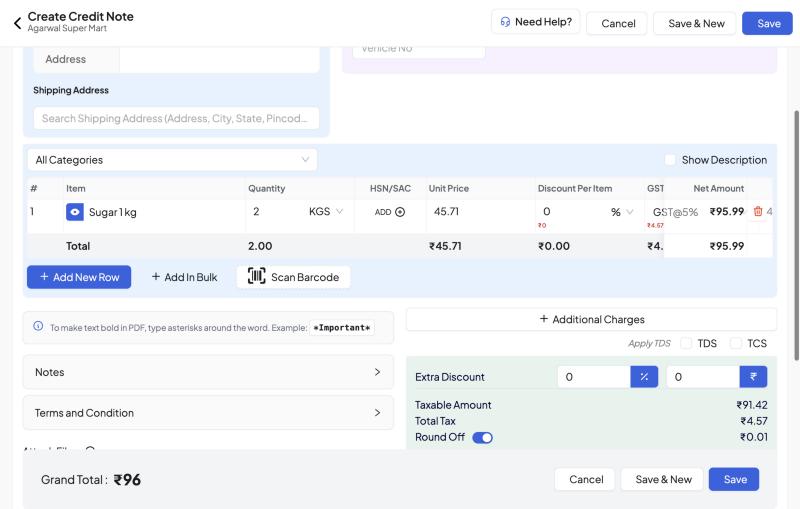
- Delete the rows that were not returned using the red bin icon.
- Change the Quantity if only part of an item came back.
- Check the Grand Total. This is the value of the return.
Step 3: Save
Click Save. The credit note opens with a preview. You can print it, share it on WhatsApp or send it by Gmail, just like an invoice. If you are refunding money to the customer, record it with Add Payment.
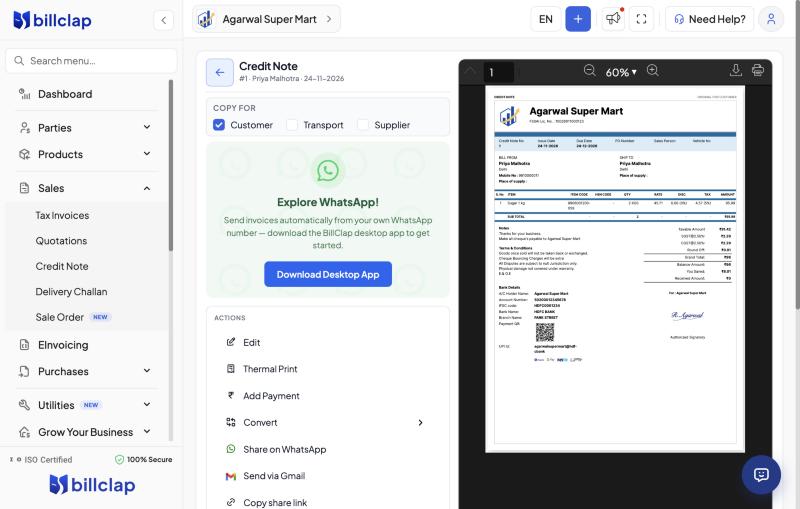
The returned quantity is added back to your stock.
No original invoice?
Go to Sales › Credit Note and click Create Credit Note. Select the customer, add the returned items and save. Tick Create Sales Return/Credit Note Without GST at the top if the return has no GST.
Part 2: Purchase return (Debit Note)
Step 1: Create the debit note and select the vendor
- Go to Purchases › Debit Note and click Create Debit Note.
- Under Select Vendor, search for the supplier and pick them. Use Add Vendor if they are new.
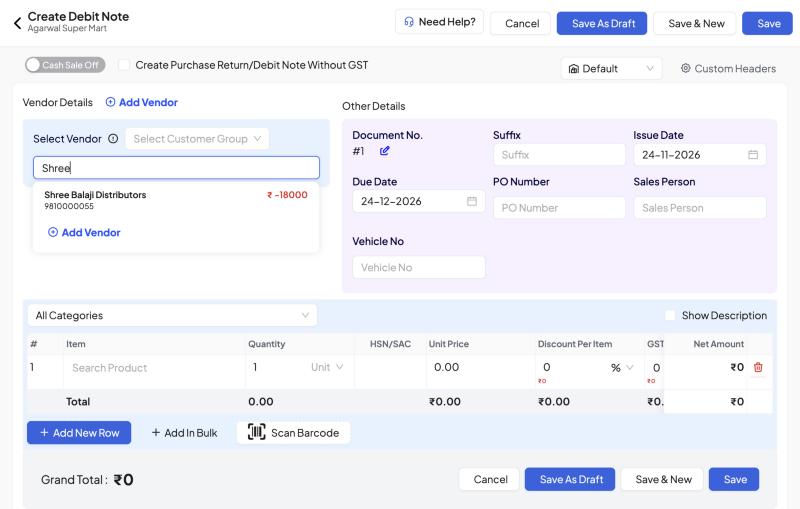
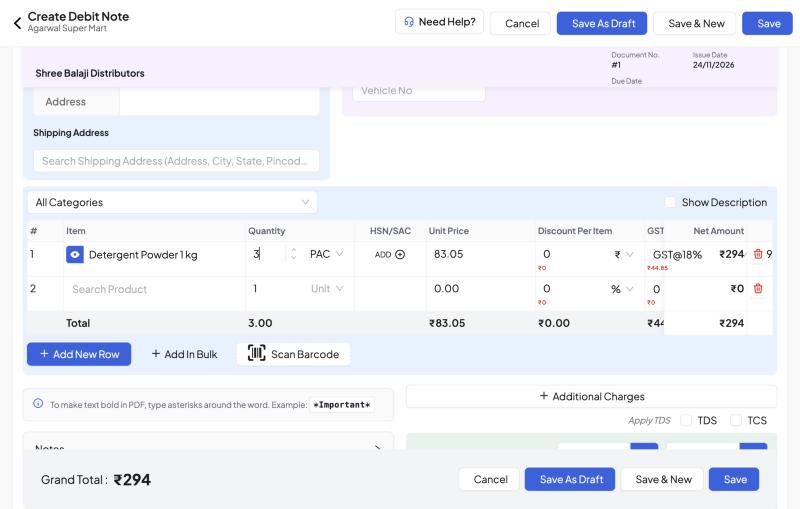
Step 2: Add the items you are sending back
- Click Search Product and pick the item.
- Enter the Quantity you are returning. The price is filled from the product's purchase price; edit it if the bill rate was different.
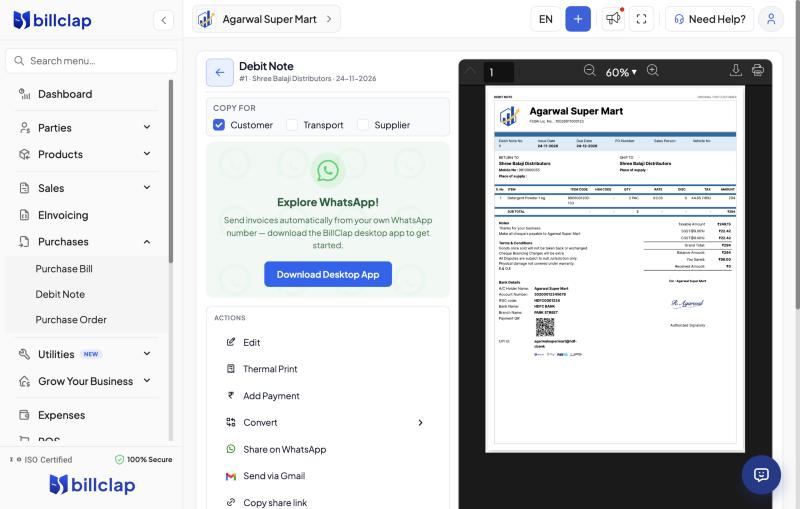
Step 3: Save
Click Save. The debit note opens with a preview that you can print or share with your supplier. The returned quantity is taken out of your stock.
Tick Create Purchase Return/Debit Note Without GST at the top of the form if the return has no GST.
Frequently Asked Questions
Q: Can I return only part of an invoice?
Yes. After converting, delete the rows that were not returned and reduce the quantity on the ones that were.
Q: Does stock update automatically?
Yes. A credit note adds the returned quantity back to stock. A debit note removes it. You can see both entries in the item's Inventory Timeline under Products › Inventory.
Q: Can I edit or delete a credit or debit note?
Yes. Open it and use Edit or Delete under Actions.
Related guides
Need Help?
Our support team is available:
- 📞 Call/WhatsApp: 8882468190
- 📧 Email: support@billclap.com
- 🕐 Support Hours: Monday to Friday, 10 AM – 6:30 PM