
How to Record a Purchase Bill in BillClap
Record a Purchase Bill
When you buy stock from a supplier, record their bill as a Purchase Bill in BillClap. As soon as you save, your stock goes up, the product's purchase price is updated and your purchase totals are correct — no separate stock entry needed.
Step 1: Start the Bill
- In the left menu, open Purchases, then Purchase Bill
- Click Create Purchase Bill
Step 2: Add the Vendor and Items
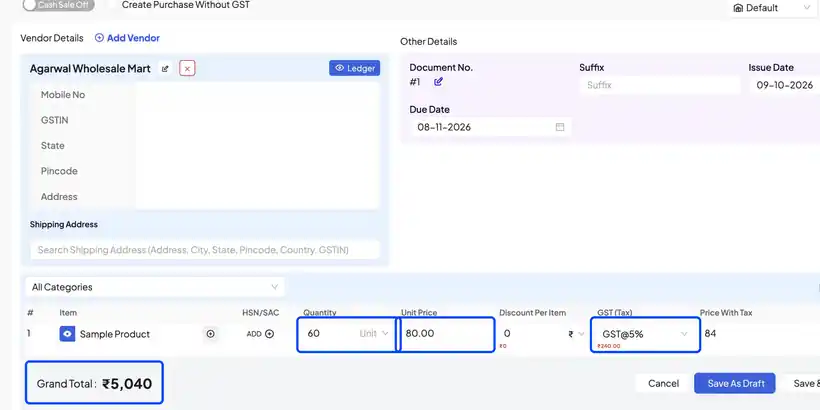
- Under Vendor Details, search and pick your vendor, or click Add Vendor to create a new one
- The document number, issue date and due date fill in for you — change them if needed
- In the item row, Search Product and pick the product you bought
- Enter the quantity, the unit price you paid, any discount, and the GST rate
BillClap works out the price with tax, net amount and grand total. For example, 60 units at ₹80 with 5% GST comes to ₹5,040 (₹4,800 taxable + ₹240 tax).
💡 Tip: Bought from an unregistered supplier? Tick Create Purchase Without GST.
Step 3: Record the Payment and Save
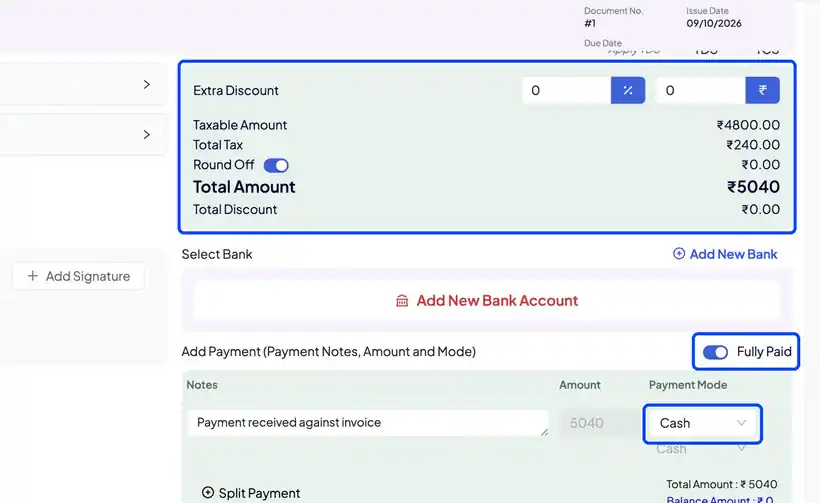
- Check the Taxable Amount, Total Tax and Total Amount
- If you have already paid the supplier, switch on Fully Paid and choose the payment mode (for example, Cash)
- Paid only part? Leave Fully Paid off and type the amount you paid. Use Split Payment if you paid in more than one mode
- Click Save
The bill now appears in your Purchase Bill list with its status (Paid, Partially Paid or Pending) and payment mode. In Products, the stock of the item has gone up by the quantity you bought.
Other Save Options
- Save & New — save this bill and start the next one
- Save As Draft — keep it as a draft and finish it later
Frequently Asked Questions
Q: Can I fill a purchase bill by scanning the supplier's bill?
Yes, on the BillClap desktop app. See our guide Extract from Bill: Auto-Fill Purchase Bills Using AI (OCR).
Q: Why didn't my stock go up?
Stock updates only for saved bills, not drafts. Also check that you picked the existing product from the list rather than typing a new name.
Q: How do I record a return to the supplier?
Use a Debit Note under Purchases.
Q: Do purchase bills appear in my GST reports?
Yes. Purchase bills are included in your GSTR-2 report under Reports → GST Reports.
Need Help?
Our support team is available:
- 📞 Call/WhatsApp: 8882468190
- 📧 Email: support@billclap.com
- 🕐 Support Hours: Monday to Friday, 10 AM – 6:30 PM