
How to Export Your Sales and Purchases to Tally from BillClap
If your accountant or CA works in Tally, you do not need to type your bills again. Tally Export takes the transactions you made in BillClap and prepares them for Tally.
Step 1: Open Tally Export
In the left menu, click Utilities, then Tally Export.
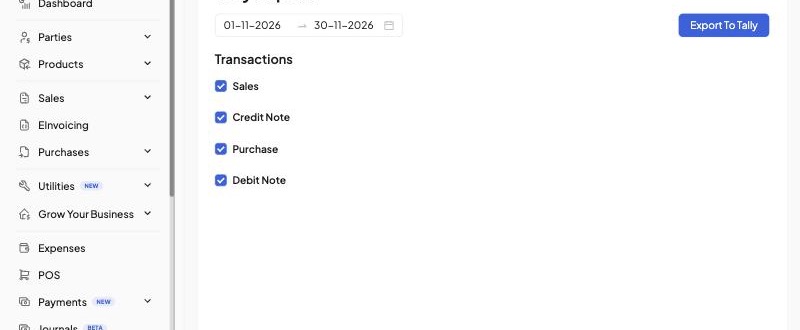
Step 2: Pick the dates
Set the date range at the top. Most businesses export one month at a time, after the month is over.
Step 3: Choose what to export
Under Transactions, tick what you want to include:
- Sales
- Credit Note (sales returns)
- Purchase
- Debit Note (purchase returns)
All four are ticked to begin with. Untick any you do not need.
Step 4: Export
Click Export To Tally. Share the exported file with your accountant, or import it into Tally yourself.
Tips for a clean export
- Finish the month first. Enter all bills, returns and corrections for the period before you export.
- Do not export the same dates twice into the same Tally company, or the entries may be duplicated.
- Check GSTINs and HSN codes on your parties and products, so the entries land correctly in Tally.
Tally Sync (BETA)
Under Utilities you will also see Tally Sync, marked BETA, for connecting BillClap with Tally directly. If you want help setting it up, contact support.
Frequently Asked Questions
Q: Does exporting change anything in BillClap?
No. Export only copies your data out. Your bills in BillClap stay as they are.
Q: My CA only needs GST figures. Is there a quicker way?
Yes. Share the GSTR-1 Report and GSTR-3B Report instead.
Need Help?
Our support team is available:
- 📞 Call/WhatsApp: 8882468190
- 📧 Email: support@billclap.com
- 🕐 Support Hours: Monday to Friday, 10 AM – 6:30 PM