
How to email invoices to customers from your own Gmail
You can now email any invoice to your customer straight from BillClap, using your own Gmail address. Connect your Gmail account once, then send an invoice in a few clicks from the More menu. The invoice PDF is attached for you, and your customer sees the email coming from your own address, not a no-reply address.
Note: Send via Gmail is available in the BillClap desktop app now, and is coming soon to the web app. The steps are the same in both.
Before you start
- You need a Gmail or Google Workspace account that you want to send invoices from.
- Each Google email can be linked to only one BillClap account.
- You connect Gmail once. After that, you can email any invoice.
Part 1: Connect your Gmail account (one time)
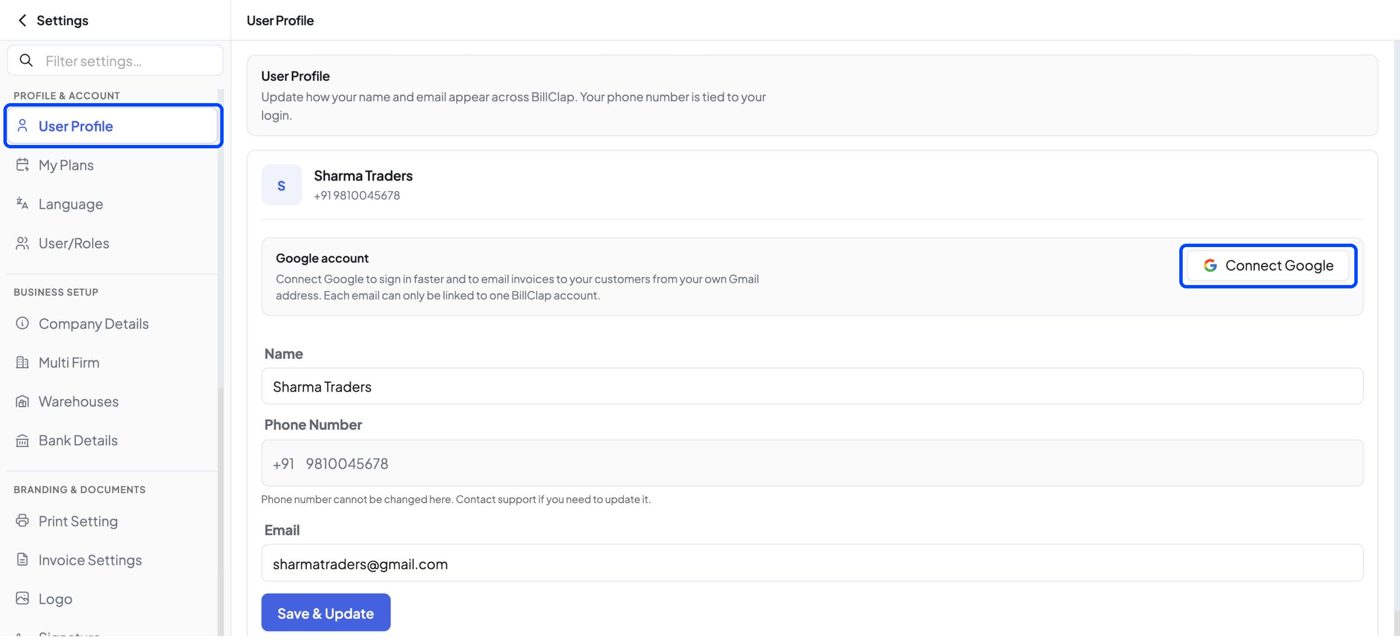
Step 1: Open your User Profile and click Connect Google
Go to Settings and open User Profile. In the Google account card, click Connect Google.
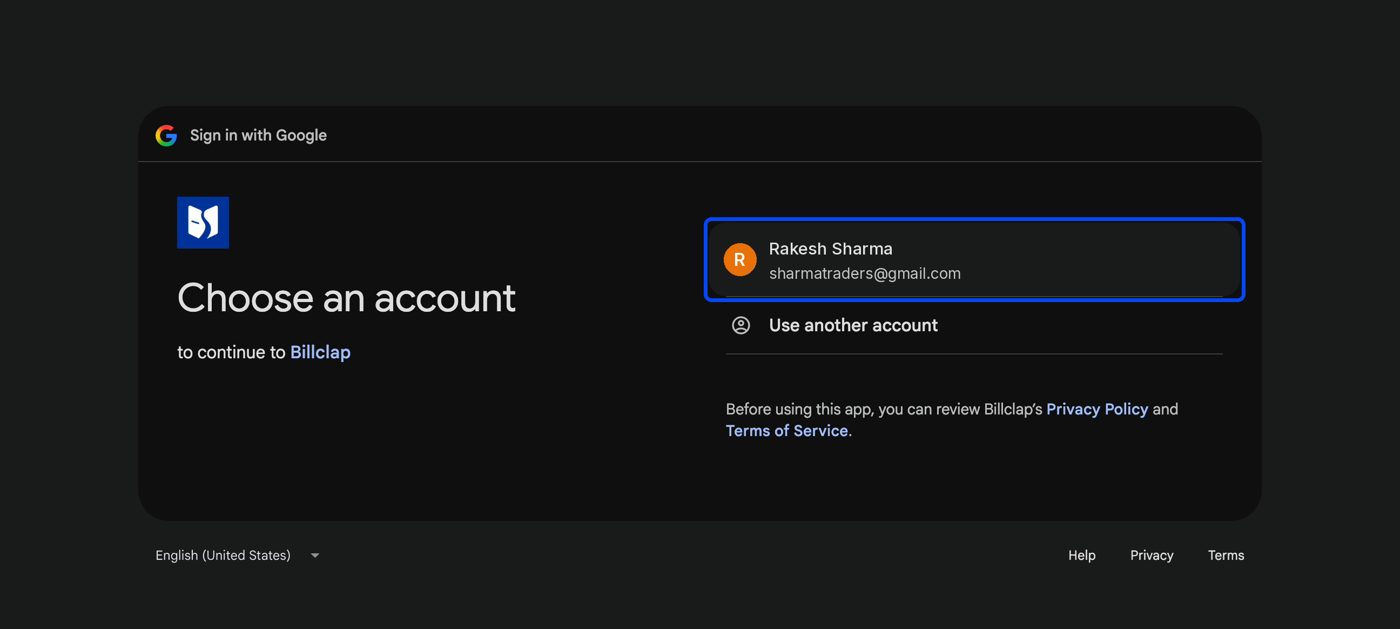
Step 2: Choose your Gmail account
A Google sign-in window opens. Pick the Gmail account you want to send invoices from. If it isn't listed, click Use another account and sign in.
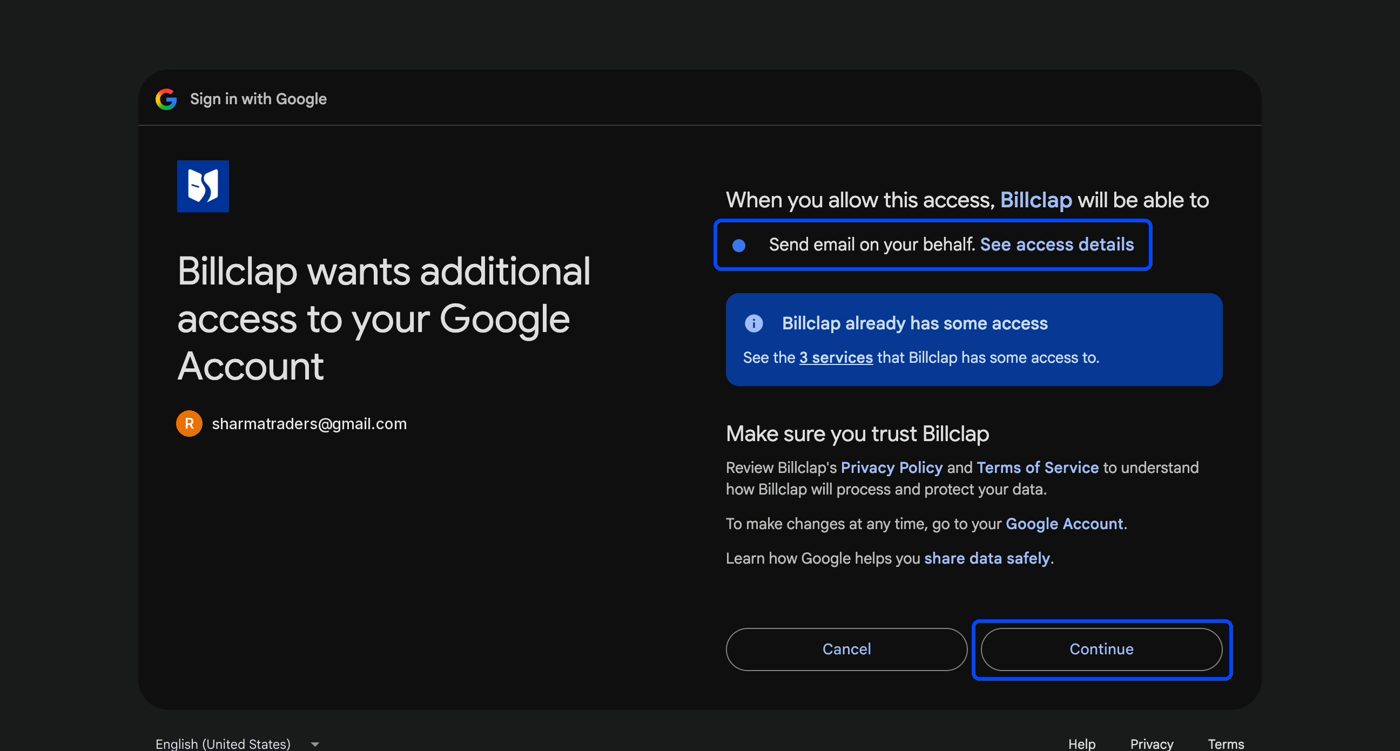
Step 3: Allow BillClap to send email for you
Google asks whether BillClap can send email on your behalf. This lets invoices go out from your own address. Click Continue.
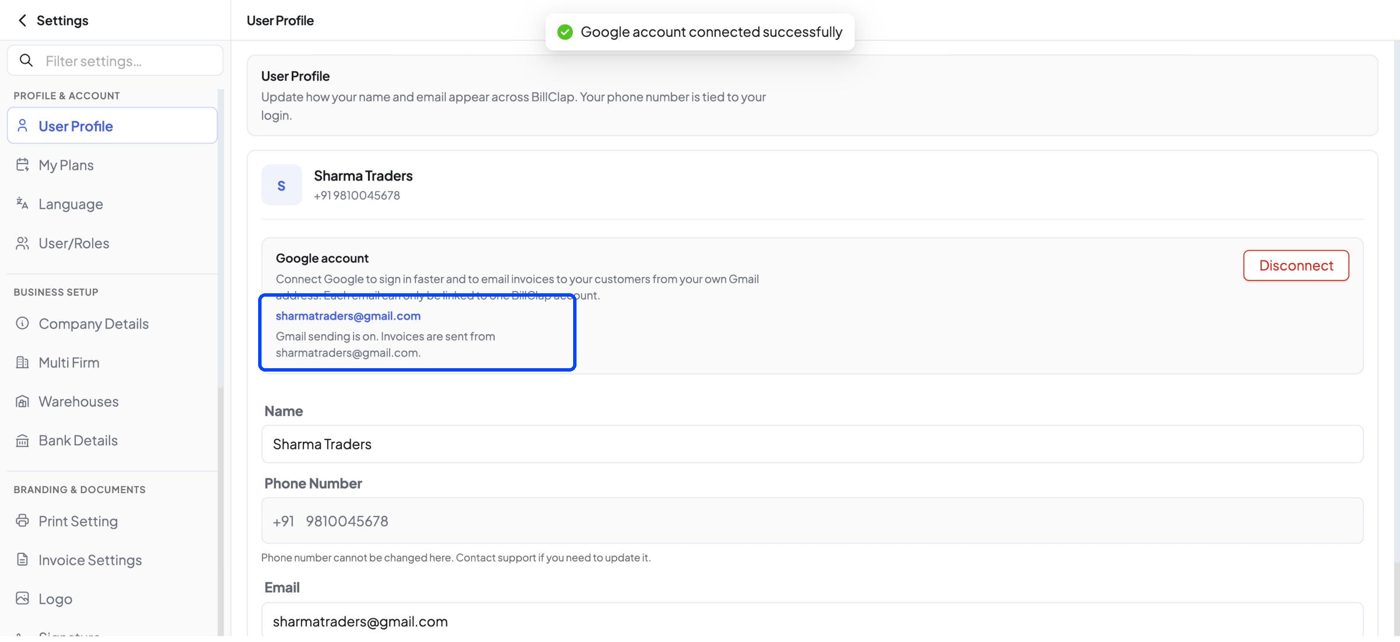
Step 4: Check that Gmail is connected
You come back to BillClap and see Google account connected successfully. The Google account card now shows your Gmail address and the line Gmail sending is on.
Part 2: Email an invoice to your customer
Step 5: Open Send via Gmail on the invoice
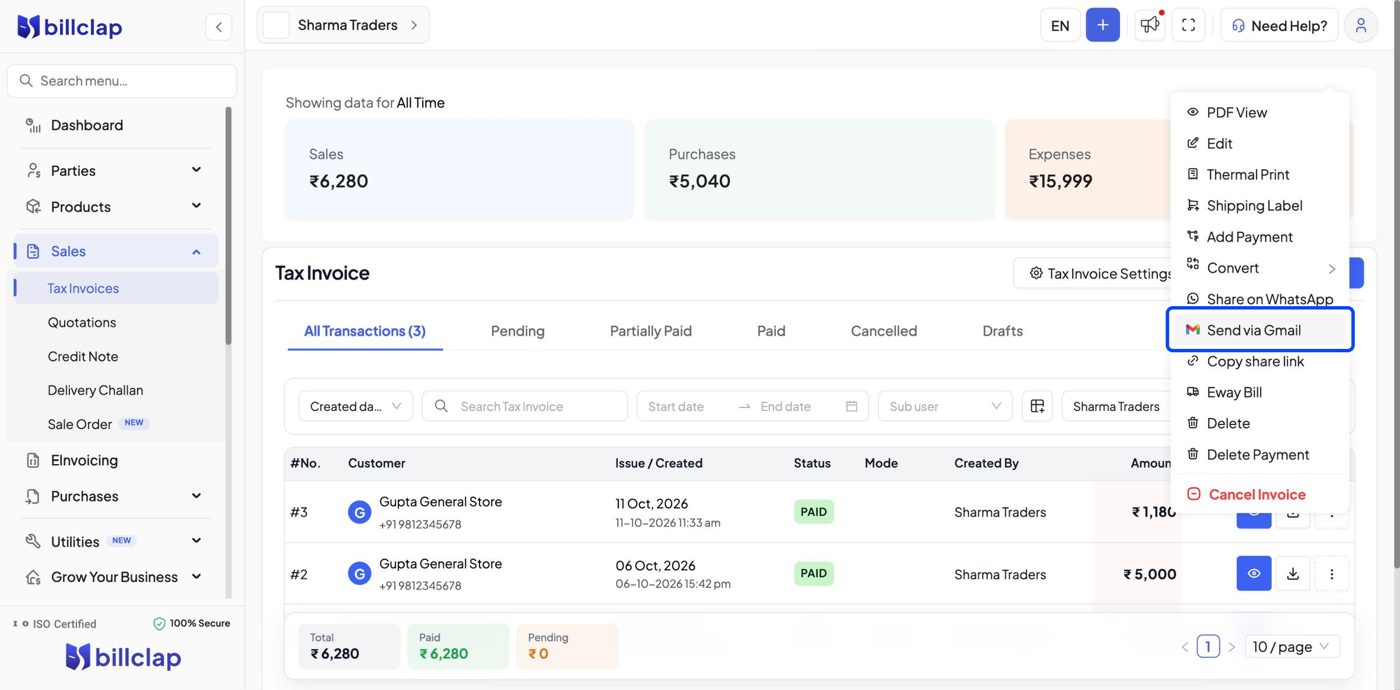
Go to Sales > Tax Invoices. On the invoice you want to send, click the More (three dots) button in the Actions column, then click Send via Gmail.
Step 6: Check the email
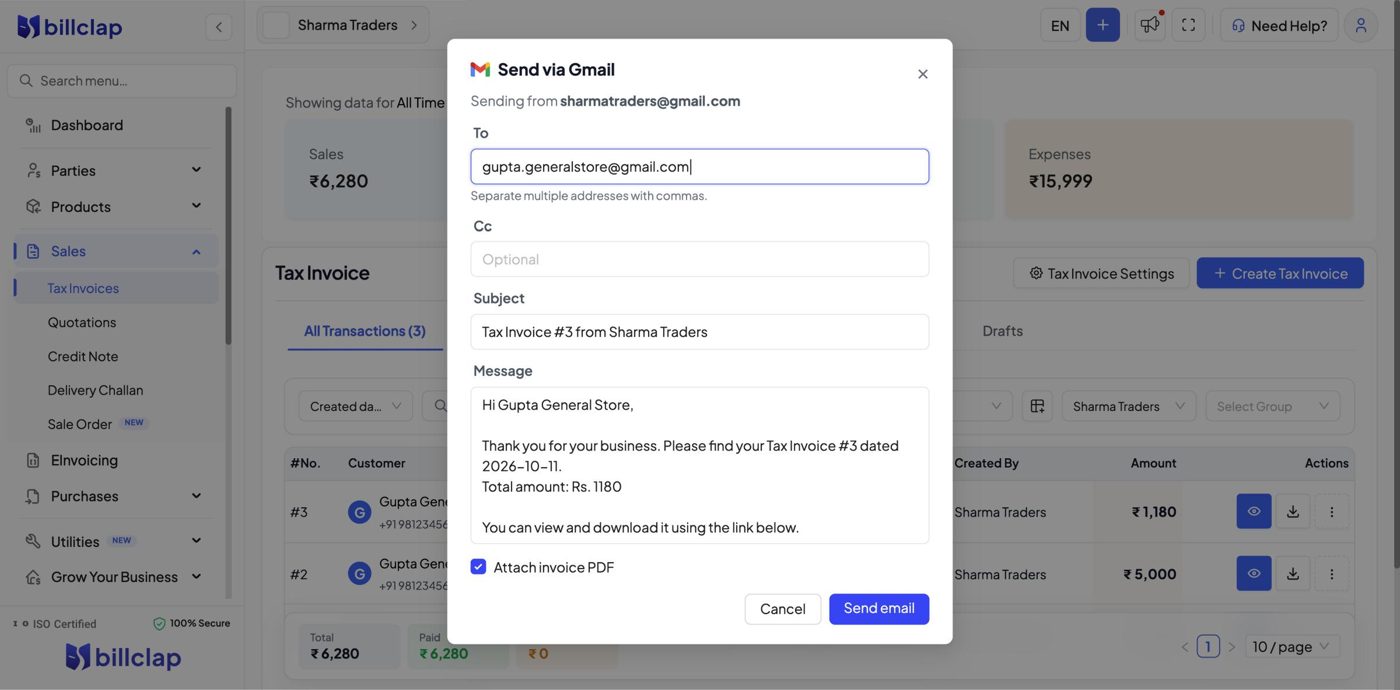
The Send via Gmail window opens. At the top it shows the Gmail address the email will be sent from.
- To: type your customer's email address. To send to more than one person, separate the addresses with commas.
- Cc: optional. Add anyone who should get a copy.
- Subject: filled in for you with the invoice number and your business name. You can change it.
- Message: filled in for you with the customer's name, the invoice number, date and total amount. You can change it.
- Attach invoice PDF: ticked by default, so the invoice PDF goes with the email.
Step 7: Click Send email
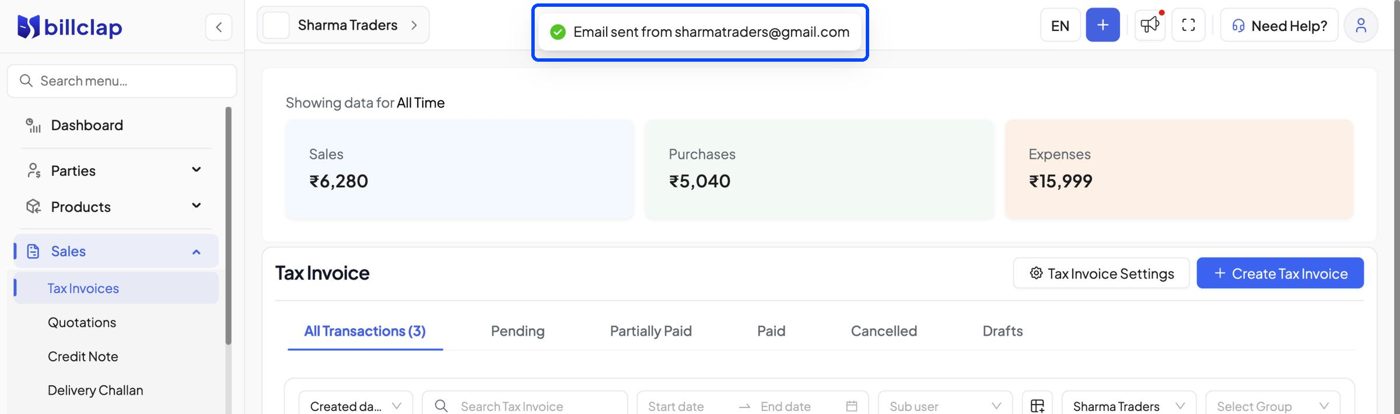
Click Send email. You'll see Email sent from followed by your Gmail address.
Frequently asked questions
Which email address does my customer see?
The Gmail address you connected in Settings > User Profile. It's shown at the top of the Send via Gmail window as "Sending from".
Can I use the same Gmail account for two BillClap accounts?
No. Each Google email can be linked to only one BillClap account.
How do I stop sending from my Gmail, or switch to another Gmail account?
Go to Settings > User Profile and click Disconnect in the Google account card. To use a different Gmail account, click Connect Google again and choose that account.
I don't see Send via Gmail in the More menu.
Send via Gmail is available in the BillClap desktop app now and is coming soon to the web app. If you're on the desktop app and still don't see it, update the app to the latest version.