How to Connect BillClap to Claude, ChatGPT, or Cursor (AI Access)
AI Access is a BillClap Settings feature that connects your business data to AI assistants like Claude, ChatGPT, and Cursor. Once connected, you can ask plain-language questions about your sales, stock, payments, and customers, and get answers pulled directly from your live BillClap data — no exports, no spreadsheets, and no manual reporting required.
Is My Data Safe?
Yes. AI Access is built with safety as the default, not an afterthought:
Read-only access: A connected AI assistant can view your business data, but it can never create, edit, or delete anything. Your invoices, stock, and customer records stay exactly as you left them.
One active token per business: Each business has a single active access token at a time.
Instant revocation: Regenerating a token immediately invalidates the previous one — there's no delay or grace period.
Business-scoped tokens: A token only grants access to the business it was generated for. If you manage multiple businesses in BillClap, switch to the other business first and generate a separate token for it.
Which AI Tools Are Supported
AI Access currently works with:
Claude (Claude Desktop)
ChatGPT
Cursor
Step-by-Step Setup
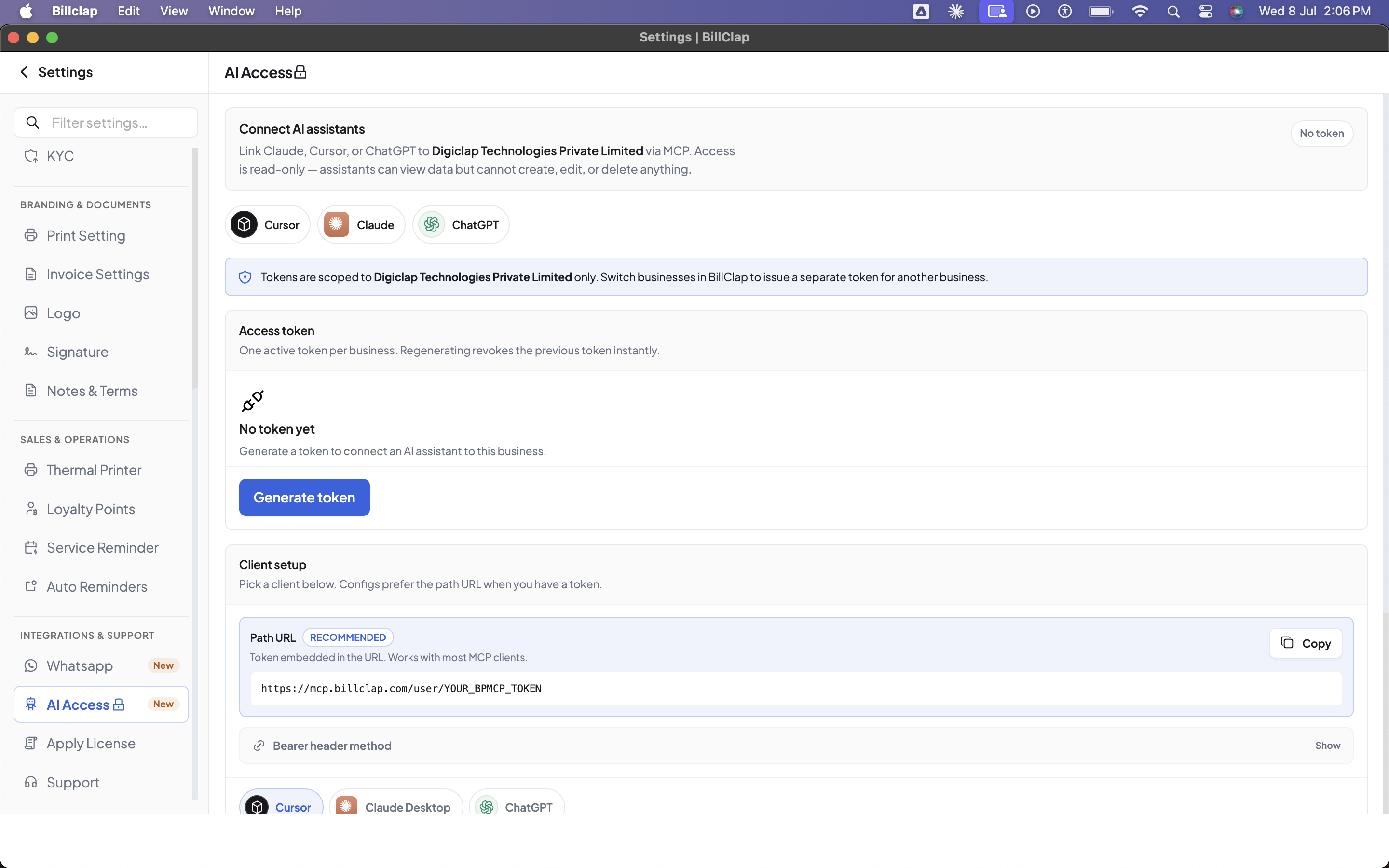
Open the BillClap Desktop app and go to Settings.
Under "Integrations & Support" in the left sidebar, click AI Access.
Click Generate Token. This creates a single access token scoped to the business you're currently viewing.
Choose how you want to connect:
Path URL (Recommended): The token is embedded directly in the URL. This works with most MCP clients with no extra configuration.
Bearer Header method: Click "Show" to reveal the header-based config — useful for developer tools like Cursor where you configure the connection manually.
Select your AI tool from the client options shown (Cursor, Claude Desktop, or ChatGPT) and copy the generated config.
Paste the config into your AI tool as instructed (for example, into ~/.cursor/mcp.json for Cursor, or your MCP client settings for Claude Desktop / ChatGPT).
That's it — you can now ask your AI assistant questions about your business.
BillClap Desktop → Settings → AI Access page
Sample Questions to Try
"Which product is about to run out of stock?"
"Which parties owe me the most this quarter?"
"Which invoices are still unpaid?"
"What were my top 5 selling products last month?"
"Show me last quarter's revenue trend."
"Which customers haven't paid in the last 30 days?"
Troubleshooting
Token not working: Confirm you copied the full token/config without truncation, and that you generated it for the correct business. Tokens are scoped to a single business — a token generated for Business A will not work for Business B.
I need to regenerate a token: Go to Settings → AI Access and generate a new token. This instantly revokes the previous one, so update your AI tool's config with the new token right after regenerating.
Switching businesses: If you manage more than one business in BillClap, switch to the other business first, then generate a separate token for it. Each business requires its own token.
Frequently Asked Questions
Can AI edit my invoices?
No. AI Access is 100% read-only — connected AI assistants can view your data but can never create, edit, or delete it.
Can it delete anything?
No. Deletion is not possible through AI Access, regardless of what is asked of the AI assistant.
Is this available on mobile or web?
Not yet — AI Access setup is currently available on BillClap Desktop only. Once activated, the connection works regardless of which device you're using, since your BillClap data lives on the cloud. Web and mobile setup support is coming soon.
Does this cost extra?
No. AI Access is available free for all BillClap paid plans.