
BillClap Dashboard Tour: Menu, Business Numbers, Shortcuts and Help
Your BillClap Dashboard: A Quick Tour
When you log in to BillClap, the dashboard is your home screen. This guide shows you where everything lives, how to read your business numbers, the shortcuts that save time, and where to get help whenever you are stuck.
1. The Menu on the Left
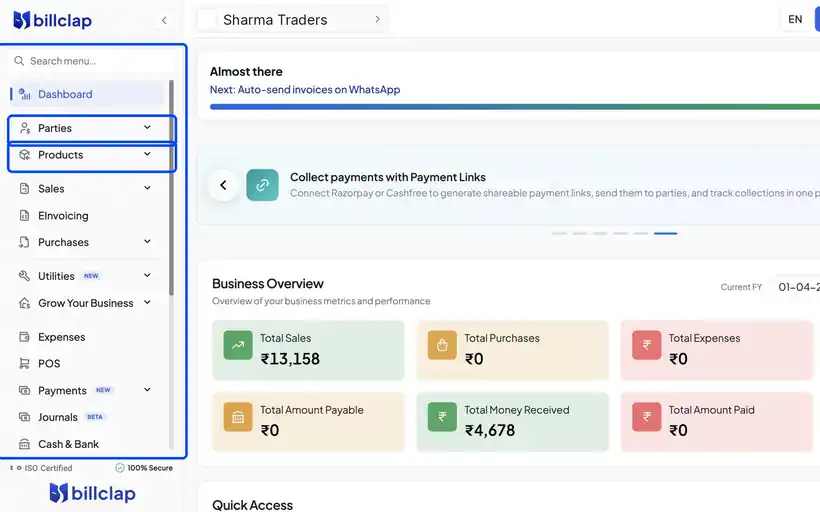
Every feature in BillClap is in the menu on the left side of the screen:
| Menu | What you'll find there |
|---|---|
| Parties | Your customers and suppliers (vendors) |
| Products | Your items, services and stock |
| Sales | Tax Invoices, Quotations, Credit Notes, Delivery Challans and Sale Orders |
| Purchases | Purchase Bills, Debit Notes and Purchase Orders from your suppliers |
| Payments | Money received from customers and paid to suppliers |
| Cash & Bank | Your cash and bank balances |
| Udhaar Khata | Credit given to and taken from parties |
| Reports | GST reports (GSTR-1, GSTR-2, GSTR-3B), sales, purchase, party and stock reports |
💡 Tip: Can't find something? Type its name in the Search menu box at the top of the menu.
2. Your Business Numbers
The Business Overview at the top of the dashboard shows your sales, purchases, expenses and what your customers owe you.
- Use the date range to pick any period, for example Current FY
- Scroll down to see your total receivable and total payable, month-on-month growth, and charts that compare revenue, purchases and profit
3. Shortcuts That Save Time
- Quick Access: one-click shortcuts on the dashboard, like Create Tax Invoice and your GSTR-1 report
- Quick Actions (+ button): the blue + button at the top of every page opens Quick Actions, so you can create a bill from anywhere
- Keyboard shortcuts: each Quick Action also has a keyboard shortcut. For example, Ctrl + Shift + I opens a new tax invoice
4. Getting Help
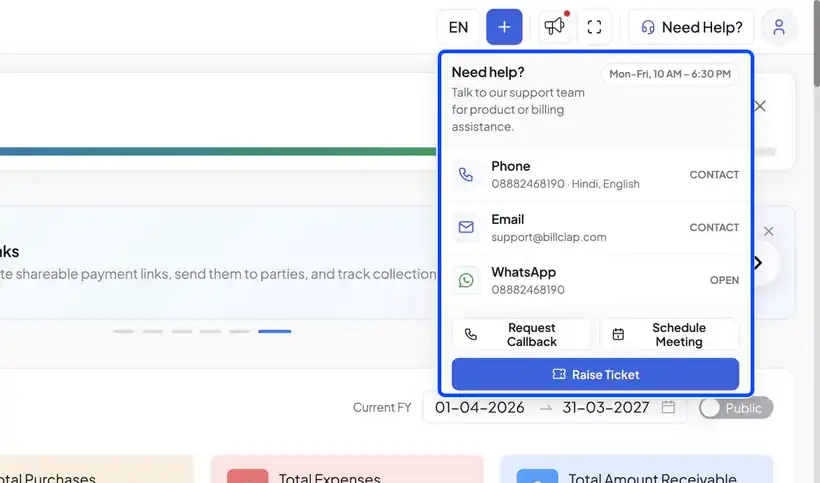
- Click Need Help? at the top right to call, email or WhatsApp our team, or to raise a support ticket
- Open Tutorials from the menu for short how-to videos
- Track the tickets you have raised under Ticket History
Frequently Asked Questions
Q: I don't see Reports or Settings in the menu.
The menu is long. Scroll down inside the menu, or type the name in Search menu.
Q: My dashboard numbers look different from my report.
Check the date range on the dashboard. The numbers are for the selected period only.
Q: Where do I start as a new user?
Set up your business profile first (Settings → Company Details), then add your customers and products. After that you are ready to create your first invoice.
Need Help?
Our support team is available:
- 📞 Call/WhatsApp: 8882468190
- 📧 Email: support@billclap.com
- 🕐 Support Hours: Monday to Friday, 10 AM – 6:30 PM