
How to Set Up Your Business Profile in BillClap
Set Up Your Business Profile in BillClap
Every invoice you send carries your business details. Set them up once in BillClap, and they are filled in automatically on every new invoice, quotation and bill. It takes four quick steps.
Step 1: Add Your Company Details
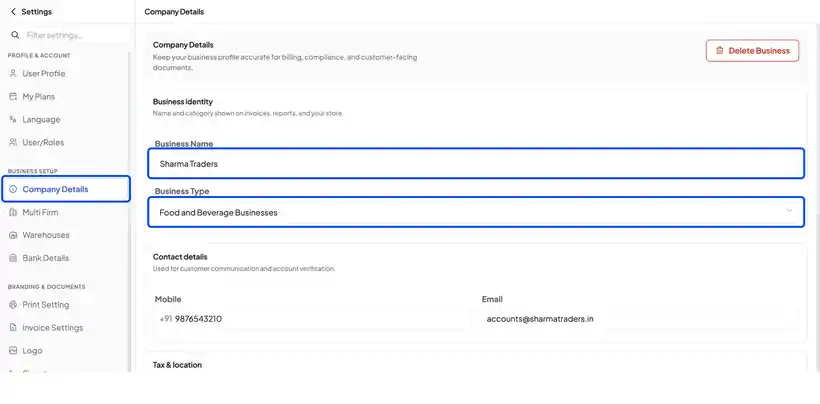
- In the left menu, open Settings, then Company Details
- Add your business name and business type — they appear on every invoice
- Add the mobile number and email your customers can reach you on
- Enter your GSTIN. BillClap can fill in your address from your GSTIN, and your pincode fills in the city for you
- Check your state, then click Save and Update
💡 Tip: Your state decides whether CGST + SGST or IGST is applied on your invoices, so make sure it is correct.
Step 2: Add Your Bank Details and UPI
- Open Bank Details and click New Bank Details
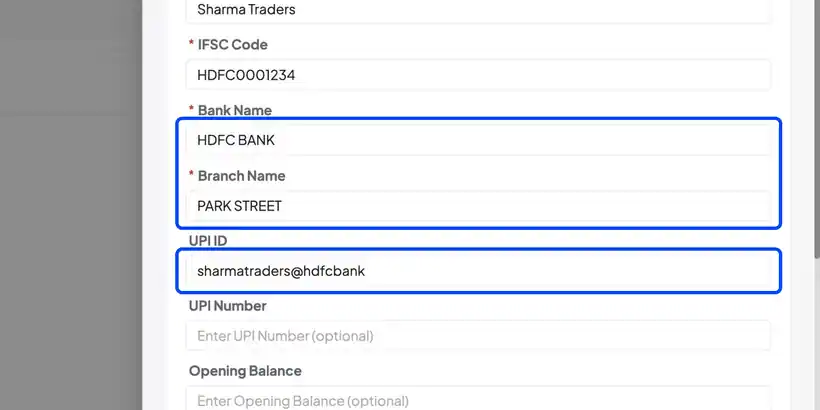
- Enter your account number, account holder name and IFSC code
- BillClap fills in the bank name and branch from the IFSC
- Add your UPI ID to show a payment QR code on your invoices, so customers can pay you by scanning it
- Save the bank details
💡 Tip: The UPI QR on your invoice is a dynamic QR with zero transaction charge.
Step 3: Add Your Logo and Signature
- Logo: under Logo, upload a square PNG or JPG image. It prints on your invoices and receipts
- Signature: under Signature, add a new one. You can upload an image, draw it, or simply type your name and pick a style
Step 4: Set Your Default Notes and Terms
Open Notes and Terms to save default terms — for example your return policy or payment terms — for each document type. Click Save, and every new document picks them up automatically.
Checklist
- ✅ Business name, type, phone and email
- ✅ GSTIN, address and state
- ✅ Bank account and UPI ID
- ✅ Logo and signature
- ✅ Default notes and terms
Frequently Asked Questions
Q: Will my old invoices change if I update my profile?
Your updated details are used on new documents you create after saving.
Q: I'm not GST registered. Can I still use BillClap?
Yes. Leave the GSTIN blank and fill in your address manually; your pincode still fills in the city.
Q: My address was not filled from my GSTIN.
Check that the GSTIN is typed correctly (15 characters). If it still doesn't fill, type the address yourself.
Need Help?
Our support team is available:
- 📞 Call/WhatsApp: 8882468190
- 📧 Email: support@billclap.com
- 🕐 Support Hours: Monday to Friday, 10 AM – 6:30 PM