
How to Add a Customer or Vendor in BillClap (Auto-Fill from GSTIN)
Add a Customer or Vendor in BillClap
Before you bill someone, add them as a party. If they are GST registered, just type their GSTIN and BillClap fills in their business details for you. Customers and vendors (suppliers) are added the same way.
Step 1: Fetch Details from the GSTIN
- In the left menu, open Parties, then Parties Details. Your customers are listed here
- Click New Customers
- If your customer is GST registered, type their GSTIN and click Fetch Details
- In seconds, BillClap fills in their business name, full address, pincode, city and state
💡 Tip: Always start with the GSTIN for registered businesses. It avoids typing mistakes and makes sure the correct GSTIN prints on your B2B invoices and appears in your GSTR-1.
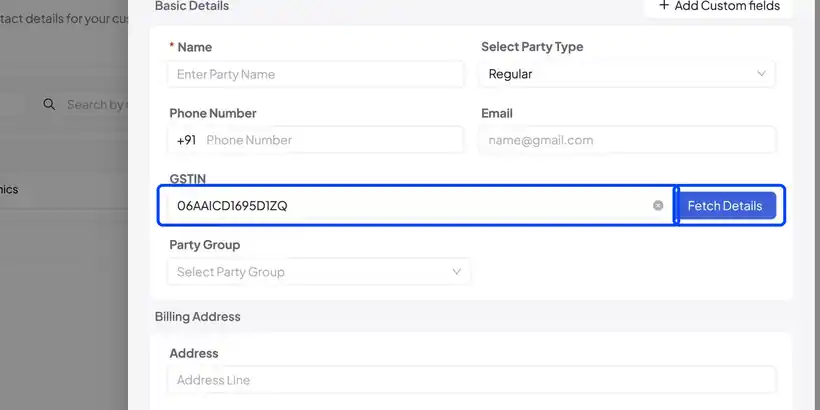
Step 2: Add Contact Details
- Add their phone number and email, so you can send them invoices and reminders
- No GSTIN? Just type the address and pincode — BillClap still fills in the city and state
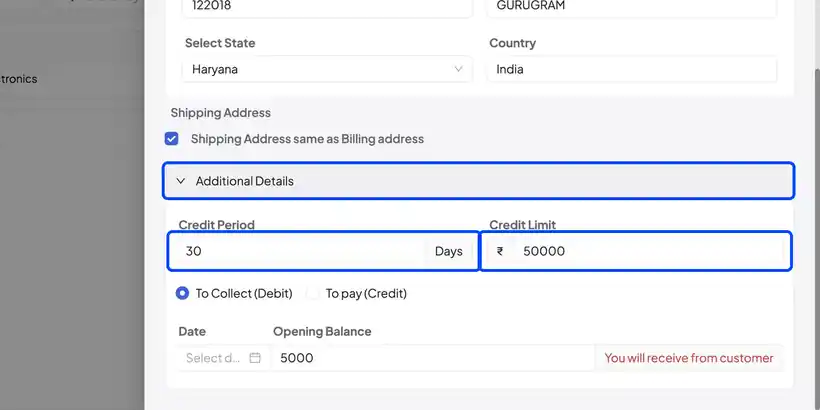
- Shipping address: it uses the same address by default. Untick Shipping Address same as Billing address to add a different one
Step 3: Set Credit Terms and Opening Balance
- Open Additional Details
- Set a credit period (in days) and a credit limit if you give this party credit
- If the party already owes you money, choose To Collect and enter the amount as the opening balance. If you owe them, choose To Pay
- Click Save and Update. The new party appears in the list with their balance
Adding a Vendor (Supplier)
Open the Vendors tab and click New Vendors. The form works exactly the same way. You can also add a vendor directly while creating a purchase bill, using Add Vendor.
Frequently Asked Questions
Q: Fetch Details shows no data.
Check the GSTIN carefully — it must be a valid 15-character GSTIN. If the details still don't load, fill them in manually.
Q: What is the difference between To Collect and To Pay?
To Collect is money the party owes you. To Pay is money you owe the party.
Q: Can I add a party while creating an invoice?
Yes. You can add a new customer or vendor from the invoice or bill screen without leaving it.
Need Help?
Our support team is available:
- 📞 Call/WhatsApp: 8882468190
- 📧 Email: support@billclap.com
- 🕐 Support Hours: Monday to Friday, 10 AM – 6:30 PM