
How to See Who Did What with the Activity Report in BillClap
When more than one person works in your BillClap account, sooner or later you ask, "Who made this bill?" or "When was this stock changed?" The Activity Report is a running log of what happened in your account.
Step 1: Open the Activity Report
- Click Reports in the left menu.
- Scroll to Activity Reports and click Activity Report. You can also type "activity" in the search box at the top of the Reports page.
Step 2: Pick the dates
Set the date range at the top. The newest activity is shown first.
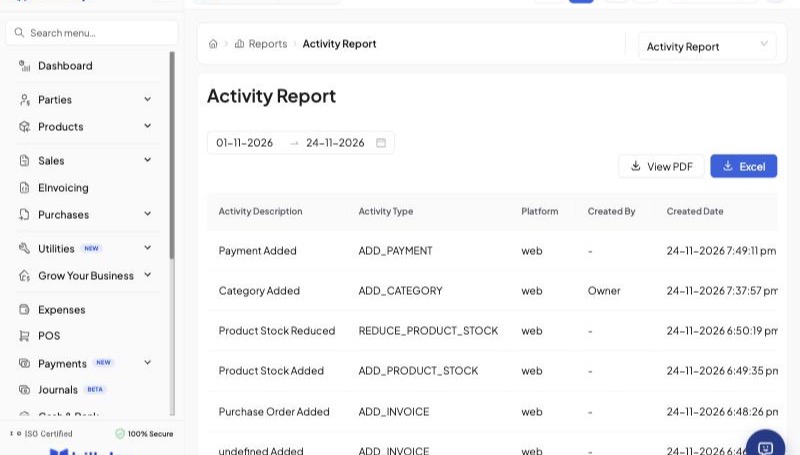
Step 3: Read the report
| Column | What it tells you |
|---|---|
| Activity Description | What happened, in plain words, such as "Tax Invoice Added" or "Product Stock Reduced" |
| Activity Type | The kind of action, such as ADD_INVOICE, ADD_PAYMENT or ADD_PRODUCT_STOCK |
| Platform | Where it was done from, for example web |
| Created By | The user who did it |
| Created Date | The date and time |
The report covers things like invoices and other documents added, payments recorded, stock added or reduced, and categories created.
Step 4: Download it
Click View PDF or Excel to save the report for the dates you picked.
When this report helps
- A bill or payment looks wrong. Check when it was added and by whom.
- Stock does not match. Look for Stock In and Stock Out entries on that day.
- End-of-day check. Glance through the day's activity before closing the shop.
Give each staff member their own login
The report can only tell people apart if they log in separately. If everyone shares the owner's login, every action looks the same. See How to Add Staff and Control What They Can Access.
Frequently Asked Questions
Q: Can I undo something from the Activity Report?
No. The report only shows what happened. To fix an entry, open that invoice, payment or stock item and edit it.
Q: Where can I see everything that happened to one product's stock?
Go to Products › Inventory, click the item name and open Inventory Timeline. See How to Adjust Stock.
Need Help?
Our support team is available:
- 📞 Call/WhatsApp: 8882468190
- 📧 Email: support@billclap.com
- 🕐 Support Hours: Monday to Friday, 10 AM – 6:30 PM