
How to Use Stock Reports in BillClap: Stock Summary, Low Stock and Stock Detail
Stock reports answer three questions: how much do I have, what is it worth, and what is running out. BillClap keeps them up to date from your bills, so there is nothing to enter.
Step 1: Find the stock reports
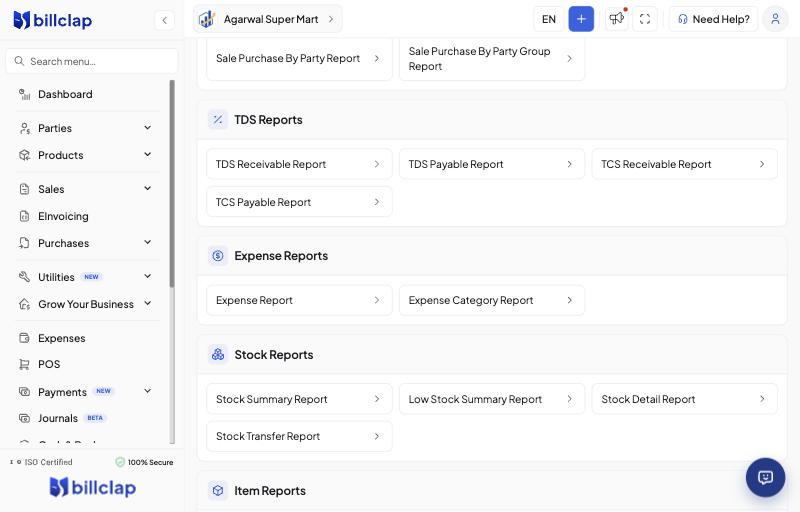
Click Reports in the left menu and scroll down to Stock Reports.
Stock Summary Report
One line per item with its purchase price, sale price, quantity in hand and stock value.
- Click Stock Summary Report.
- Pick the date range.
- If you have more than one godown, choose one under Select Warehouse.
- Click View PDF or Excel to download.
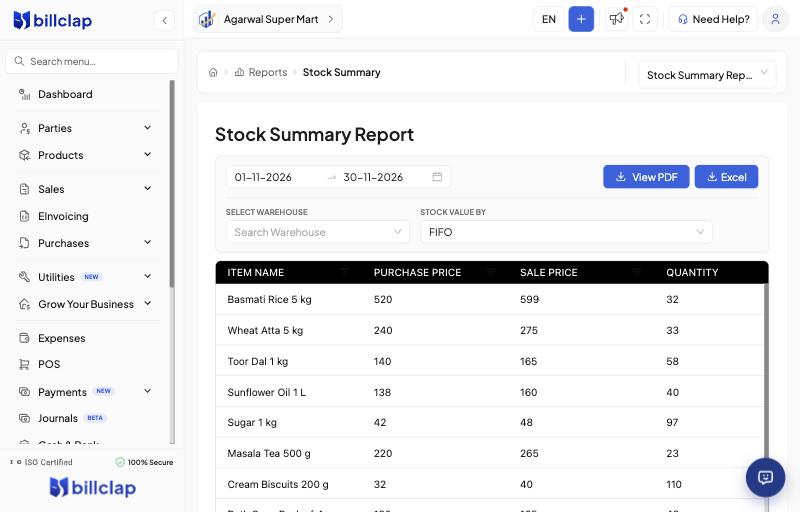
Use this report for stock-taking: print it, count your shelves and compare.
Low Stock Summary Report
Lists only the items that have fallen to or below their low stock level, so you know what to reorder. Set the level on each product first. See How to Set Up Low Stock Alerts.
Stock Detail Report
Shows how each item's stock moved in the period, starting from its beginning quantity. Use Show/Hide Columns to keep only the columns you need before downloading.
Stock Transfer Report
A record of stock moved between your warehouses. See How to Manage Multiple Warehouses and Transfer Stock.
Item reports
Just below, under Item Reports, you will find:
- Sale/Purchase by Item Category and Stock Summary Report by Item Category: the same figures grouped by product category
- Item Batch Report and Item Serial Report: for items tracked by batch or serial number
- Batch Expiry Report (under Batch Reports): batches that are expiring
Frequently Asked Questions
Q: The quantity in the report does not match my shelf. What should I do?
Correct it with Stock In or Stock Out and note the reason. See How to Adjust Stock.
Q: Where can I see the history of one item?
Go to Products › Inventory, click the item name and open Inventory Timeline.
Q: Where are the sales and profit reports?
See Sales, Purchase, Day Book, Expense and Profit & Loss Reports.
Need Help?
Our support team is available:
- 📞 Call/WhatsApp: 8882468190
- 📧 Email: support@billclap.com
- 🕐 Support Hours: Monday to Friday, 10 AM – 6:30 PM