
How to Use Sales, Purchase, Day Book, Expense and Profit & Loss Reports in BillClap
BillClap builds your reports from the bills you already make. You do not enter anything extra: open a report, pick the dates, and view or download it. This guide covers the reports most businesses use every day.
Step 1: Open Reports
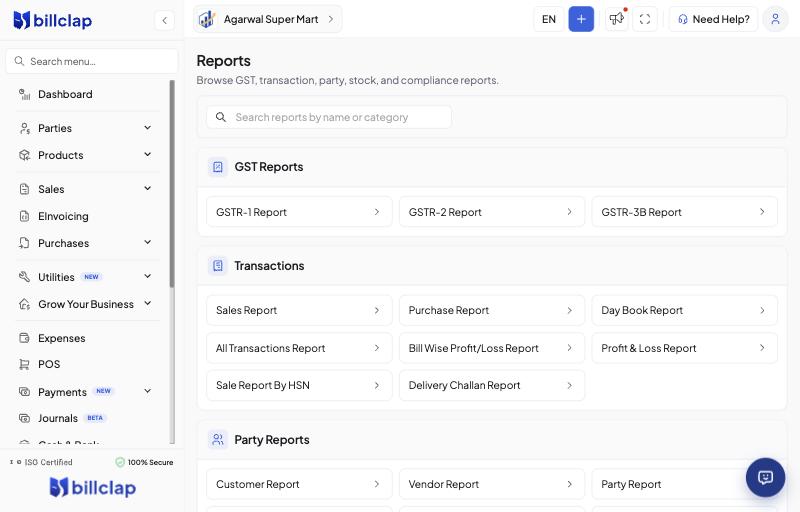
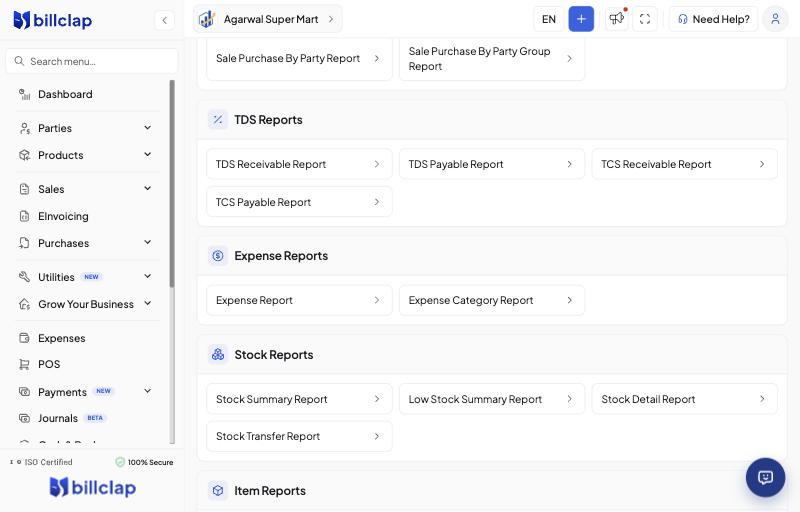
Click Reports in the left menu. Reports are grouped as GST Reports, Transactions, Party Reports, TDS Reports, Expense Reports, Stock Reports and more. Use the search box at the top to find a report by name.
Sales Report
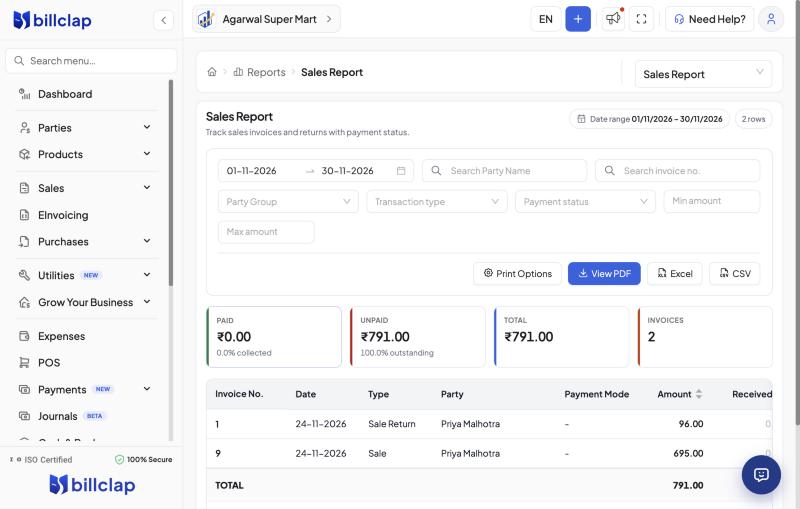
Shows every sales invoice and sales return for the period, with how much is paid and unpaid.
- Under Transactions, click Sales Report.
- Pick the date range.
- Narrow it down if you need to: search by party name or invoice number, or filter by Party Group, Transaction type, Payment status or amount.
- Read the cards: Paid, Unpaid, Total and number of Invoices.
- Click View PDF, Excel or CSV to download. Print Options lets you choose what prints.
Purchase Report
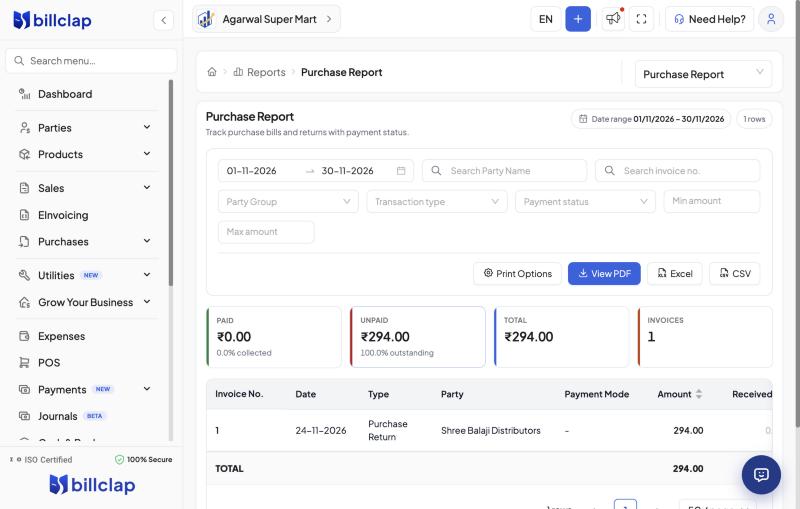
The same layout for your purchase bills and purchase returns. Click Purchase Report under Transactions, set the dates and filters, and download.
Day Book Report
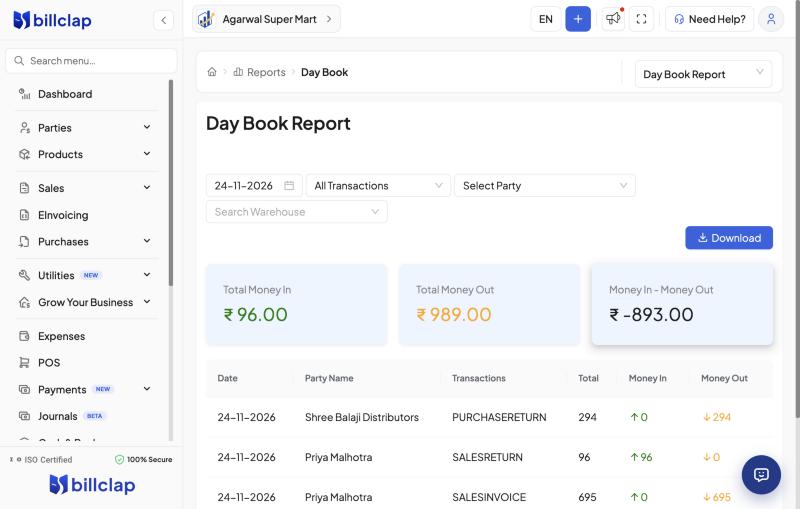
Everything that happened on one day, in one list.
- Click Day Book Report.
- Pick the date. You can also filter by transaction type, party or warehouse.
- The cards show Total Money In, Total Money Out and the difference.
- Click Download to save it.
All Transactions Report
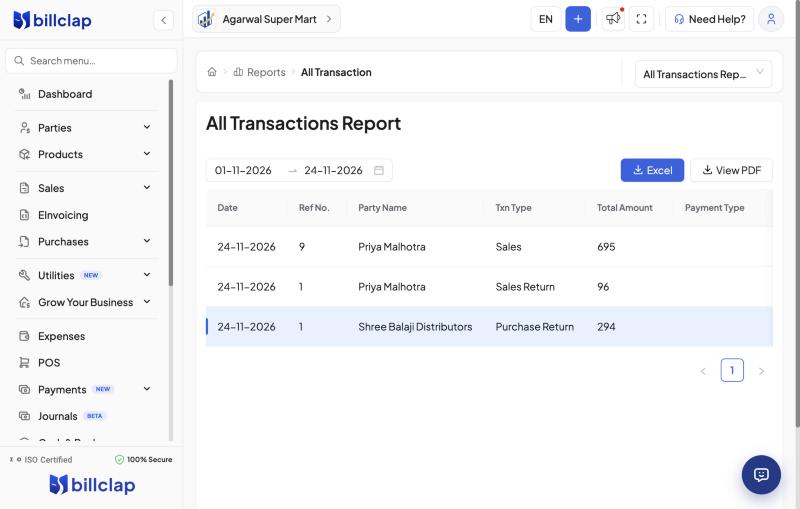
One list of every transaction in a date range: sales, sales returns, purchases, purchase returns and more, each with the total, received, paid and balance amounts. Click Excel or View PDF to download.
Profit & Loss Report
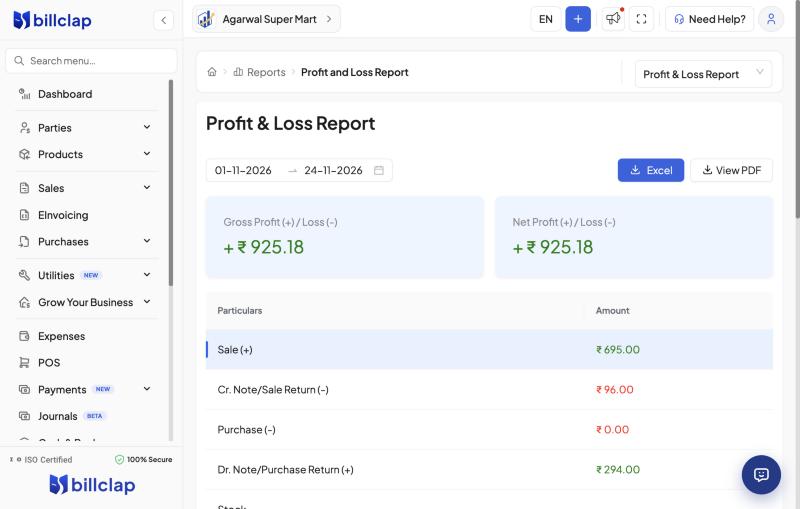
Shows whether your business made a profit or a loss in the period.
- Click Profit & Loss Report and pick the date range.
- The top cards show Gross Profit and Net Profit.
- The table below shows how it is worked out: sales, sales returns, purchases, purchase returns, opening and closing stock, taxes, other income and expenses.
- Click Excel or View PDF to share it with your CA.
Expense Reports
Scroll down the Reports page to Expense Reports.
- Expense Report: every expense in the period with date, category, payment mode and amount, plus the total.
- Expense Category Report: your spending grouped by category, such as rent, salaries or electricity.
To record expenses, see How to Record Business Expenses.
More reports
- GSTR-1 Report and GSTR-3B Report for GST filing
- Receivable Ageing Report to see who owes you and for how long
- Your business numbers on the dashboard
Frequently Asked Questions
Q: A bill is missing from my report. Why?
Check the date range first. Reports only show bills dated inside the range you picked. Also clear any party, status or amount filter.
Q: Can I send a report to my CA?
Yes. Download it as PDF or Excel and share the file.
Q: Do I need to update reports myself?
No. Reports update on their own every time you save an invoice, bill, payment or expense.
Need Help?
Our support team is available:
- 📞 Call/WhatsApp: 8882468190
- 📧 Email: support@billclap.com
- 🕐 Support Hours: Monday to Friday, 10 AM – 6:30 PM