
How to Set Default Notes and Terms & Conditions on Invoices in BillClap
Most shops print the same lines on every bill: "Goods once sold will not be taken back", payment terms, a thank-you note. Save them once in Notes & Terms and BillClap adds them to every new document for you.
Step 1: Open Notes & Terms
- Click Settings in the left menu.
- Under Branding & Documents, click Notes & Terms.
Step 2: Pick the document type
You can keep different text for each kind of document. Click the one you want to set:
- Tax Invoice
- Quotation/Estimate
- Credit Note
- Delivery Challan
- Purchase Bill
- Debit Note
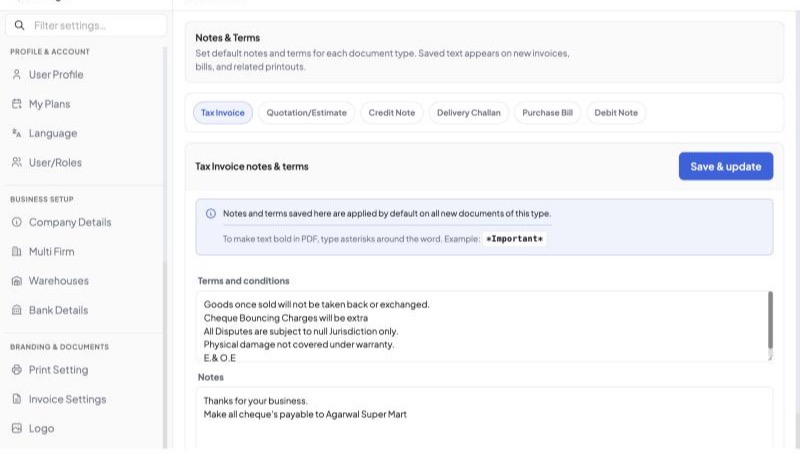
Step 3: Type your terms and notes
- In Terms and conditions, type your terms, one per line.
- In Notes, type a short message, such as "Thanks for your business".
- To print a word in bold, put a star on each side of it, like this:
*Important*.
Step 4: Save
Click Save & update. Repeat for each document type you use.
From now on, the saved text appears on every new document of that type. Documents you already made do not change.
Change the text on one bill only
While creating an invoice, open the Notes or Terms and Condition section near the bottom of the form and edit the text. The change applies to that bill only; your saved default stays the same.
Frequently Asked Questions
Q: Where do notes and terms print on the invoice?
At the bottom of the invoice, below the item table.
Q: I changed my terms but an old invoice still shows the old ones. Why?
Defaults apply to new documents only. To change an old invoice, open it, click Edit and update the terms there.
Q: How do I change the rest of the invoice design?
See How to Customize Your Invoice.
Need Help?
Our support team is available:
- 📞 Call/WhatsApp: 8882468190
- 📧 Email: support@billclap.com
- 🕐 Support Hours: Monday to Friday, 10 AM – 6:30 PM