
How to Change Your Invoice Template and Colour in BillClap
Make every invoice look like your brand. BillClap has 16 invoice templates and a choice of colours. Pick one once and every invoice you share or print uses it.
Step 1: Open an Invoice
- Go to Sales › Tax Invoices and click any invoice.
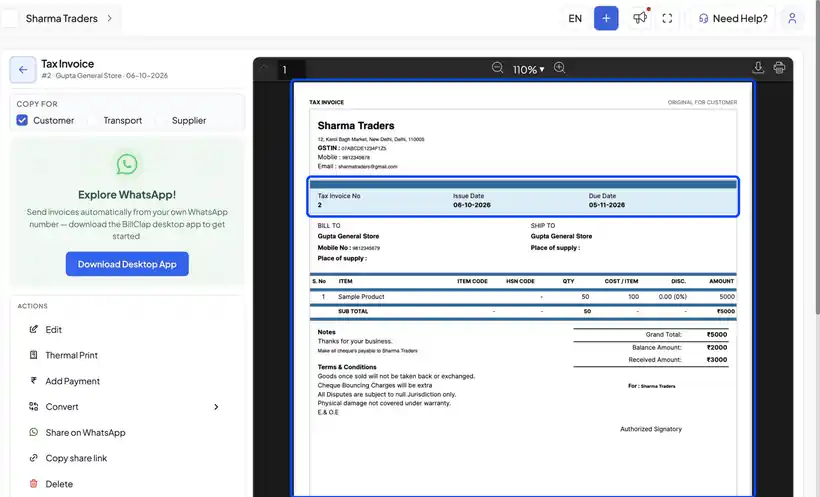
- The preview shows its current look, for example the Simple template in black.
Step 2: Choose a Template
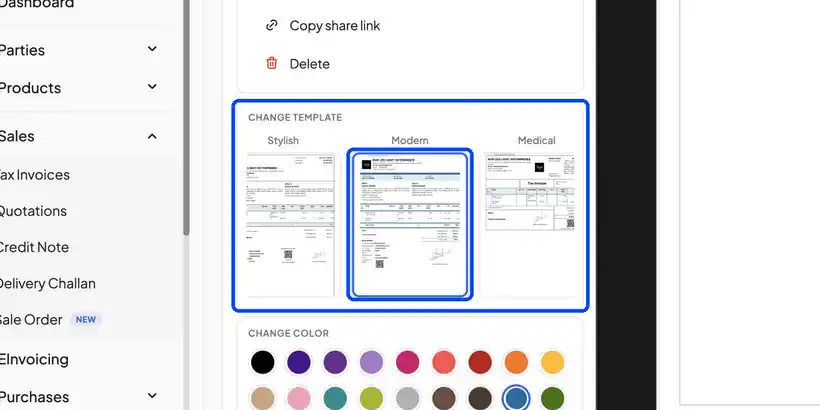
- Scroll down to Change Template.
- Slide the row sideways to see all 16 designs.
- Click the one you like, for example Modern.
Step 3: Choose a Colour
Under Change Color, pick a colour. Your choice is saved straight away, so every invoice you share or print uses it.
Step 4: Check the Preview
The preview updates right away, showing your business details, items and totals in the new design.
Frequently Asked Questions
Q: Does the new template apply to old invoices too?
Yes. The template is your default design, so old and new invoices both show in it when you open, print or share them.
Q: How do I add my logo to the invoice?
Upload your logo in your business profile settings. It appears on every template that has a logo area.
Q: Which template should I use for half-page printing?
Pick A5 Basic or A5 Advance in Change Template. See our article on printing invoices on A4, A5 and thermal printers.
Need Help?
Our support team is available:
- 📞 Call/WhatsApp: 8882468190
- 📧 Email: support@billclap.com
- 🕐 Support Hours: Monday to Friday, 10 AM – 6:30 PM