
How to Print Invoices on A4, A5 and Thermal Printers in BillClap
One invoice, any paper. BillClap lets you print the same invoice on full A4, on half-page A5, or on a thermal receipt printer. You can also download it as a PDF.
Step 1: Print on A4
- Go to Sales › Tax Invoices and click an invoice.
- The preview shows it on A4, the default size.
- Click the print icon at the top of the preview. Your browser's print window opens. Pick your printer and print.
- Need a file instead? Click the download icon to save the invoice as a PDF.
Step 2: Switch to Half-Page A5
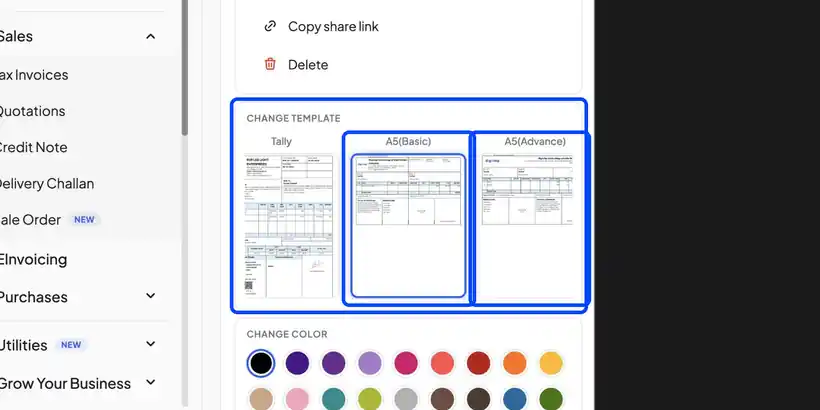
- On the same invoice page, scroll down to Change Template.
- Pick A5 Basic or A5 Advance. Your choice becomes the default for all invoices.
- The preview switches to the A5 layout. Print it the same way, from the print icon.
Step 3: Print a Thermal Receipt
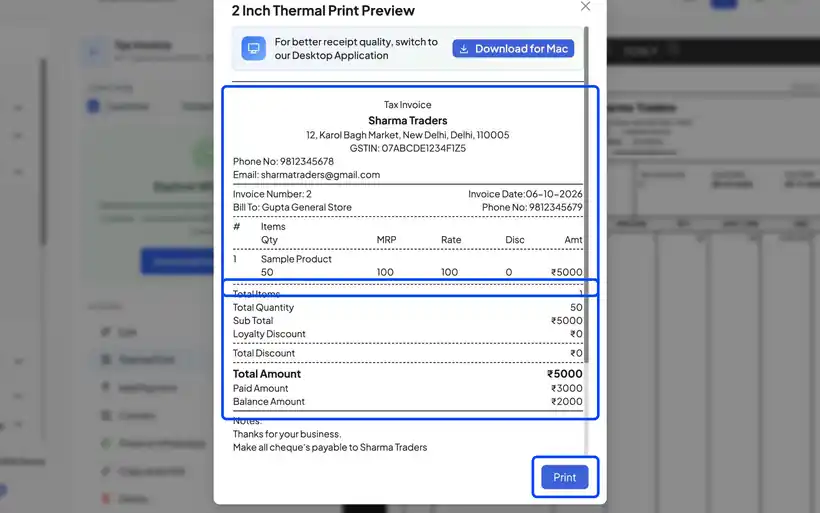
- On the invoice page, under Actions, click Thermal Print.
- A 2-inch receipt preview opens with your items, totals and payments.
- Click Print to send it to your receipt printer.
Frequently Asked Questions
Q: Which thermal printers work with BillClap?
Any 2-inch thermal receipt printer that your computer or phone can print to. Install the printer's driver first, then choose it in the print window.
Q: Thermal prints look faint or cut off. What should I do?
Print from a desktop browser for the sharpest result, and set the paper size to the printer's roll width with margins set to none.
Q: How do I go back to A4?
Open Change Template and pick any A4 design. It becomes the default again.
Need Help?
Our support team is available:
- 📞 Call/WhatsApp: 8882468190
- 📧 Email: support@billclap.com
- 🕐 Support Hours: Monday to Friday, 10 AM – 6:30 PM