
How to Manage Multiple Firms in One BillClap Account
Running two shops, or one business under two names? With Multi Firm you can bill from several firms using a single BillClap login. Each firm has its own name, address, logo and signature on the invoice.
Step 1: Turn On Multi Firm
- Go to Settings › Multi Firm.
- Tick Enable Multi Firm. Your current business appears as the default firm.
- Click Add Firm.
Step 2: Add a New Firm
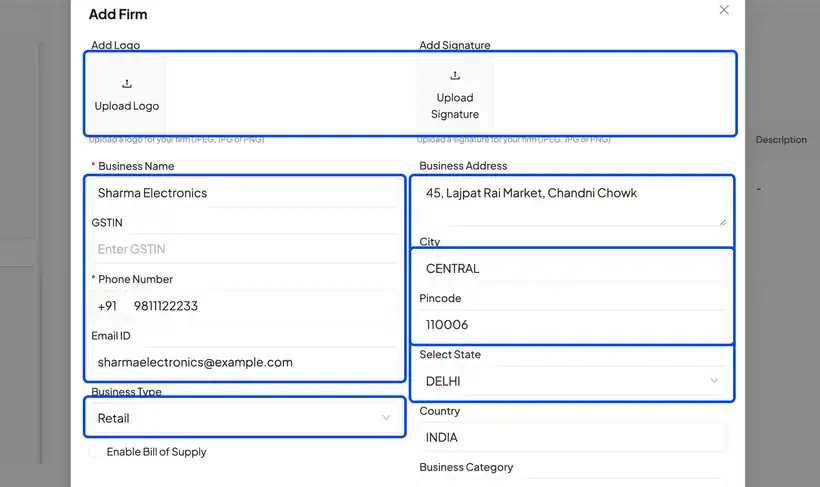
- Enter the firm's name, phone number and email.
- Pick a business type.
- Enter the address and pincode. City, state and country fill in automatically.
- Optionally upload the firm's logo and signature.
- Click Save.
The new firm now appears in the list next to your default firm. The dot shows which firm is the default.
Step 3: Choose the Firm on Each Invoice
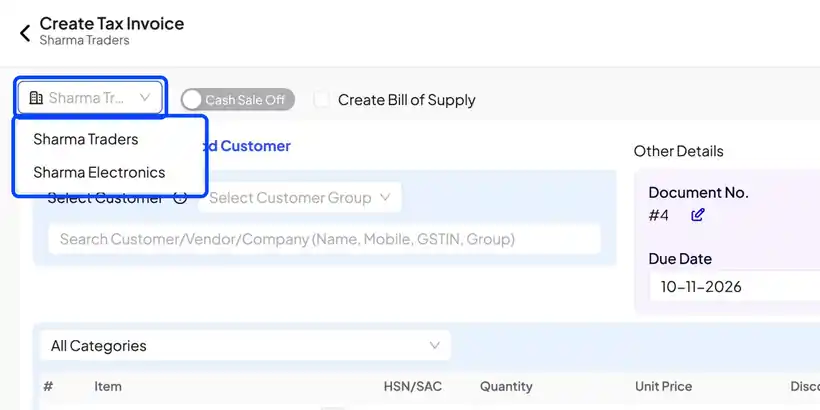
- Create a new tax invoice.
- A firm picker appears at the top left of the invoice.
- Choose the firm this bill is from, for example Sharma Traders or Sharma Electronics.
Step 4: Switch to a Separate Business
If you run a completely separate business, click the business name in the top bar to open Switch business. Pick a business to change your workspace, or add a new one.
Frequently Asked Questions
Q: What is the difference between a firm and a business?
Firms share the same parties, products and stock, but each invoice carries the chosen firm's details. A separate business has its own data and is opened with Switch business.
Q: How do I change the default firm?
In Settings › Multi Firm, set the firm you want as the default. The dot marks the current default.
Q: Can each firm have its own logo and signature?
Yes. Add them when you create the firm, or edit the firm later.
Need Help?
Our support team is available:
- 📞 Call/WhatsApp: 8882468190
- 📧 Email: support@billclap.com
- 🕐 Support Hours: Monday to Friday, 10 AM – 6:30 PM