
How to Set Up Auto Reminders for Payments and Low Stock in BillClap
Chasing payments by hand takes time. With Auto Reminders, BillClap reminds your customers when a payment is due, and reminds you about money to collect, bills to pay and items running low.
Step 1: Open Auto Reminders
- Click Settings in the left menu.
- Under Sales & Operations, click Auto Reminders.
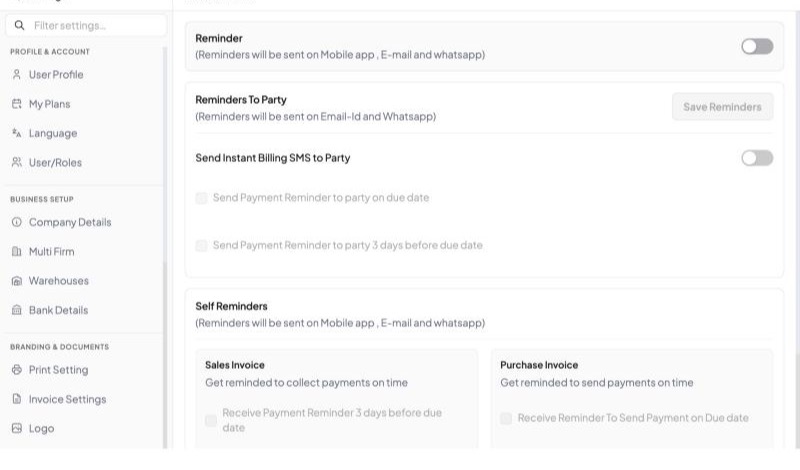
Step 2: Switch on Reminder
Turn on the Reminder switch at the top. The options below it can be ticked only after this is on.
Step 3: Choose reminders for your customers
Under Reminders To Party, choose what your customers receive. These go to the customer's email and WhatsApp.
- Send Instant Billing SMS to Party: the customer gets a message as soon as you make their bill.
- Send Payment Reminder to party on due date
- Send Payment Reminder to party 3 days before due date
Click Save Reminders.
Step 4: Choose reminders for yourself
Under Self Reminders, choose what you want to be reminded about. These come to you on the mobile app, email and WhatsApp.
Sales Invoice (money to collect):
- Receive Payment Reminder 3 days before due date
- Receive Payment Reminder on due date
- Receive Low Stock Reminder daily
Purchase Invoice (money to pay):
- Receive Reminder to send payment on due date
- Receive Reminder to send payment 3 days before
Make sure reminders can work
- Set a due date on your invoices. Reminders are sent based on the due date.
- Save the customer's mobile number and email in their party details, or there is nowhere to send the reminder.
- Record payments as you receive them, so customers who have paid are not reminded.
Frequently Asked Questions
Q: I cannot tick the reminder options. Why?
Turn on the main Reminder switch at the top first.
Q: Can I remind one customer myself, right now?
Yes. Open the Receivable Ageing Report to see who is overdue and send a WhatsApp reminder from there.
Q: How do I get low stock reminders for the right items?
Set a low stock level on each product. See How to Set Up Low Stock Alerts.
Need Help?
Our support team is available:
- 📞 Call/WhatsApp: 8882468190
- 📧 Email: support@billclap.com
- 🕐 Support Hours: Monday to Friday, 10 AM – 6:30 PM