
How to Change the Language in BillClap (Hindi and Other Indian Languages)
BillClap can be used in English or in 8 Indian languages, including Hindi. Changing the language changes the menus, labels and buttons. Your invoices, parties, products and numbers stay exactly the same.
Step 1: Open the Language Panel
- Log in to BillClap and go to the dashboard.
- In the top bar, find the EN button next to the + (create) button.
- Click EN. The Language panel opens on the side.
Step 2: Choose Your Language
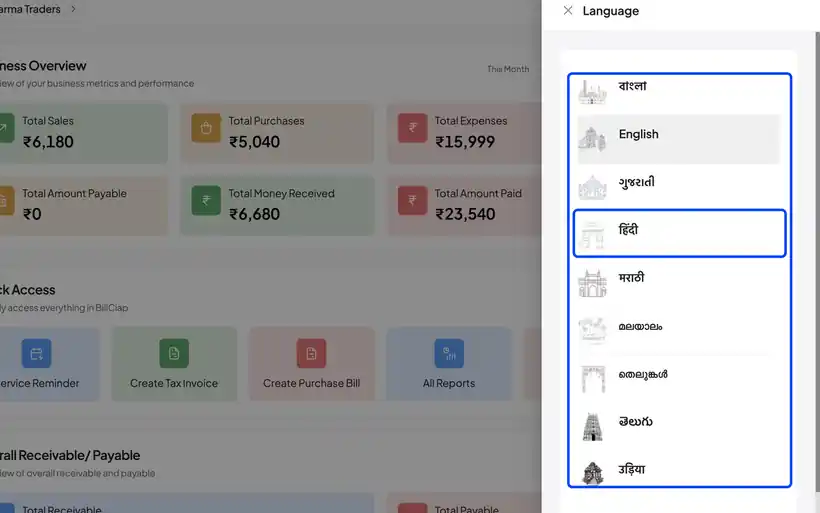
- The panel lists English and 8 Indian languages.
- Click the language you want, for example हिन्दी (Hindi).
- The app reloads in the selected language straight away.
Step 3: Check the Dashboard
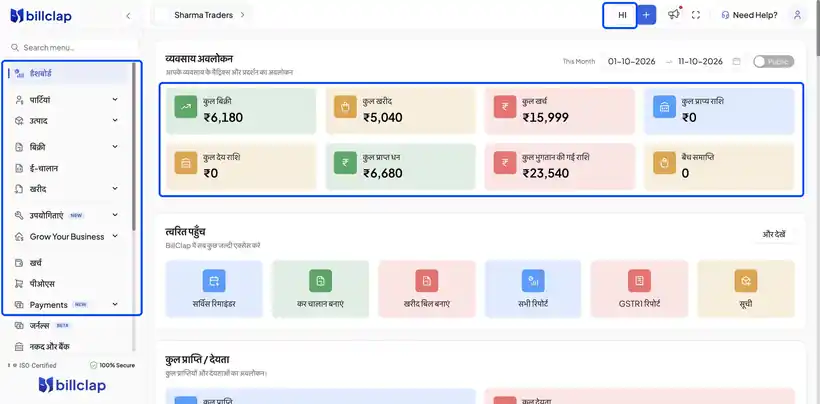
- The menus and dashboard cards now appear in Hindi.
- The language button in the top bar now shows HI instead of EN.
- All your amounts, invoice numbers and party names are unchanged.
Step 4: Switch Back to English
- Click the HI button in the top bar.
- Select English in the Language panel.
Frequently Asked Questions
Q: Will changing the language change my invoices?
No. Only the app's menus and labels change. Your data and the invoices you have already created stay the same.
Q: Can each staff member use a different language?
Yes. The language is chosen on the device each person uses, so one user can work in Hindi while another uses English.
Q: Which languages are available?
English plus 8 Indian languages, including Hindi. Open the Language panel to see the full list.
Need Help?
Our support team is available:
- 📞 Call/WhatsApp: 8882468190
- 📧 Email: support@billclap.com
- 🕐 Support Hours: Monday to Friday, 10 AM – 6:30 PM