
How to Record a Payment Against an Invoice in BillClap
Record a Payment Against an Invoice
When a customer pays you, record the payment against their invoice. BillClap then updates the invoice status (Paid or Partially Paid), the pending amount and the customer's balance automatically. Full and part payments by cash, UPI, cheque, card or bank transfer are supported.
Step 1: Find the Unpaid Invoice
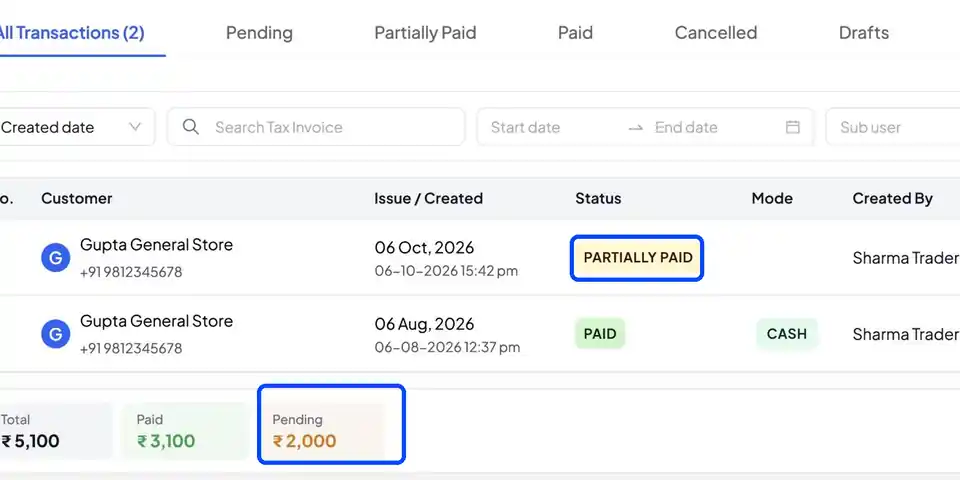
Open Sales → Tax Invoices. Each invoice shows its status — Unpaid, Partially Paid or Paid. Use the Pending and Partially Paid tabs to see what is still due.
Step 2: Record the Payment
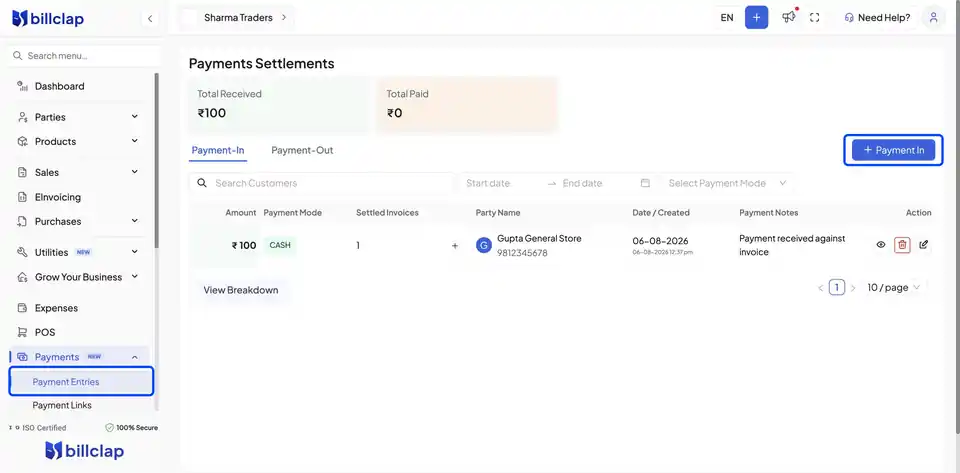
- Open Payments, then Payment Entries, and click Payment In
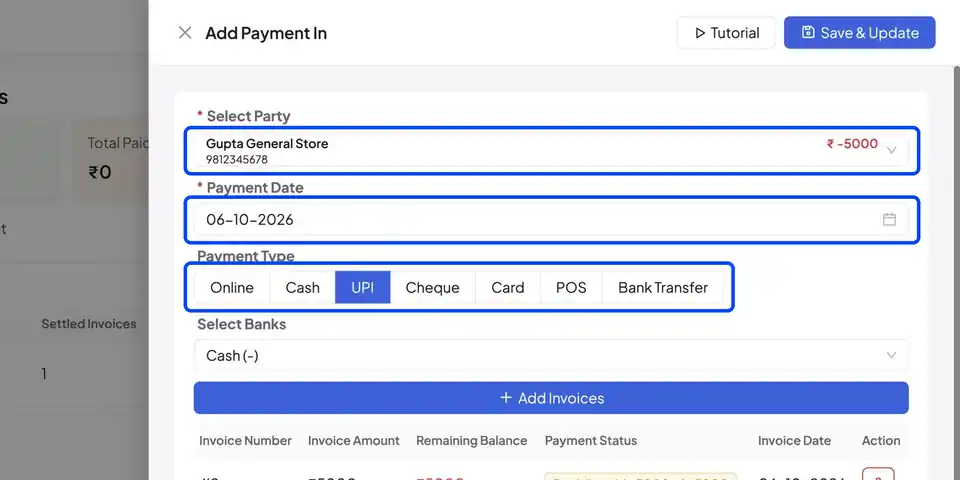
- Pick the customer, check the date, and choose the payment mode — for example UPI
- Click Add Invoices, tick the unpaid invoice, and add it
- Enter the amount received. Part payments work too — if the customer paid ₹3,000 of a ₹5,000 invoice, the invoice shows Partially Paid
- Add a note if you like (for example "Part payment via UPI"), then click Save and Update
The payment now appears in your Payment In list.
Step 3: Check the Updated Balance
Go back to Sales → Tax Invoices. The invoice status is updated, and the Pending total shows only what is still due — in the example above, ₹2,000.
💡 Shortcut: you can also open any invoice and click Add Payment from its actions.
Frequently Asked Questions
Q: Can one payment cover several invoices?
Yes. In Add Invoices, tick all the invoices the payment is for, and enter the amount against each.
Q: The customer paid the full amount. What happens?
When the full invoice amount is received, the invoice status changes to Paid and nothing is pending.
Q: I recorded the wrong amount.
Open the payment from the Payment In list, correct the amount and save again.
Q: How do I see who still owes me money?
Use the Receivable Ageing Report under Reports to see all outstanding dues by age.
Need Help?
Our support team is available:
- 📞 Call/WhatsApp: 8882468190
- 📧 Email: support@billclap.com
- 🕐 Support Hours: Monday to Friday, 10 AM – 6:30 PM