
How to View and Share a Party Ledger in BillClap
A party ledger shows every bill and payment for a customer in one place, so you can see exactly what they owe and why. You can also download it as a statement and send it to the customer.
Step 1: Open Parties Details
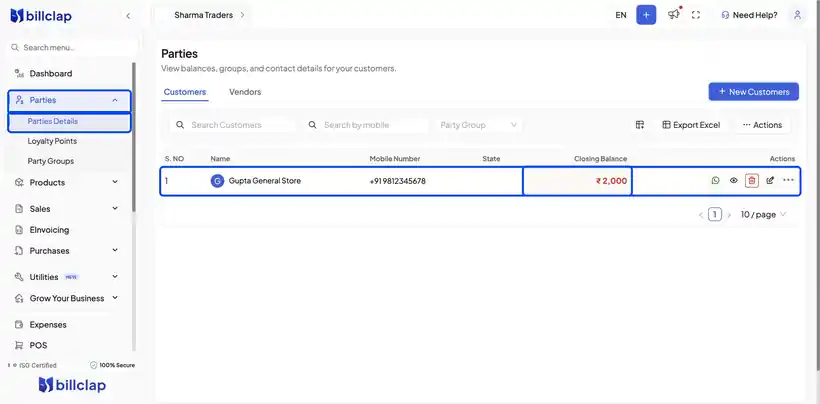
- Go to Parties › Parties Details.
- Each customer is listed with their closing balance.
- Click the eye icon next to a customer. Their party ledger opens below.
Step 2: Read the Ledger
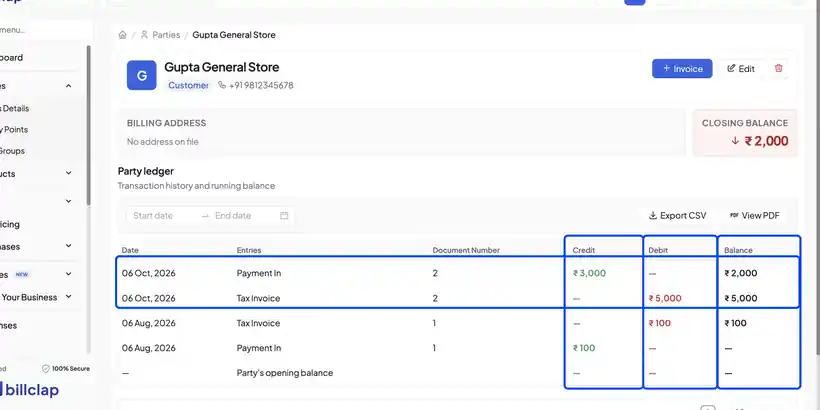
- Each row is a bill or a payment.
- Invoices appear in Debit and payments appear in Credit.
- Balance shows what is still due after each entry.
- Closing Balance at the top is what the customer owes you today.
- Pick a date range to see the ledger for any period.
Step 3: Download the Statement
- Click View PDF to download a clean ledger statement for this customer.
- Or click Export CSV to open the ledger in a spreadsheet.
Step 4: Share It on WhatsApp
Click the WhatsApp icon next to the customer in the parties list, and attach the downloaded statement in the chat.
Frequently Asked Questions
Q: Why does a customer show a balance when they say they have paid?
The payment may not have been recorded. Add it from Payments › Payment In and link it to the invoice. The ledger updates straight away.
Q: Can I see the ledger for one month only?
Yes. Choose the start and end dates above the ledger.
Q: Does the ledger work for suppliers too?
Yes. Open any vendor in Parties Details to see purchases and payments made to them.
Need Help?
Our support team is available:
- 📞 Call/WhatsApp: 8882468190
- 📧 Email: support@billclap.com
- 🕐 Support Hours: Monday to Friday, 10 AM – 6:30 PM