
How to Record Payment In and Payment Out in BillClap
Payment Entries keeps all your money in and money out in one place. Use Payment In when a customer pays you, even if one payment covers several invoices. Use Payment Out when you pay a supplier, with or without a purchase bill.
Step 1: Open Payment Entries
- Go to Payments › Payment Entries.
- The cards at the top show your Total Received and Total Paid.
Step 2: Record a Payment In
- On the Payment-In tab, click Payment In.
- Select the customer and the payment mode (Cash, UPI, Bank and so on).
- Click Add Invoices and tick the invoices this payment settles. You can tick more than one.
- Click Add selected.
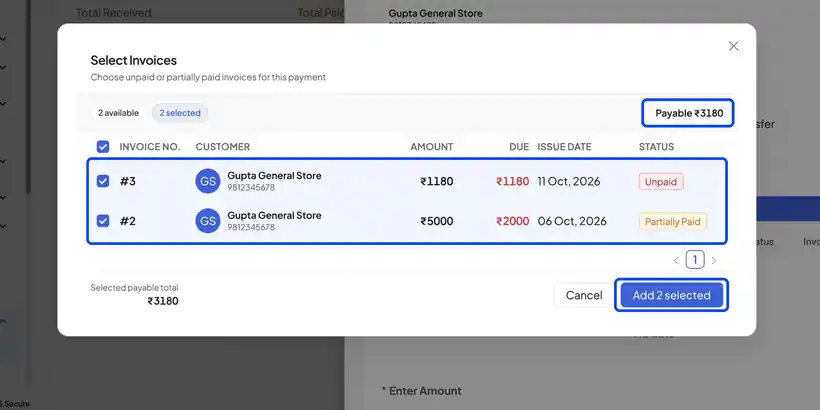
- The selected invoices show as Fully paid and the amount fills in automatically. Add a note if you like.
- Click Save & Update. The payment appears in the list with the invoices it settled, and Total Received goes up.
Step 3: Record a Payment Out
- Switch to the Payment-Out tab and click Payment Out.
- Select the vendor and the payment mode, for example Cash.
- If you have a purchase bill, link it. If not, skip the bill and enter the amount. It is saved as an advance.
- Add a note, such as "Advance for next order", and save.
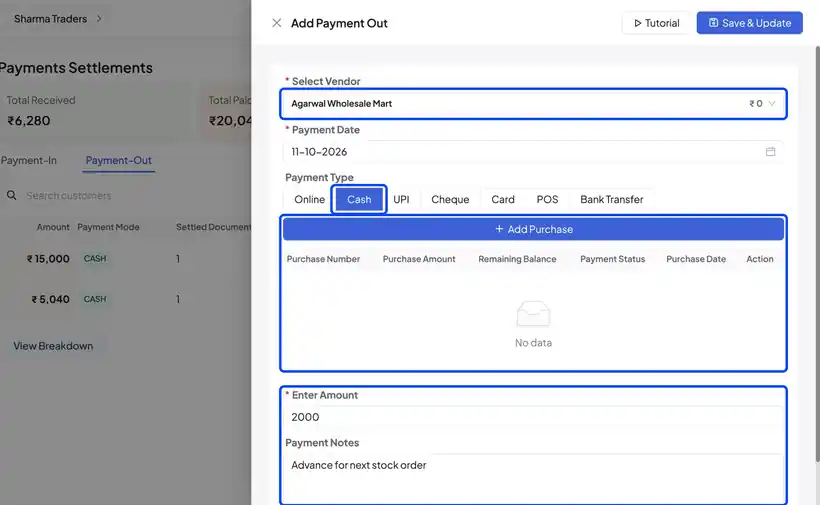
The payment shows on the Payment-Out tab and Total Paid updates.
Frequently Asked Questions
Q: Can one payment clear several invoices?
Yes. Tick all the invoices the customer is paying for in Add Invoices, and BillClap splits the amount across them.
Q: What happens if a customer pays only part of an invoice?
Enter the amount received. The invoice stays partly paid and the balance remains due.
Q: Can I pay a supplier before I get the bill?
Yes. Record a Payment Out without linking a bill. It is saved as an advance for that vendor.
Need Help?
Our support team is available:
- 📞 Call/WhatsApp: 8882468190
- 📧 Email: support@billclap.com
- 🕐 Support Hours: Monday to Friday, 10 AM – 6:30 PM