
BillClap Offline: system requirements and how to install
In short: BillClap Offline runs on Windows and Mac computers. Get the installer for your computer, install it, open the app and activate your licence. It takes a few minutes.
System requirements
| Item | Requirement |
|---|---|
| Operating system | Windows or macOS (Mac) |
| Internet | Not needed for billing. Useful for downloading the app, activating the licence online, Google Drive backups and updates. You can also activate without internet. |
| Printer (optional) | Any A4 printer, or a 2-inch or 3-inch thermal printer for counter receipts |
| Barcode scanner (optional) | A USB barcode scanner works for billing and POS |
How to install
- Get the BillClap Offline installer for Windows or Mac from your BillClap partner or BillClap support (help@billclap.com).
- Copy it to the computer you will bill from.
- Open the installer file and follow the on-screen steps to install.
- Open Billclap Offline from your desktop, Start menu or Applications folder.
- Activate your licence, create your owner account and add your business. See How to activate your BillClap Offline licence.
What you'll see
Once you are signed in, BillClap Offline opens on the Dashboard. The left menu has everything you need: Parties, Products, Sales, Purchases, Expenses, POS, Cash & Bank, Warehouses, Reports and Settings. Quick Access takes you straight to Create Tax Invoice, Create Purchase Bill, reports and inventory.
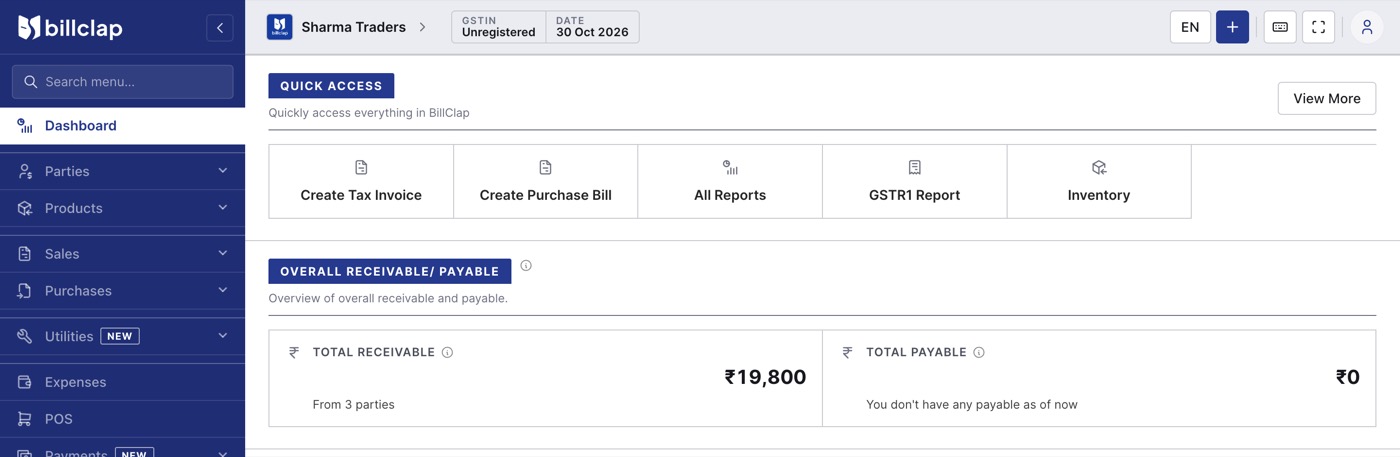
The BillClap Offline Dashboard.
Good to know
- Install it on the computer you will actually bill from. Each licence works on one PC, and your data is stored on that PC.
- If you are moving from an old computer, install on the new one and choose Restore from a backup on the first screen. See How to back up and restore your data in BillClap Offline.
- Keep the computer's date and time correct. Bills, reports, backups and the licence use it.