
How to set up your business in BillClap Offline
In short: Before your first bill, fill in Settings > Company Details, set your invoice numbering and terms, and check which warehouse your stock sits in. It takes about ten minutes.
1. Add your business details
- Click Settings in the left menu, then Company Details under Business Setup.
- Under Business identity, enter your Business Name and choose a Business Type.
- Under Contact details, enter your Mobile and Email.
- Under Tax & location, enter your GST number if you are GST-registered. The address fields can fill in automatically from a valid GSTIN; check them, especially the state.
- Save.
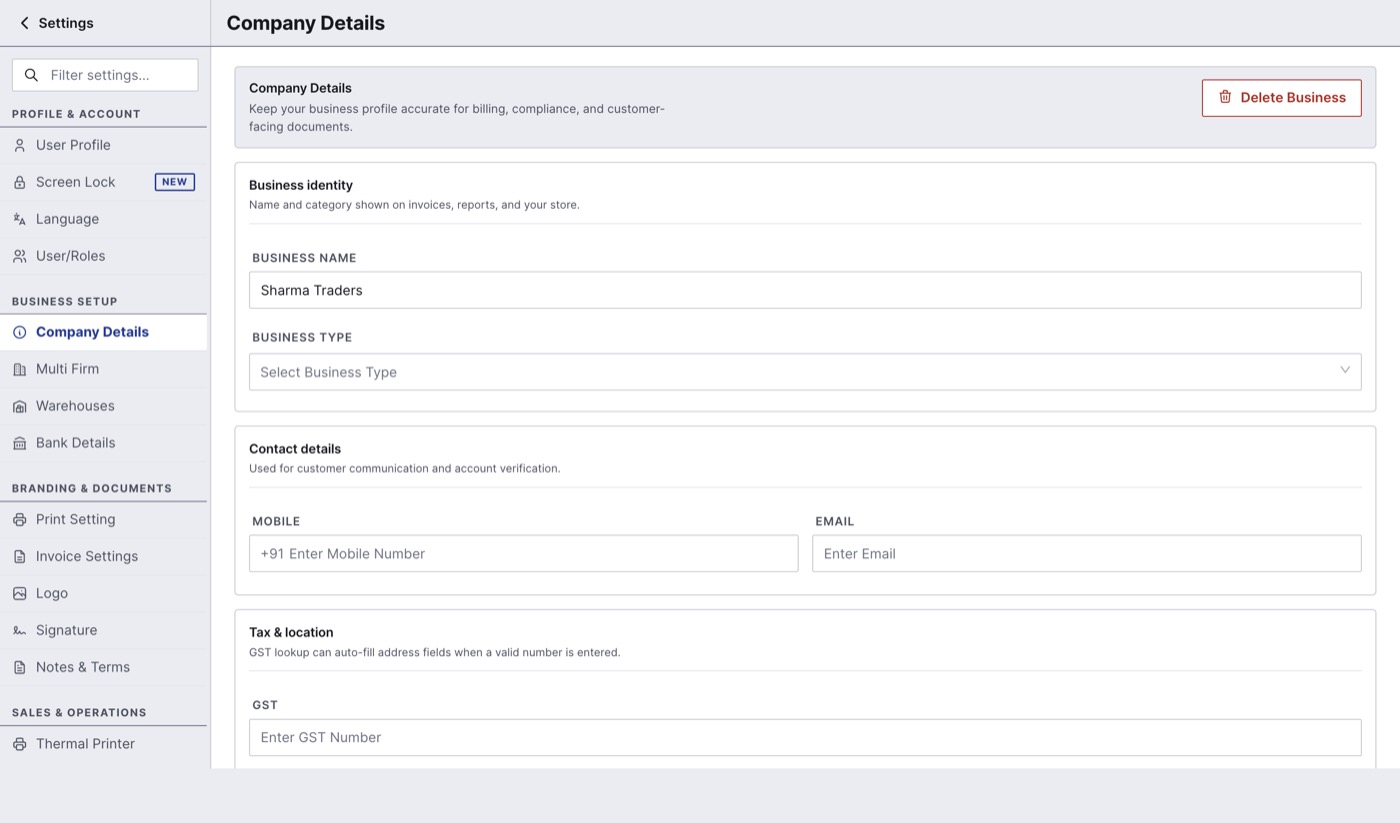
Settings > Company Details.
Why the state matters: BillClap Offline compares your state with your customer's state to decide the tax. Same state means CGST + SGST. A different state means IGST.
Not GST-registered? A business without a GSTIN should not charge GST on its bills. Check with your accountant how you should bill before you start.
Add your bank and UPI details in Settings > Bank Details, and your logo and signature in Logo and Signature, if you want them on invoices.
2. Set your invoice numbering
- Go to Sales > Tax Invoices and click Tax Invoice Settings.
- Tick Show Tax Invoice Sequence and Prefix.
- Enter a Tax Invoice Prefix (for example INV/26-27/), the next Sequence Number and an optional Suffix. If you are moving from another software mid-year, start from your next number.
- Click Settings Update.
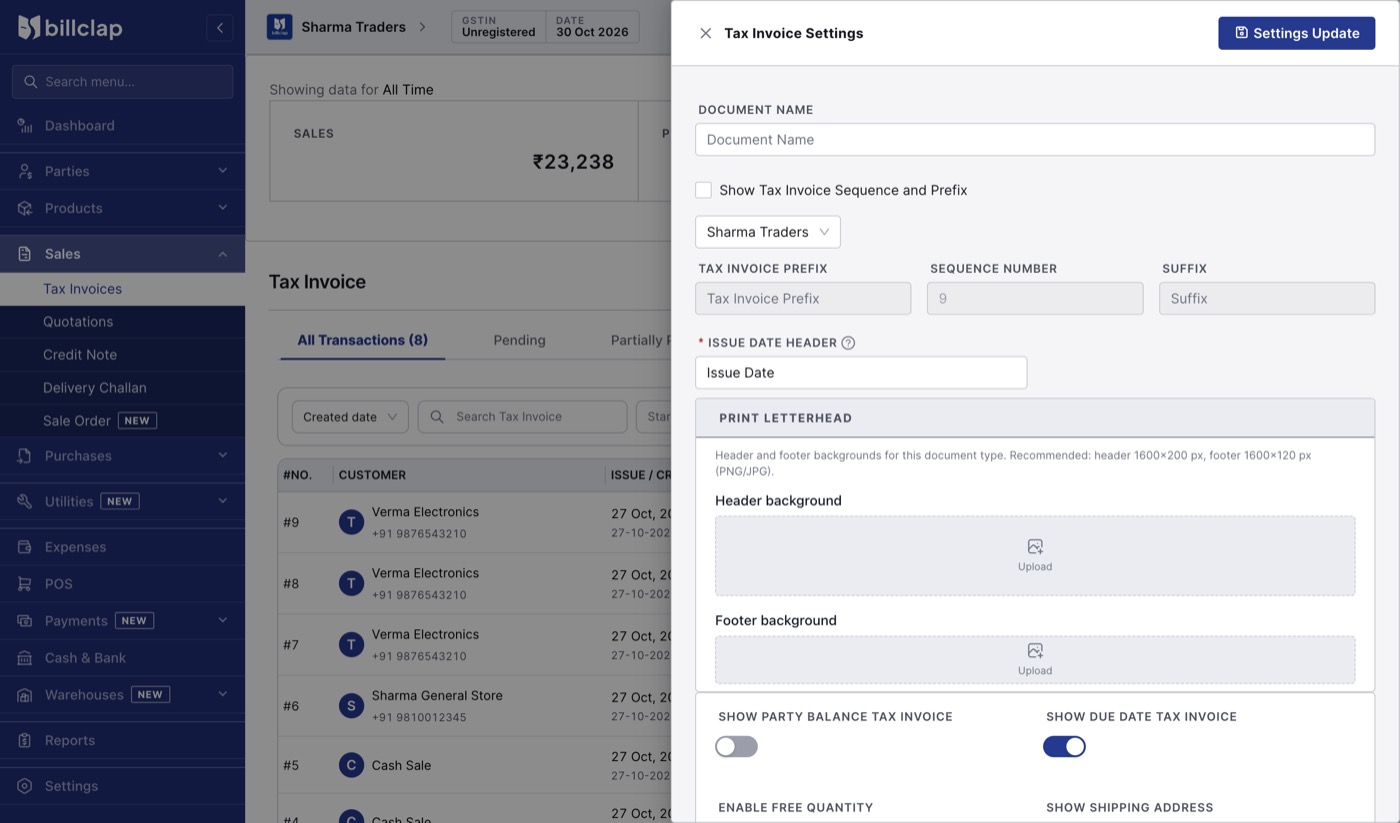
Sales > Tax Invoices > Tax Invoice Settings.
3. Add your terms and conditions
- Go to Settings > Notes & Terms.
- With Tax Invoice selected, write your Terms and Conditions. Include your city for jurisdiction, for example "All disputes are subject to Lucknow jurisdiction only."
- Add a short Note, such as a thank-you line.
- Click Save & update. Repeat for quotations, delivery challans and other documents if you like.
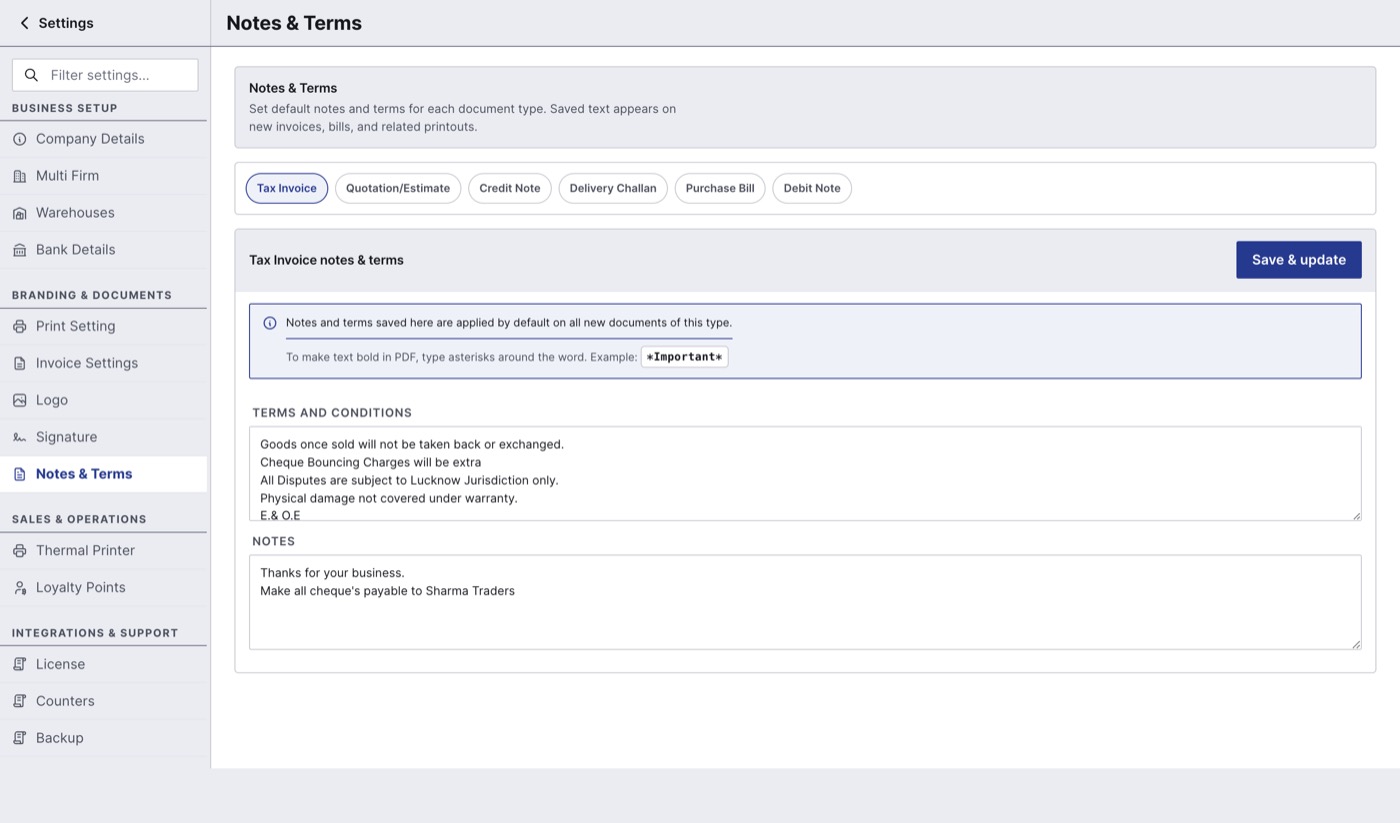
Settings > Notes & Terms. This text prints on every new invoice.
4. Check your warehouse
Every item's stock belongs to a warehouse (godown).
- Go to Settings > Warehouses.
- The warehouse with the dot under Set as Default is where new stock goes unless you choose another. Select a different one to change the default.
- Click Edit to rename a warehouse, for example "Shop".
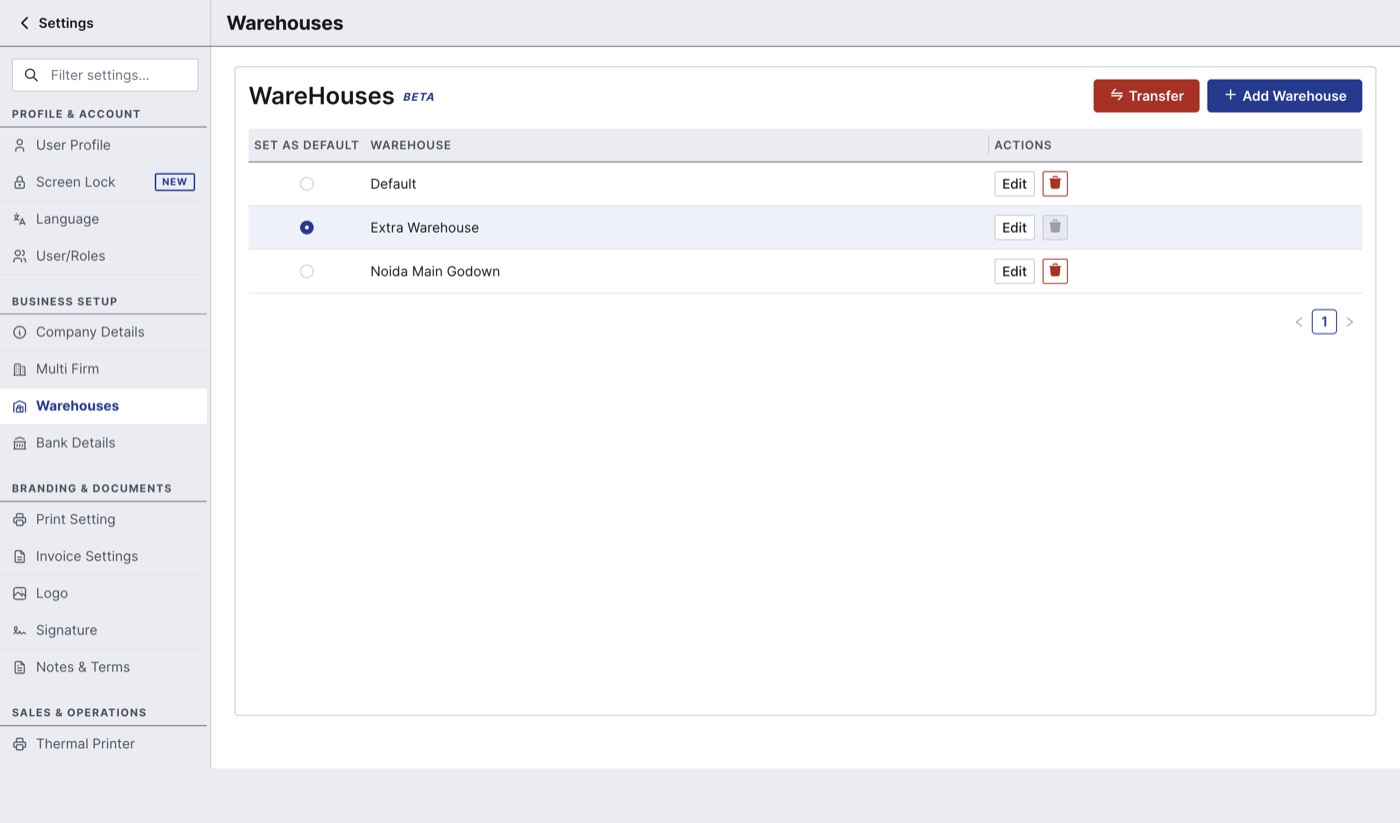
Settings > Warehouses.
Offline Enterprise Plus lets you Add Warehouse and Transfer stock between them.
5. Switch on backup
Set up automatic backup on day one. See How to back up and restore your data in BillClap Offline.
Next steps
- How to add items in BillClap Offline: price, HSN, GST rate and MRP
- How to add customers and suppliers in BillClap Offline