
How to set up size and colour variants in BillClap Offline
In short: For garments, footwear or packs in different sizes, turn on Variants when you add the product and add each size or colour with its own price and stock. On a bill, each variant appears as its own item.
Set up a product with variants
- Go to Products > Products and click Add Product.
- Enter the main product name, for example "Cotton Kurta" or "Dove Soap".
- Under Manage Inventory Using, switch on Variants.
- Fill in GST, category, unit and HSN code.
- Add each variant: a name (for example S, M, L, XL, or 75g and 125g), its sell price, purchase price, MRP and opening quantity.
- Save.
A product can use only one of Batches, Serial Number/IMEI or Variants.
See variant stock
In the Products list, click 2 VARIANTS (the count changes with your variants) next to the product. Each variant shows its opening and current quantity, sell price, purchase price and MRP.
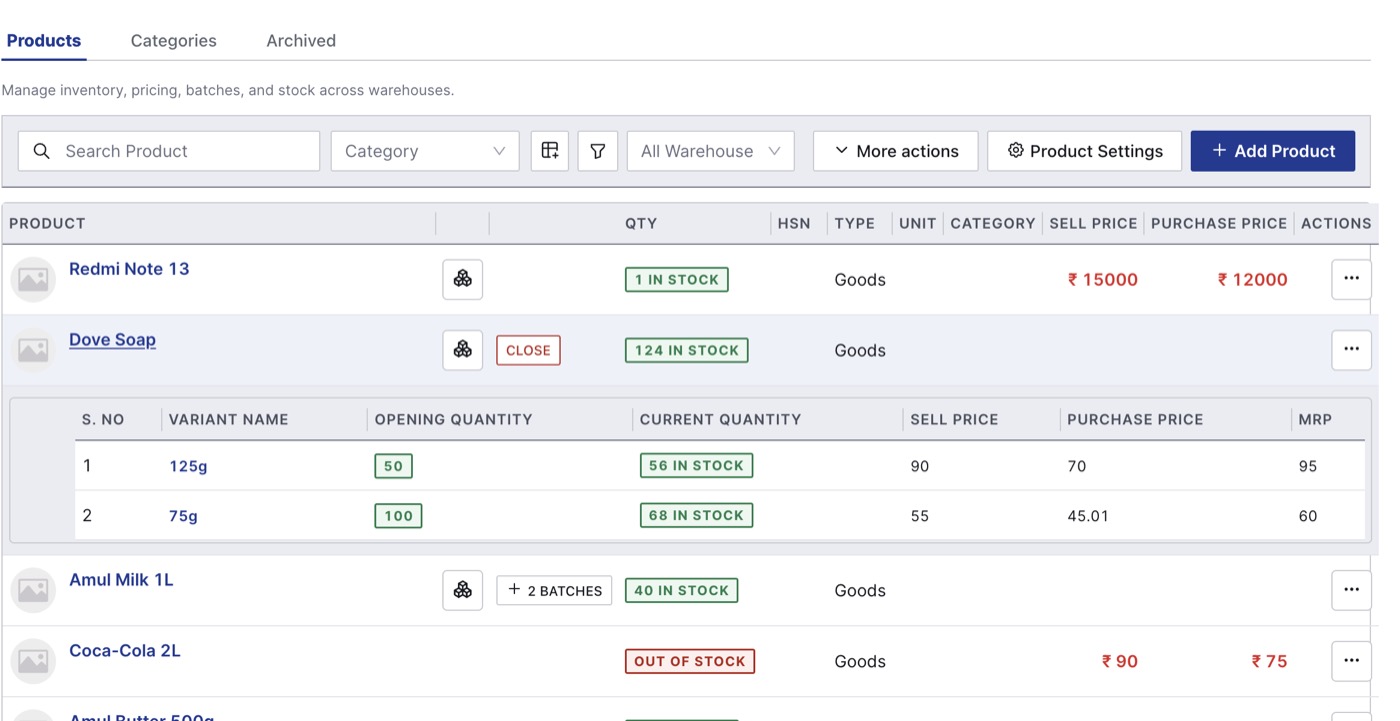
Each variant keeps its own stock and price.
Sell a variant
On an invoice or in POS, search the product name. Each variant shows up as a separate item, for example "Dove Soap - 125g". Pick the one the customer is buying. Stock goes down for that variant only.
Check before you save
- Give every variant a different name and a sell price above zero. The app doesn't stop duplicate names or a ₹0 price.
- Opening stock goes to the product's warehouse. If variants sit in different godowns, add the stock through a purchase bill into the right warehouse.
- The main product row in the Products list doesn't show a price, because prices are per variant. Open the variants to see them.