
How to receive payments and track udhaar in BillClap Offline
In short: When a customer pays an old bill, open the bill's More menu and click Add Payment, or go to Payments > Payment Entries > Payment In. To see who owes you what, open the customer in Parties and check their ledger.
Record a payment against a bill
- Go to Sales > Tax Invoices. Unpaid bills show UNPAID (or partly paid).
- On the bill, open the More menu and click Add Payment.
- The party and the bill are filled in. Check the Payment Date.
- Choose the Payment Type: Online, Cash, UPI, Cheque, Card, POS or Bank Transfer.
- In Enter Amount, type what the customer paid. It can be less than the bill; the rest stays as udhaar.
- Add a note if useful (for example a cheque number) and click Save & Update.
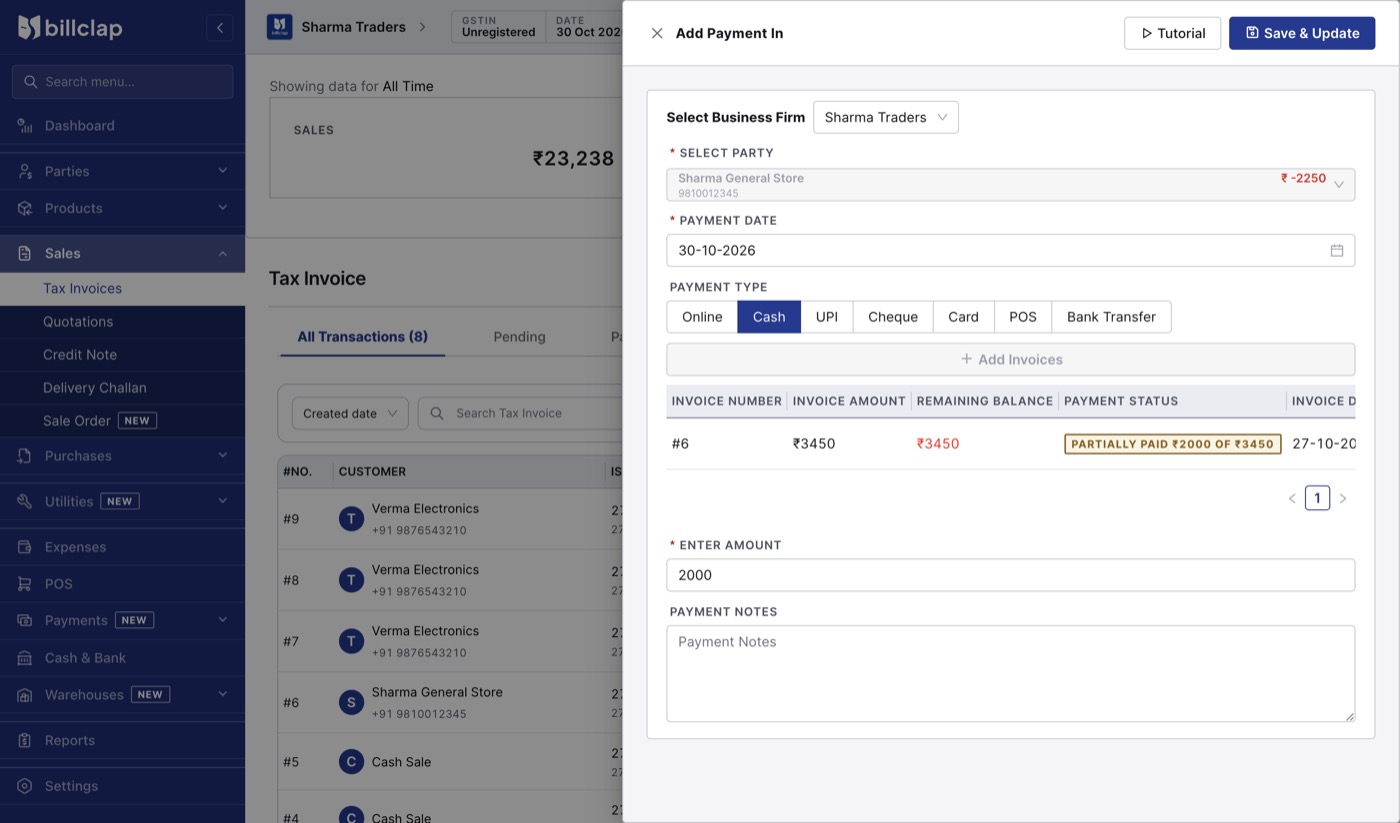
Add Payment In: a part payment of ₹2,000 against a ₹3,450 bill.
A customer paying against several bills? Click Add Invoices in the same window to add more bills to one payment.
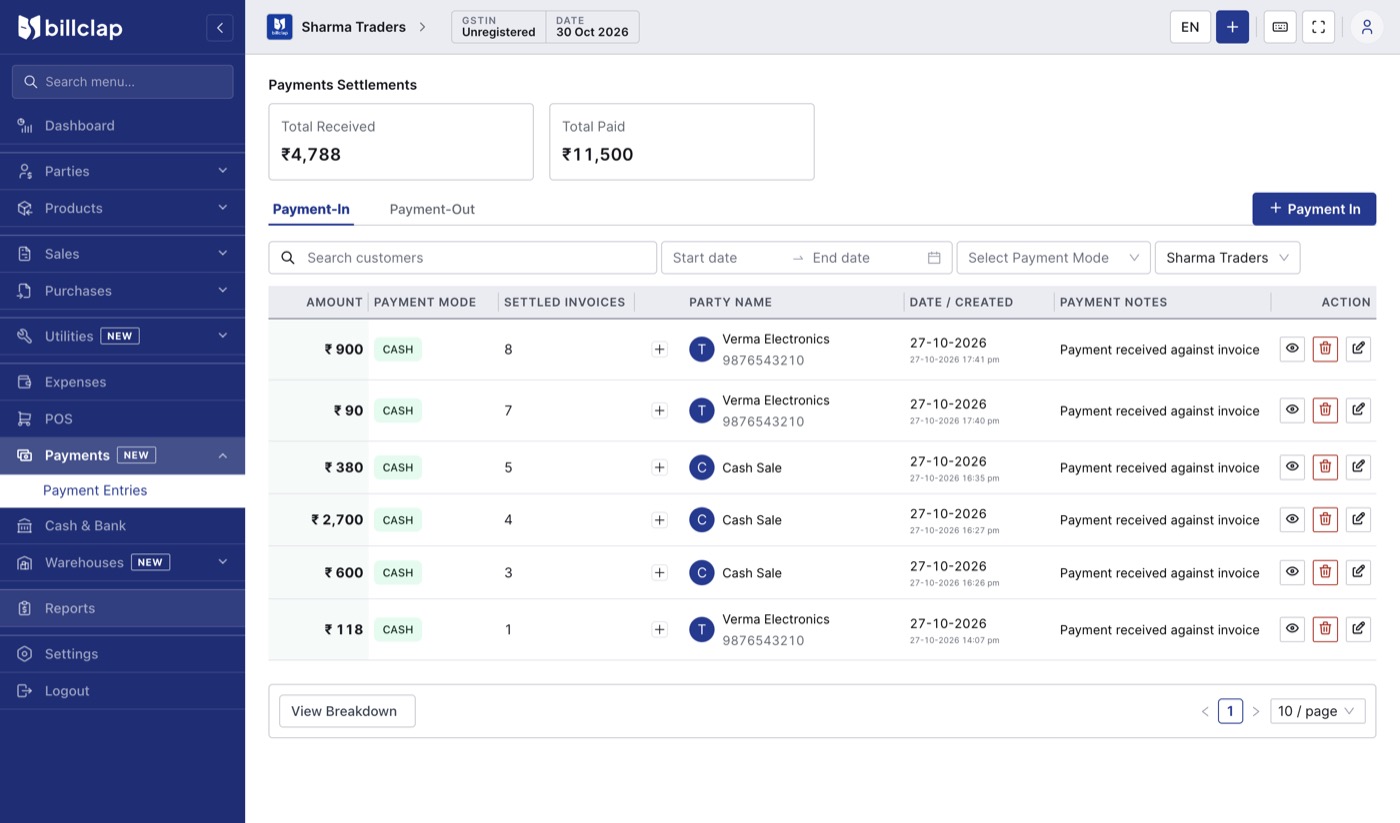
See all payments
Go to Payments > Payment Entries. Payment-In lists money received from customers and Payment-Out lists money paid to suppliers, with totals at the top. Click + Payment In to record a payment from here.
Check a party's ledger (udhaar khata)
- Go to Parties > Parties Details.
- Click the eye icon on the customer (or supplier on the Vendors tab).
- The Closing Balance shows what they owe now. The Party ledger lists every bill, payment and return with a running balance.
- Pick a date range to see one period. Click View PDF to share the ledger with the customer, or Export CSV for Excel.
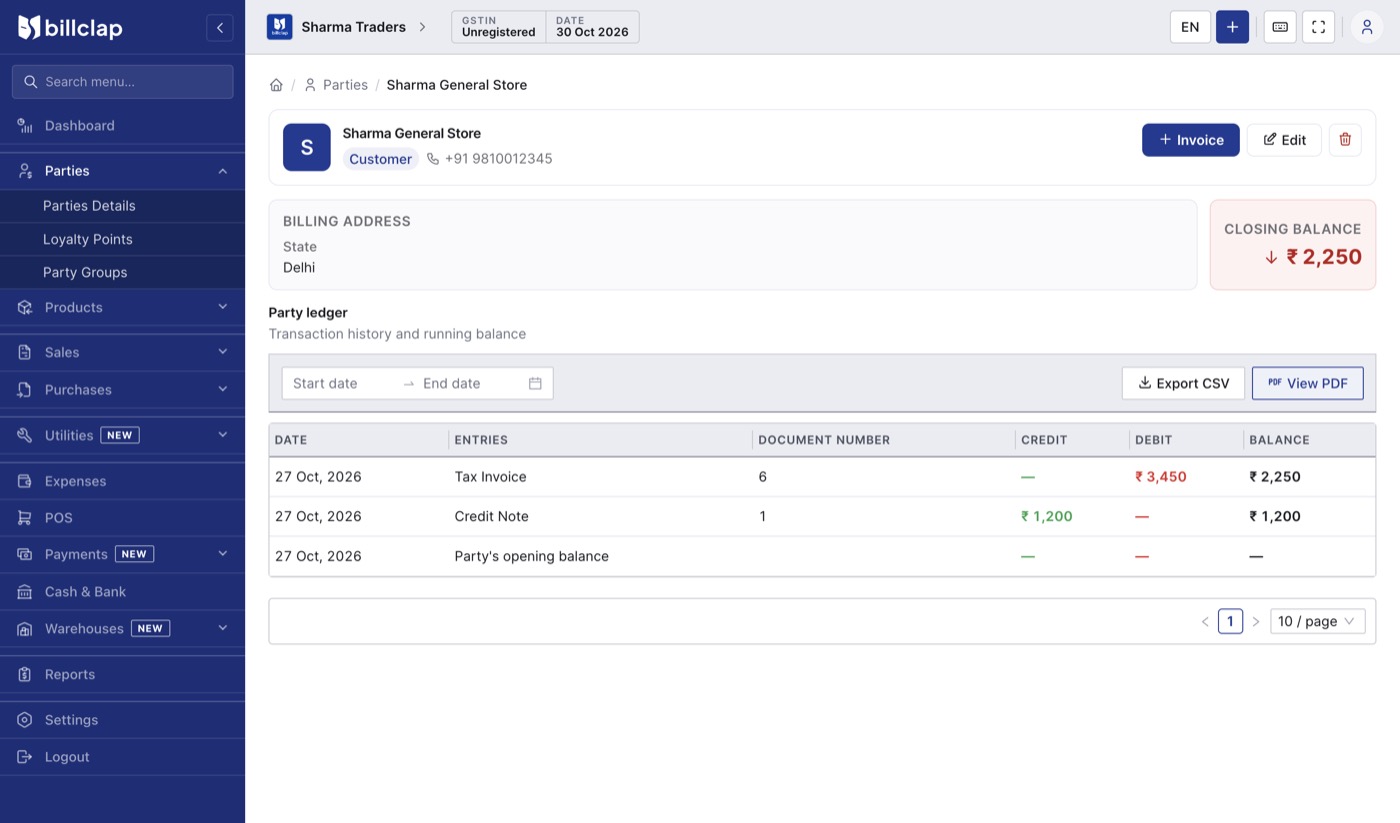
A customer's ledger with the closing balance at the top right.
Good to know
- A payment can't be more than what is due on the bill; the app stops overpayments.
- If you delete an invoice, its payments may be deleted with it. Re-record them on the new invoice.
- Give regular customers a ledger PDF at month-end. It cuts down arguments about old dues.