
How to track batches and expiry dates in BillClap Offline
In short: For medicines, food and FMCG, turn on Batches when you add the product. Each batch keeps its own number, manufacture date, expiry date, price and stock. When you bill the item, you choose which batch the stock comes from.
Set up a batch product
- Go to Products > Products and click Add Product.
- Enter the product name, for example "Crocin Advance 15 Tab".
- Under Manage Inventory Using, switch on Batches. Prices move to the batch level, so the button changes to Next.
- Choose the GST rate, Category and Primary Unit, and add the HSN code under Additional Fields.
- Click Next and add each batch you have in stock: batch number, manufacture date, expiry date, price and quantity.
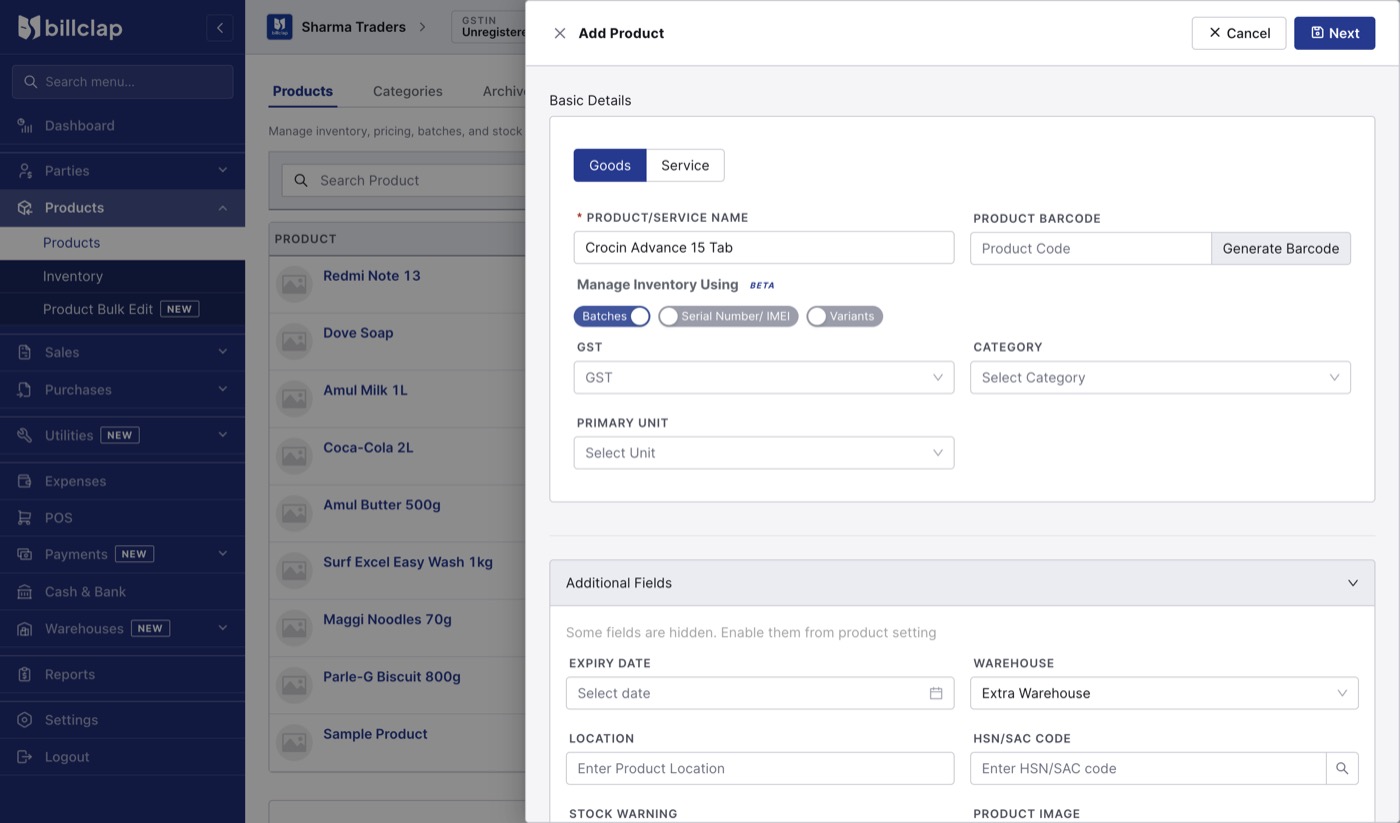
Switch on Batches under Manage Inventory Using.
A product can use only one of Batches, Serial Number/IMEI or Variants.
See a product's batches
In the Products list, click 2 BATCHES (the count changes with your batches) next to the product. Each batch shows its manufacture and expiry date, opening and current quantity, and prices.
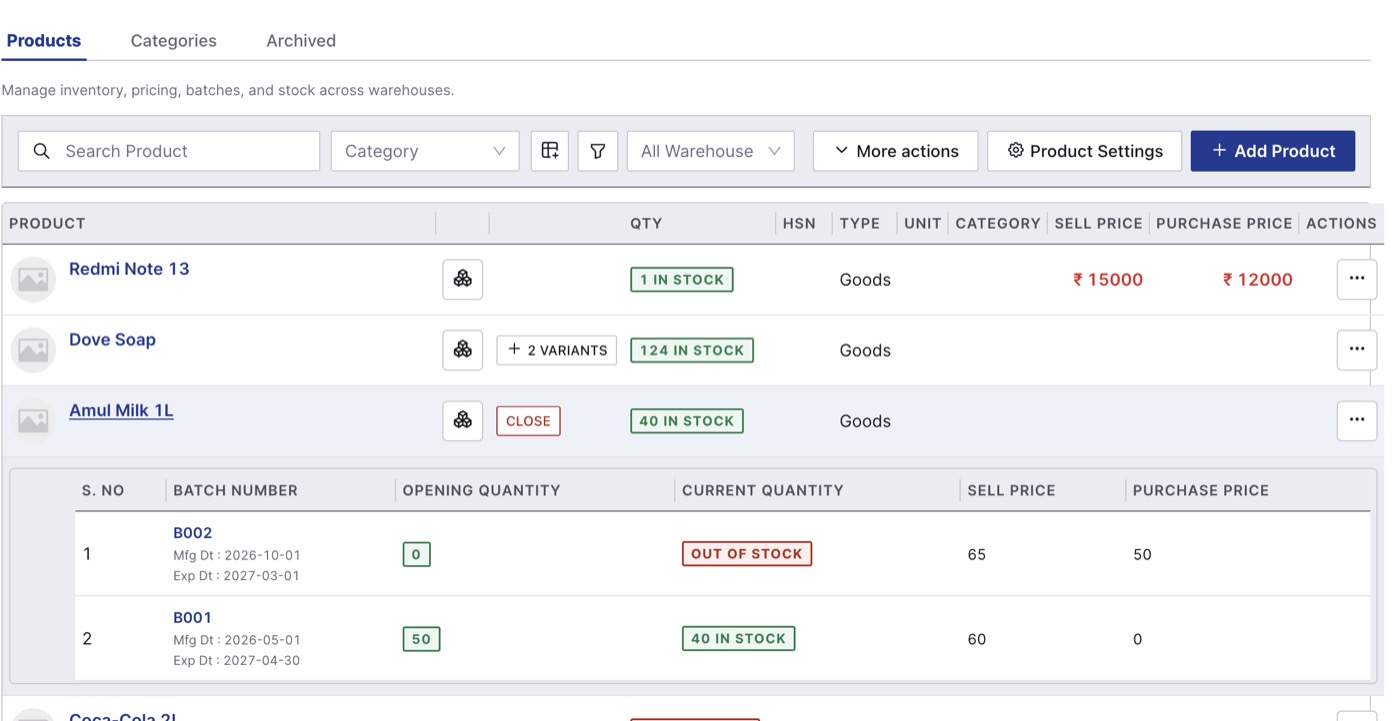
Add a new batch when stock arrives
Enter the supplier's bill in Purchases > Purchase Bill. When you add the batch product, click Add New Batch in the batch window, fill in the batch details, then enter the quantity received against that batch.
Sell from a batch
- On an invoice or in POS, add the batch product.
- The Add from Batches window opens with every batch, its expiry date and current quantity.
- In Added Qty, enter how many you are selling from each batch.
- Click Done.
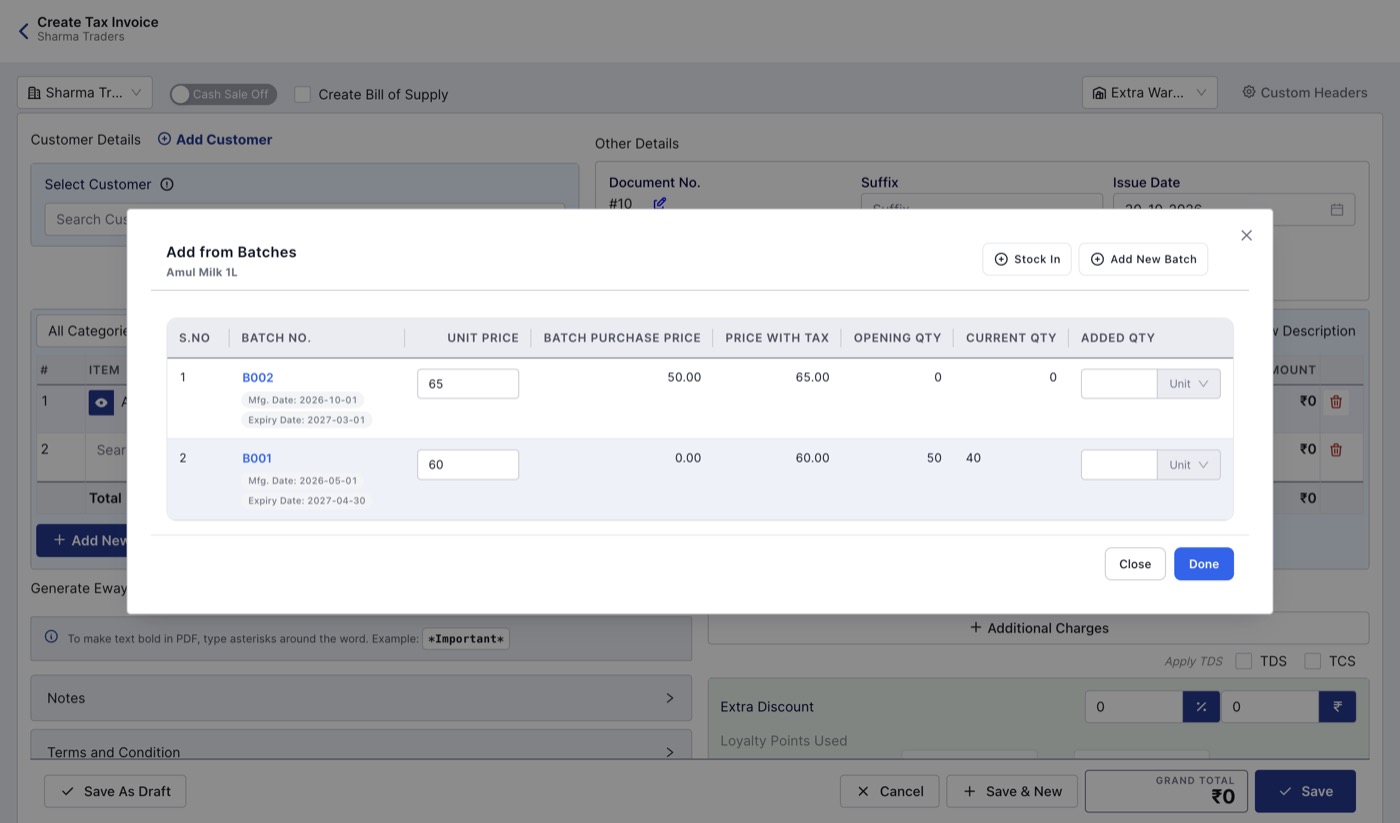
Choose the batch and quantity on the bill.
Good habits for expiry
- Check dates when you enter a batch. The expiry date must be after the manufacture date. The app doesn't check this for you.
- Look at the expiry before you pick a batch. The app doesn't stop you from selling an expired batch, so pick the one that expires first and isn't already expired.
- Keep batch numbers exactly as printed on the pack, so you can trace a batch if a supplier recalls it.