
How to make your first GST invoice in BillClap Offline and print it
In short: Go to Sales > Tax Invoices > Create Tax Invoice, pick the customer (or turn on Cash Sale), add items and save. Then open the invoice to print it on A4 or your thermal printer. No internet needed.
Create the invoice
- In the left menu, open Sales > Tax Invoices and click Create Tax Invoice.
- Under Select Customer, search by name, mobile or GSTIN and pick the customer. Their mobile, GSTIN and state fill in automatically. For a walk-in customer, switch on Cash Sale at the top instead.
- At the top right, check the warehouse the goods are going out from.
- In the items table, click Search Product and pick the item. HSN, unit price and GST come from the product. Set the Quantity.
- Click Add New Row for the next item, or use Scan Barcode.
- For batch items, pick the batch; for serial/IMEI items, tick the serial numbers being sold.
- Check the totals. BillClap Offline works out CGST + SGST or IGST from your state and the customer's state, and shows the Grand Total at the bottom.
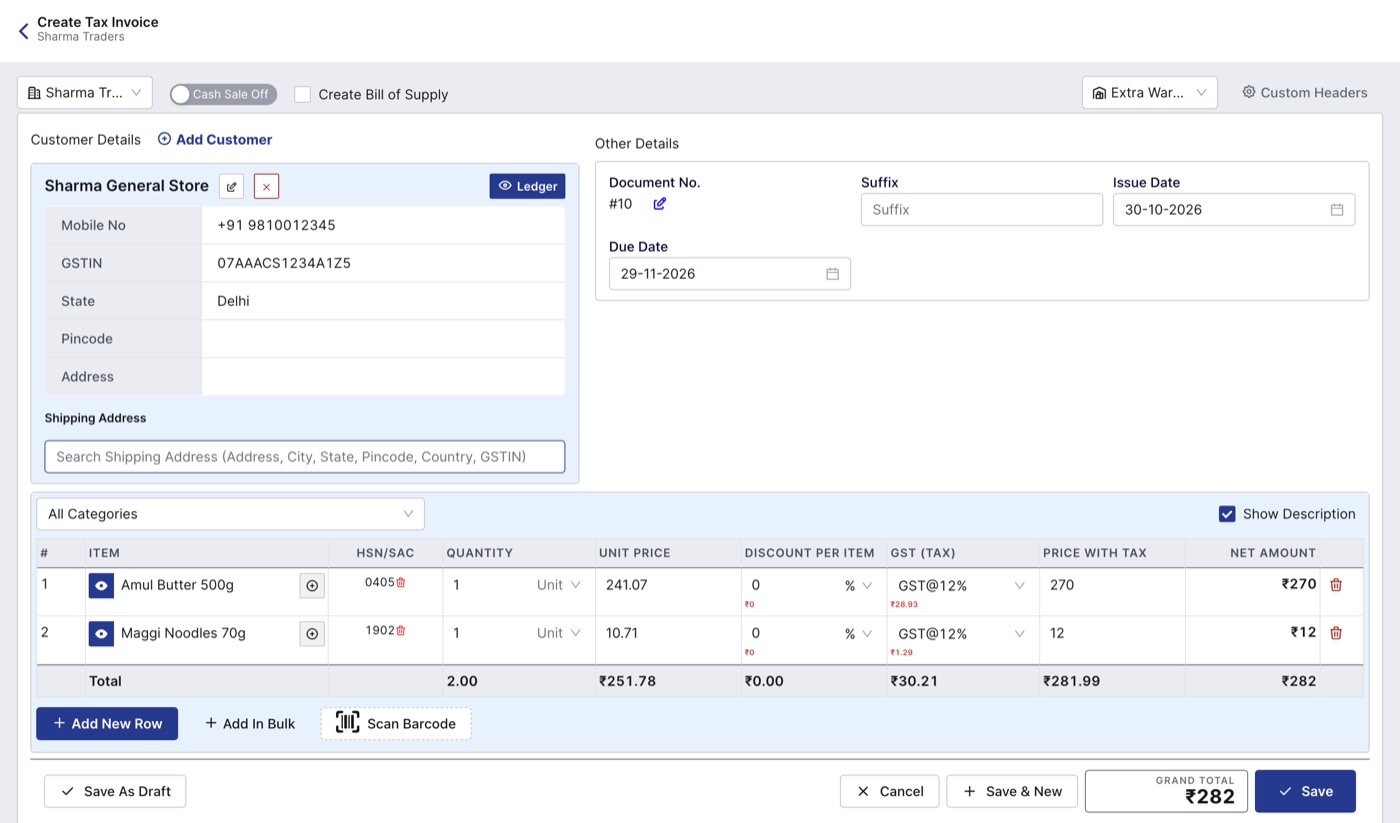
A tax invoice with the customer selected and two items added. The GST and grand total are worked out for you.
Record the payment and save
- Paid in full: enter the full amount and choose the payment mode.
- Part payment: enter the amount received. The balance goes to the customer's ledger as udhaar.
- Unpaid: leave the payment empty. You can use Add Payment on the invoice later.
Click Save, or Save & New to start the next bill straight away.
Print the invoice
- In Sales > Tax Invoices, click PDF View on the invoice.
- For a full A4 invoice, use the print button on the PDF preview. Pick a design under Change Template and a colour under Change Color if you like.
- For a counter receipt, click Thermal Print.
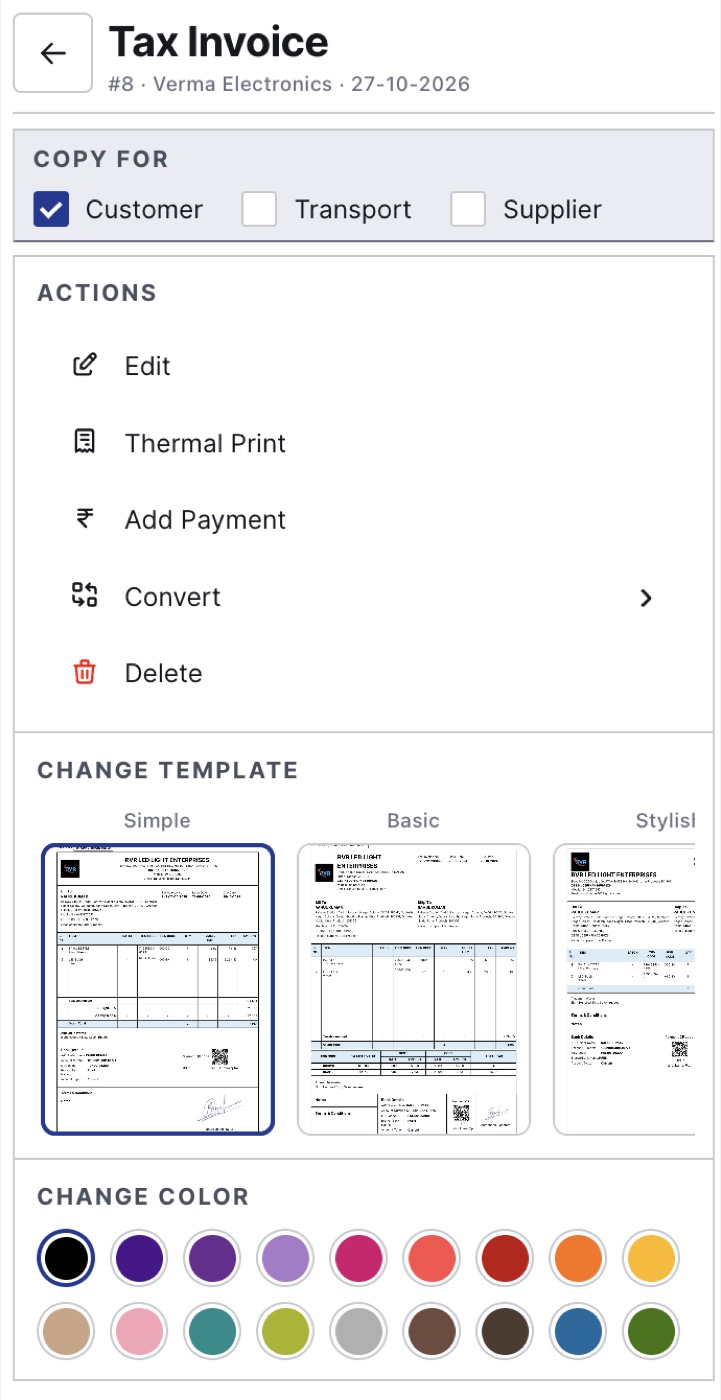
From the invoice's PDF view: Thermal Print, Add Payment, template and colour.
Your business details, terms and invoice numbering come from Settings. See How to set up your business in BillClap Offline.
Faster counter billing with POS
If you bill many walk-in customers, click POS in the left menu. Press F1 to search or scan an item, click it to add it, then click Save & Print Bill (or press Ctrl+P). Keyboard shortcuts at the bottom let you change quantity (F2), add an item discount (F3) or a bill discount (F9) without the mouse.
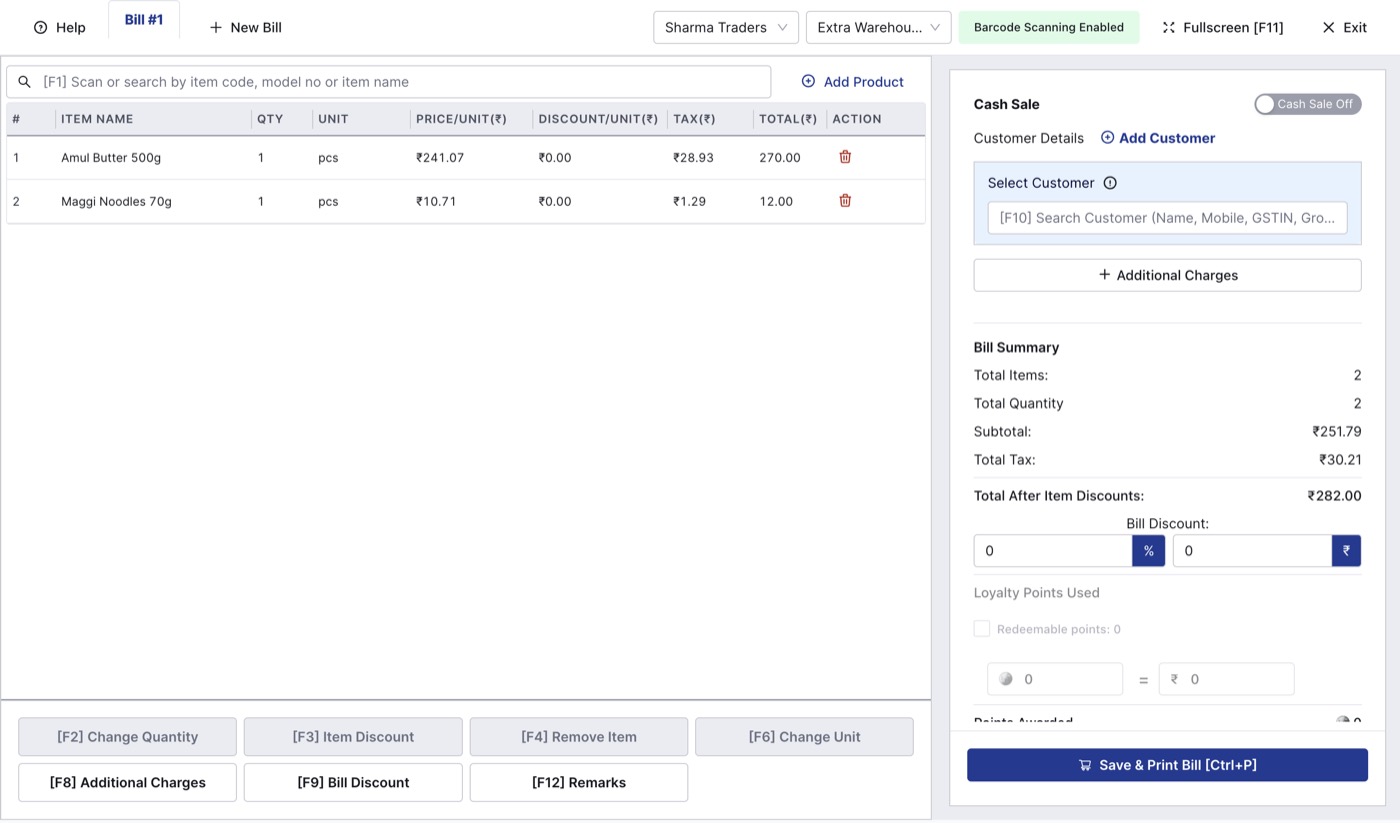
The POS screen, built for quick counter bills.
Check before you save
- Check quantities and prices carefully. Correcting a saved invoice means deleting it and making it again.
- When you delete an invoice, its stock comes back to the warehouse. The option to also delete its payment entries is ticked by default, so re-enter the payment on the new invoice.
- Make sure the right warehouse is selected, so stock is taken from where the goods actually are.
- If you used Cash Sale on the last bill, check the switch before your next document. It can stay on.
Try the offline test
Turn off your Wi-Fi and make another bill. It saves and prints just the same.