
How to track IMEI and serial numbers in BillClap Offline
In short: For mobiles, electronics and appliances, turn on Serial Number/ IMEI when you add the product and enter one number for each unit in stock. When you bill it, tick the exact serial or IMEI you are selling. A sold number no longer shows as available.
Set up a serial or IMEI product
- Go to Products > Products and click Add Product.
- Enter the product name, for example "Redmi Note 13 8/128".
- Under Manage Inventory Using, switch on Serial Number/ IMEI.
- Fill in the price, GST, category, unit and HSN code.
- Add the serial or IMEI number of each unit you have in stock. Each number can be added only once.
- Save.
A product can use only one of Batches, Serial Number/IMEI or Variants.
Sell a unit
- On an invoice, add the product.
- The Add from Serial Number / IMEI window shows every unit in stock. Search if the list is long.
- Tick the number of the unit you are handing over. Tick more than one if you are selling several.
- Click Done. The quantity on the bill matches the numbers you ticked.
- Check the price on the bill, then save.
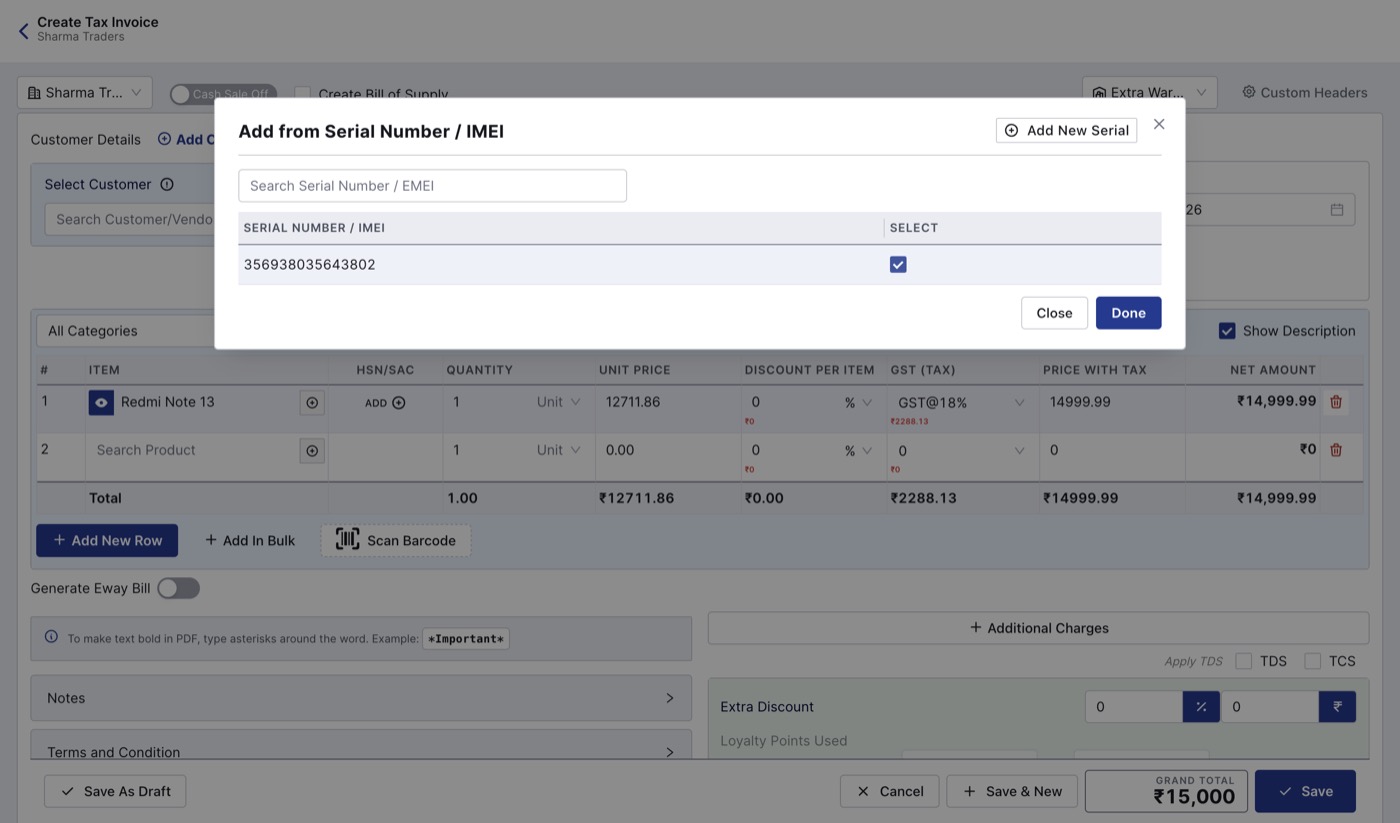
Tick the IMEI of the phone you are selling.
Check before you save
- Tick all the units in one go. If you change the quantity and pick serials again, check that the unit price on the bill is still correct before saving.
- Add new stock through a purchase bill or the product, not with Add New Serial on a sales bill. Adding a serial while billing increases stock.
- Don't delete a sold serial number from the product. Deleting and adding it back can make a sold unit look available again.
- Write the IMEI on the warranty card or in the bill's notes if your customer needs it on paper.