
How to add items in BillClap Offline: price, HSN, GST rate and MRP
In short: Go to Products > Products and click Add Product. Enter the name, MRP, sell and purchase price, GST, unit, HSN code and opening stock, then click Save & Update. Add your 10 to 20 best-selling items first and start billing; add the rest as you go, or in bulk from Excel.
Your product list
Open Products > Products to see every item with its stock, HSN, sell price and purchase price. Filter by Category or Warehouse, or search by name.
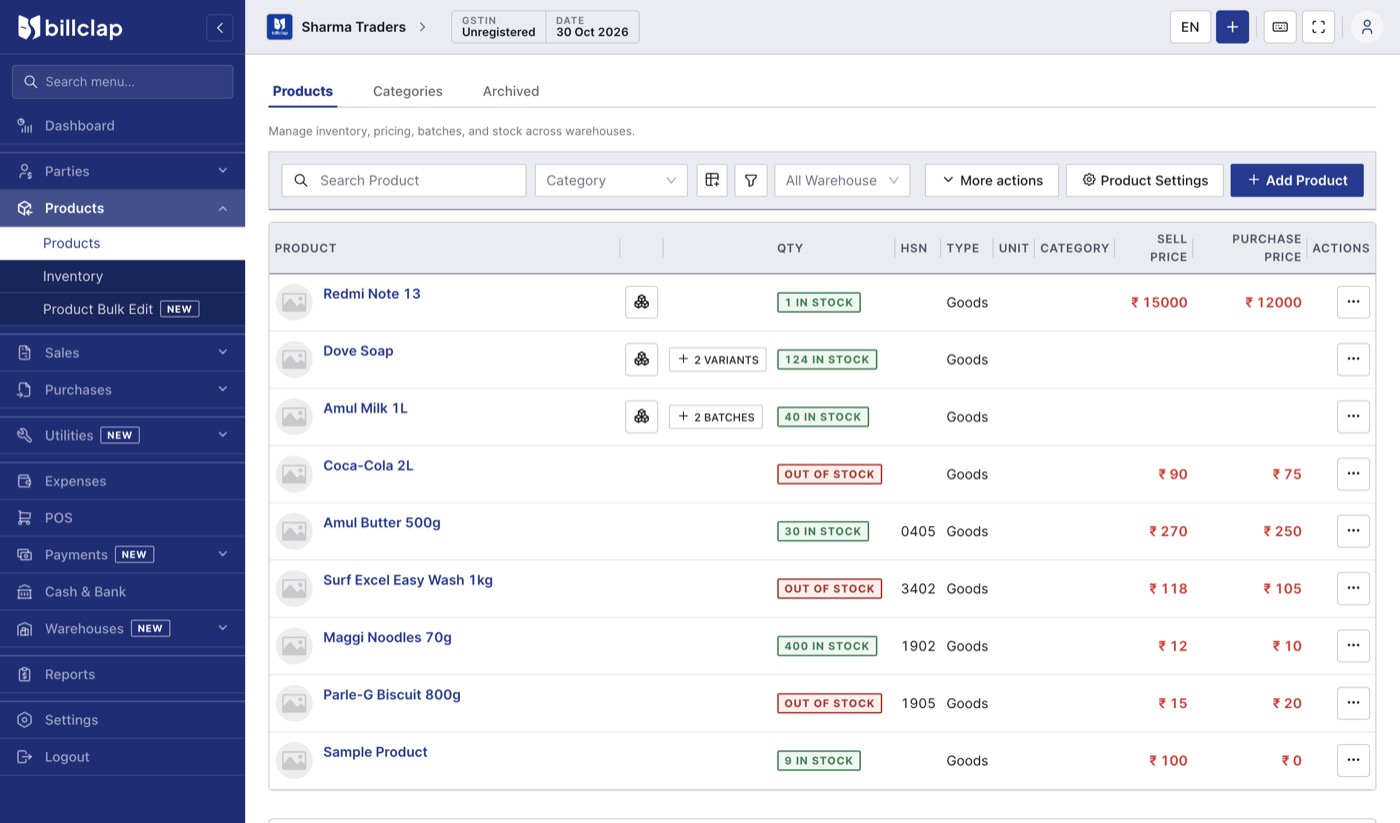
The Products list. Green means in stock; red means out of stock.
Add a product
- Click Add Product.
- Choose Goods (or Service).
- Enter the Product/Service Name the way you want it printed on the bill, for example "Tata Salt 1kg". Add a barcode or click Generate Barcode if you scan items.
- Enter the MRP, Sell Price and Purchase Price. For each price, choose the Tax Type: With Tax if GST is already included, or without tax.
- Choose the GST rate, a Category and the Primary Unit (pcs, kg, box, litre).
- Open Additional Fields to enter the HSN/SAC Code, Opening Stock, Warehouse and a Stock Warning level.
- Click Save & Update.
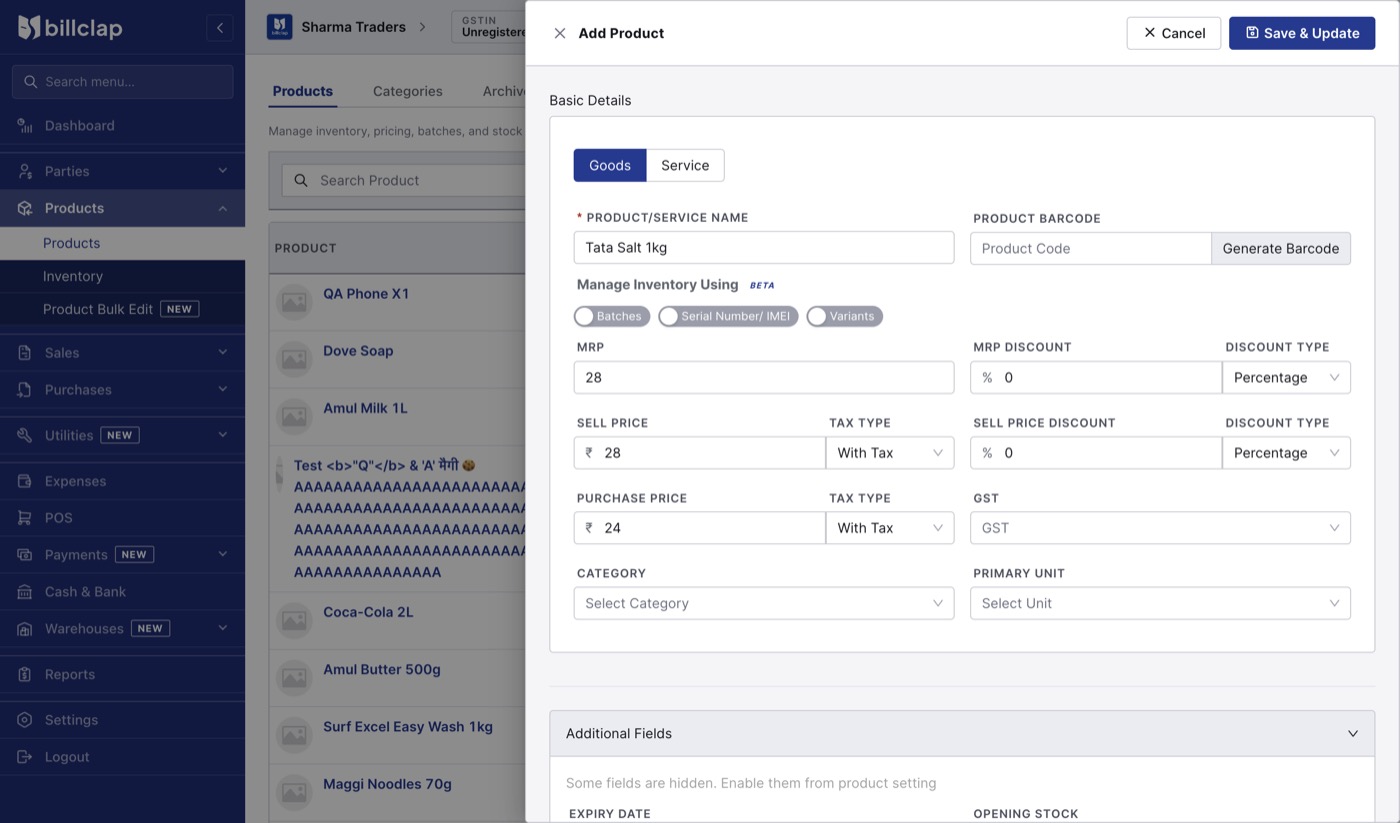
The Add Product form. Batches, Serial Number/IMEI and Variants are under Manage Inventory Using.
Check before you save
- Sell price should not be above MRP, and neither price should be negative.
- Opening stock should be zero or more. Count what is actually on the shelf.
- Always set the GST rate. An item saved without a GST rate is billed without tax and shows up as non-GST in GSTR-1.
- Always choose a unit so quantities print clearly on bills.
- Ask your accountant or check your supplier's bill for the right HSN code and GST rate.
Items that need extra tracking
Under Manage Inventory Using, switch on one of these if your trade needs it. A product can use only one of the three.
| Option | Use it for | What you enter |
|---|---|---|
| Batches | Medicines, food, FMCG | Batch number, manufacture and expiry date, quantity and price for each batch |
| Serial Number/ IMEI | Mobiles, electronics, appliances | One serial or IMEI number for each unit in stock |
| Variants | Garments, footwear, packs in different sizes | A name, price and stock for each size or colour, for example 75g and 125g |
For batches, check that the expiry date is after the manufacture date and in the future.
Add many items at once
With Offline Enterprise Plus you can add items in bulk from Excel: Products > More actions > Bulk Add. Download the template, fill it in and upload it. Check the imported items once, because prices and GST rates are taken exactly as typed.
Next step
How to add customers and suppliers in BillClap Offline.