
How to add and edit items in bulk from Excel in BillClap Offline
In short: With Offline Enterprise Plus, load your whole item list at once: Products > More actions > Bulk Add, download the template, fill it in and upload it. To change prices or GST for many items, use Products > Product Bulk Edit.
Add items from Excel
- Go to Products > Products, click More actions and choose Bulk Add.
- Click Template (XLSX) to download the template. Use this template; a file of your own may not be read.
- Fill one item per row: name, category, unit, sale price, purchase price, MRP, GST %, HSN code and opening stock.
- Save the file as .xlsx, then drag it into the upload area or click to choose it.
- Check the imported items in the Products list.
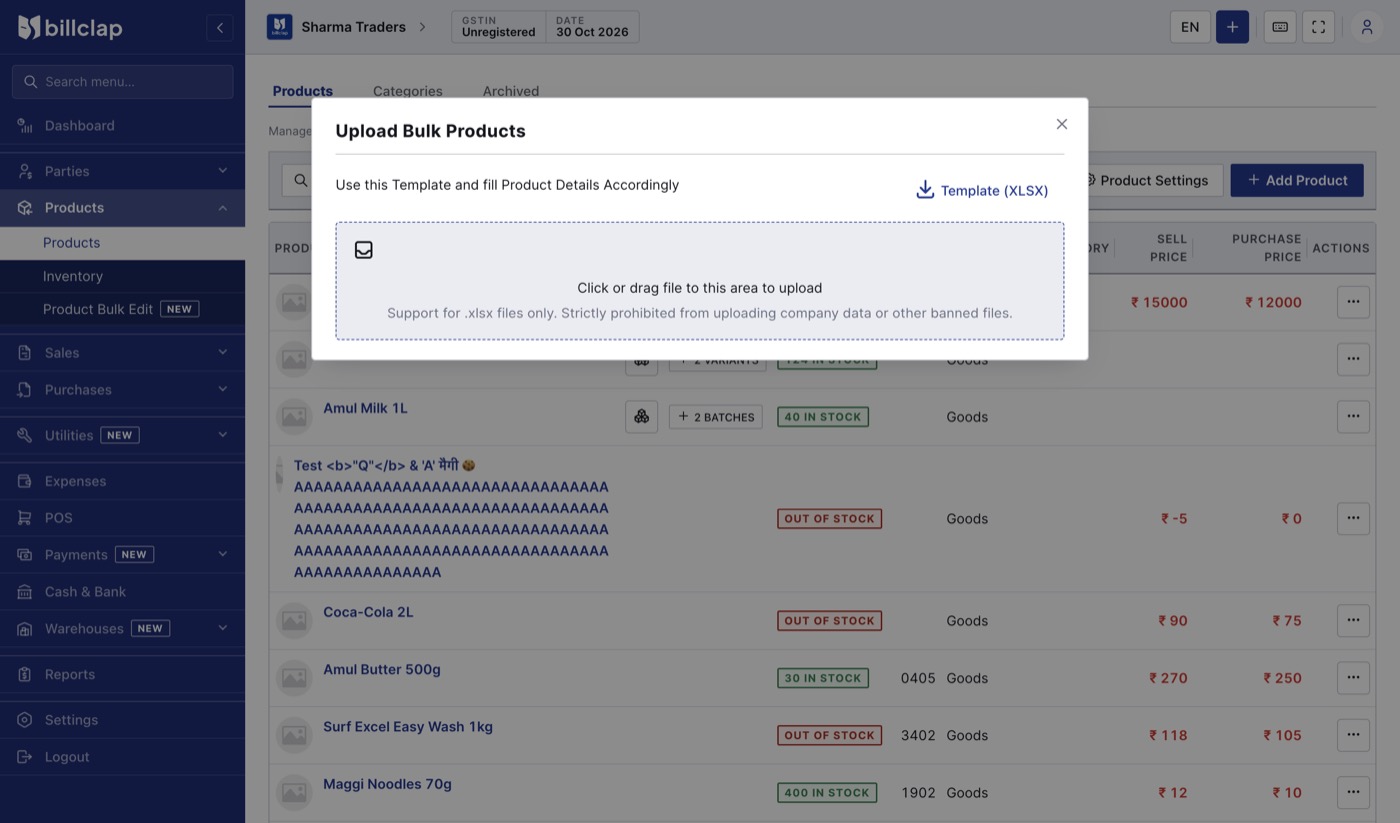
Products > More actions > Bulk Add.
Check your file before uploading
Bulk Add takes values as typed, so clean the file first:
- Every row has a product name, and no name appears twice or matches an item you already have.
- Prices and stock are numbers, zero or more; sale price is not above MRP.
- GST % is a real rate (0, 5, 12, 18 or 28) and HSN codes are digits only.
- Units match the units in the app (for example PCS, KGS, BOX).
- Opening stock goes to your default warehouse. The template has no batch, expiry or warehouse columns; add batch items and godown stock separately.
Try a file of 5 to 10 rows first, check them, then upload the rest.
Edit many items at once
- Go to Products > Product Bulk Edit.
- Use the Products, Batches or Variants tab.
- Change names, sale price, purchase price, MRP or GST % directly in the table. Use Update GST to change the GST rate of selected products together.
- Click Save, or Discard to undo your changes.
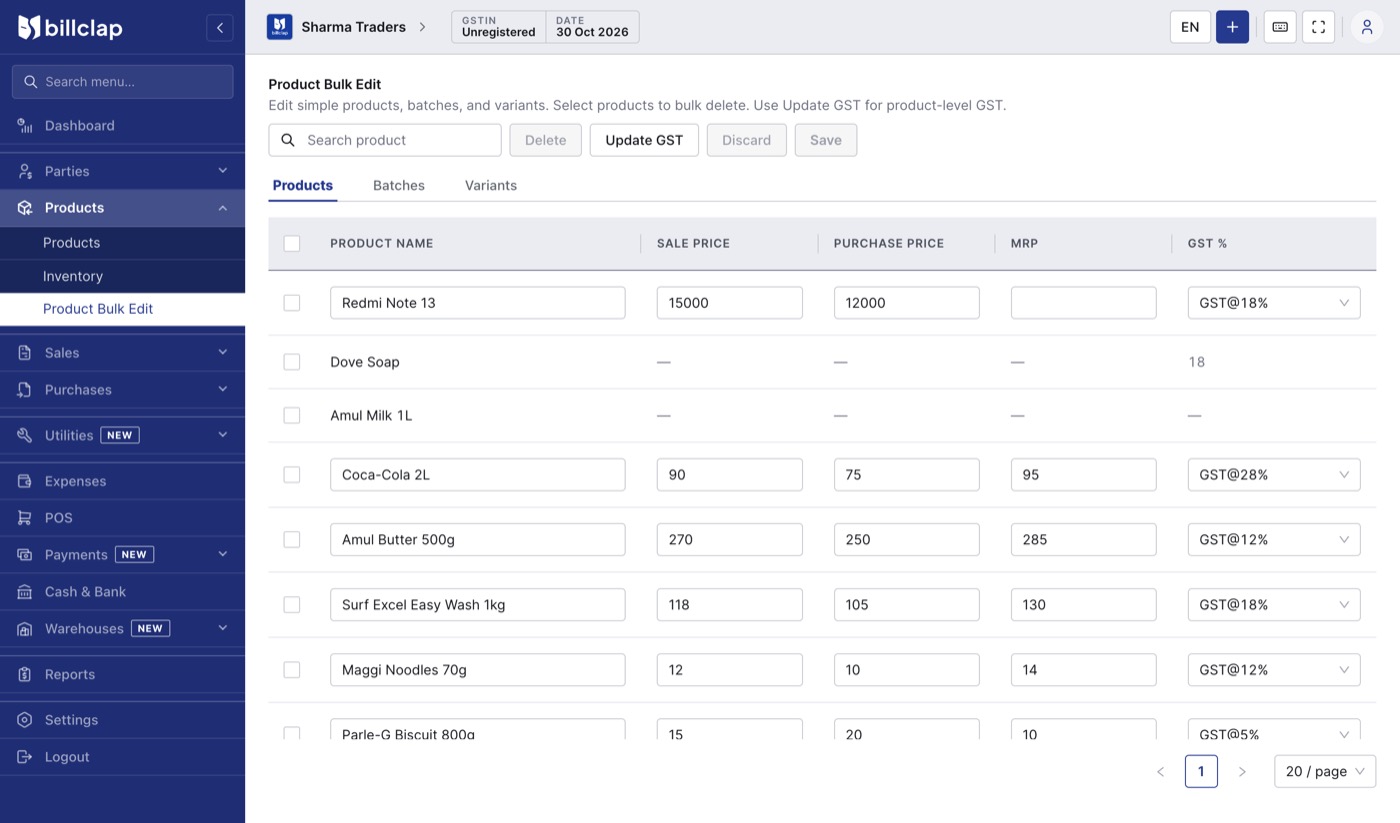
Product Bulk Edit: change prices like a spreadsheet.
- If a row has a problem (for example a blank name or negative price), the app won't save it. Fix the highlighted value and save again.
- Don't rename batch numbers in Bulk Edit to match another batch; edit batches from the product instead.