
How to activate your BillClap Offline licence
In short: The first time you open BillClap Offline, enter the licence key from your partner or BillClap and click Activate. No internet at the shop? Use Activate without internet instead. Then create your owner account (a username and password) and add your business. After that, you sign in with that username and password, and the app works without internet.
Before you start
- BillClap Offline is installed on the computer you will bill from.
- Keep your licence key ready. It looks like XXXX-XXXX-XXXX-XXXX and comes from your partner or BillClap.
Step 1: Activate the licence
When you open BillClap Offline for the first time, you see Activate Billclap Offline. Choose one of the two tabs.
If the computer has internet: Activate online
- Stay on the Activate online tab.
- Type your licence key in License Key.
- Click Activate.
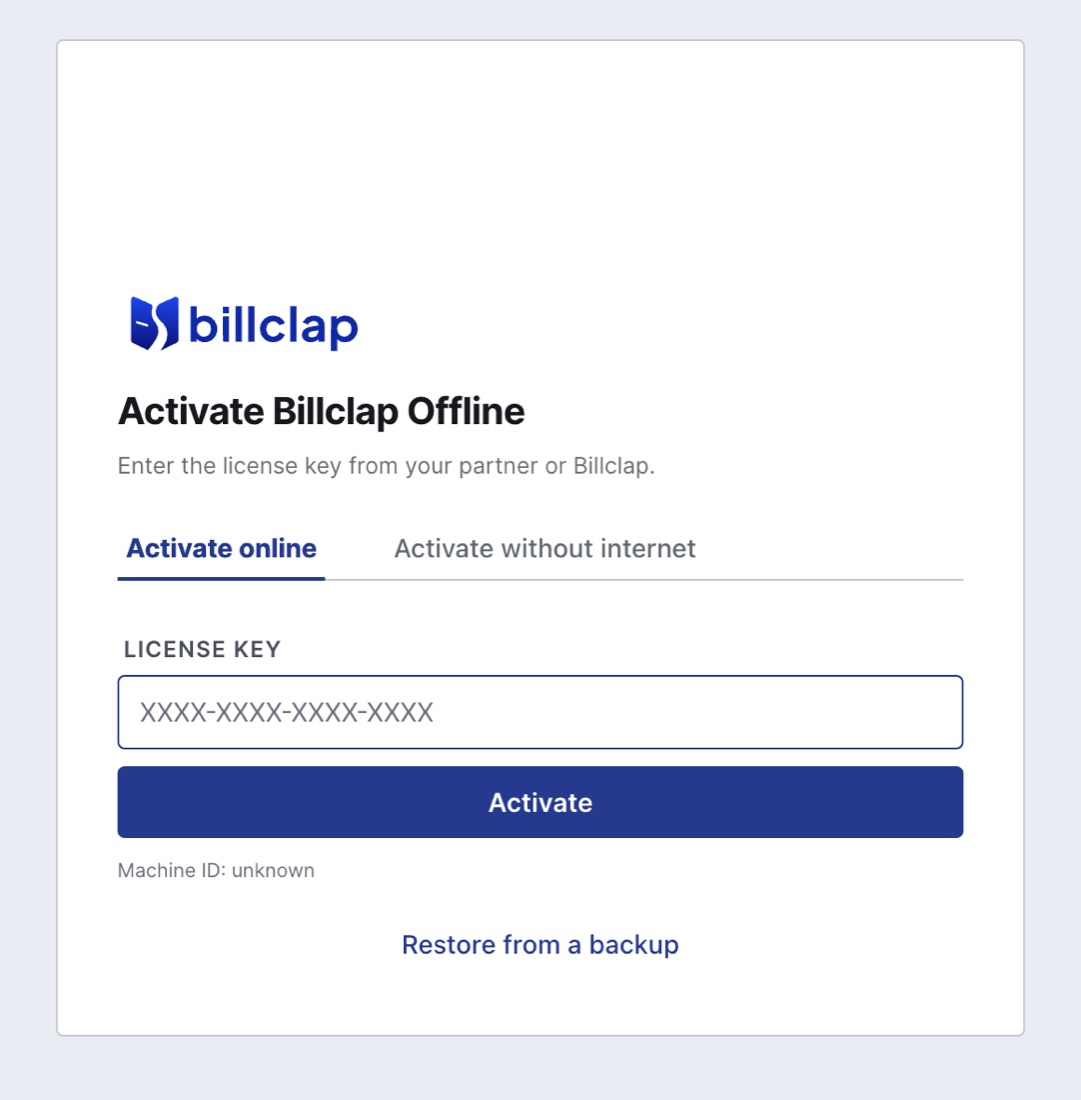
Activate online: enter your key and click Activate.
If the computer has no internet: Activate without internet
- Click the Activate without internet tab.
- Type your licence key and click Get request code. A request code appears.
- Send that request code to your partner or BillClap support, for example by WhatsApp from your phone.
- They send you back an activation code. Paste it into Activation Code.
- Click Activate.
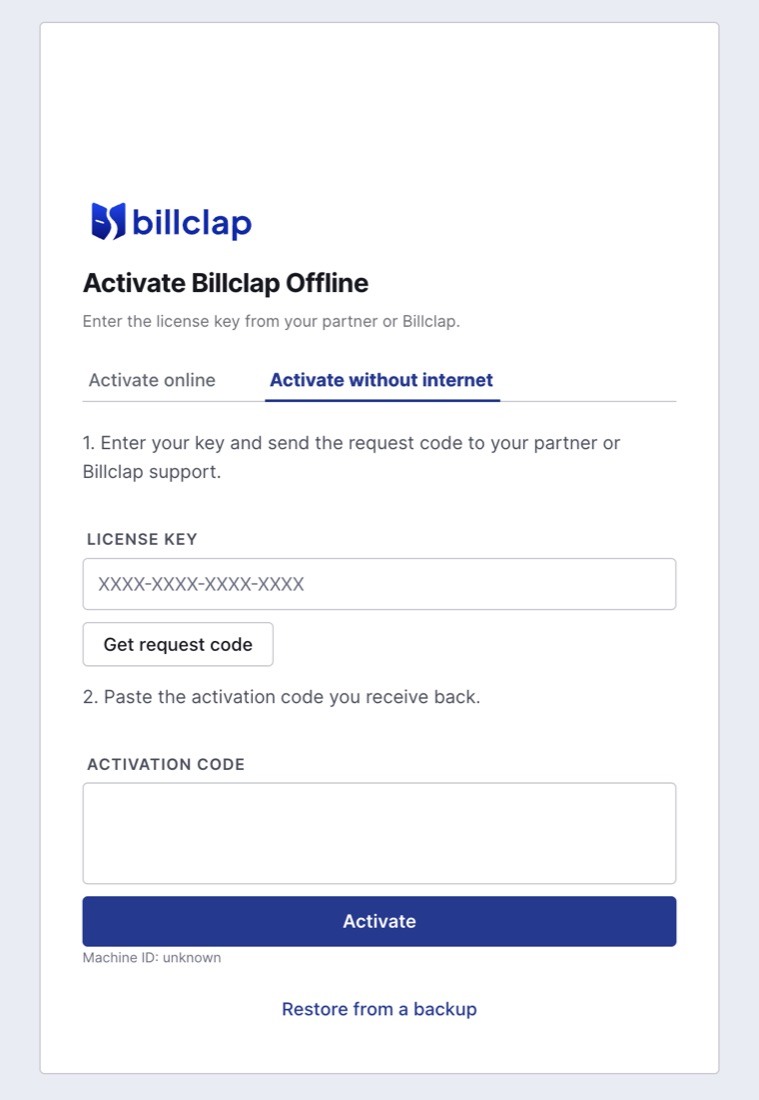
Activate without internet: get a request code, send it to your partner or BillClap, then paste the activation code you get back.
Moving from an old computer? Click Restore from a backup at the bottom of this screen to bring your data across. See How to back up and restore your data in BillClap Offline.
Step 2: Create your owner account
- Enter Your Name.
- Choose a Username and a Password, and type the password again in Confirm Password.
- Click Next.
You will use this username and password every time you sign in. Write them down and keep them safe. They are stored on this computer, not online.
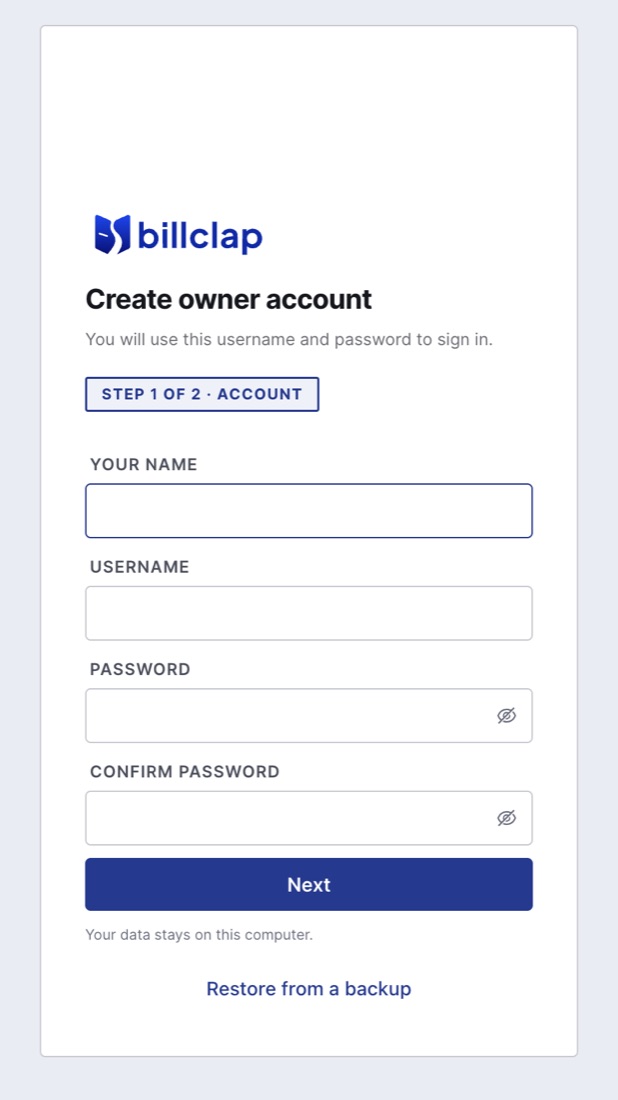
Step 1 of 2: create the owner account.
Step 3: Add your business
- Enter your Business Name.
- Enter your GSTIN if you are GST-registered (optional).
- Choose your State.
- Click Finish setup.
You can add the rest of your business details later in Settings > Company Details. See How to set up your business in BillClap Offline.
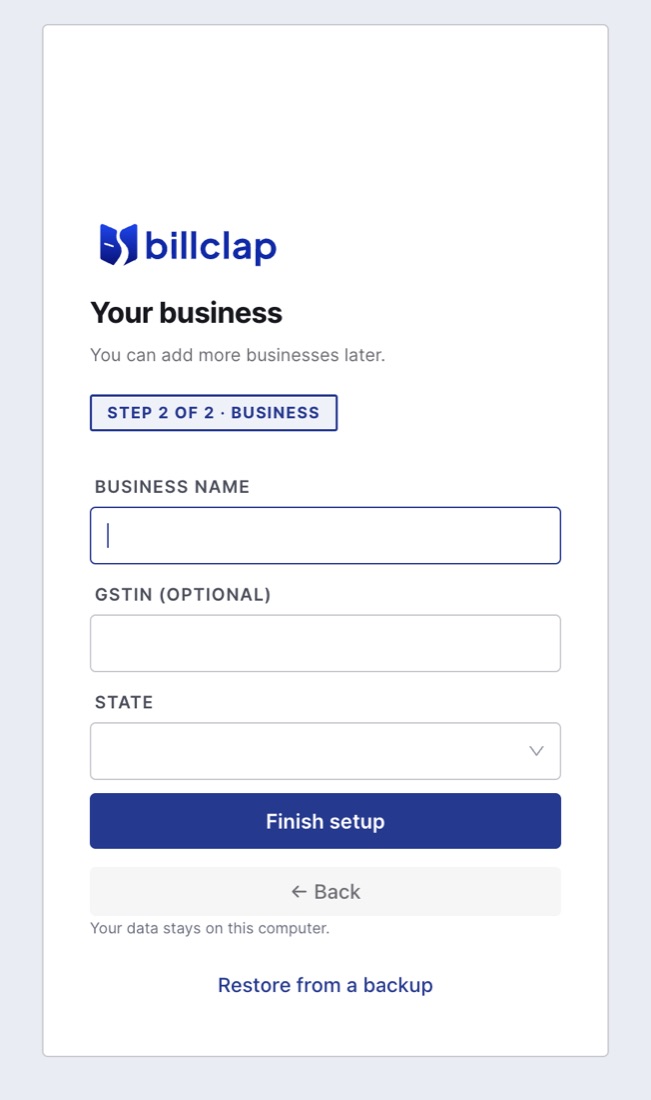
Step 2 of 2: your business.
Signing in after that
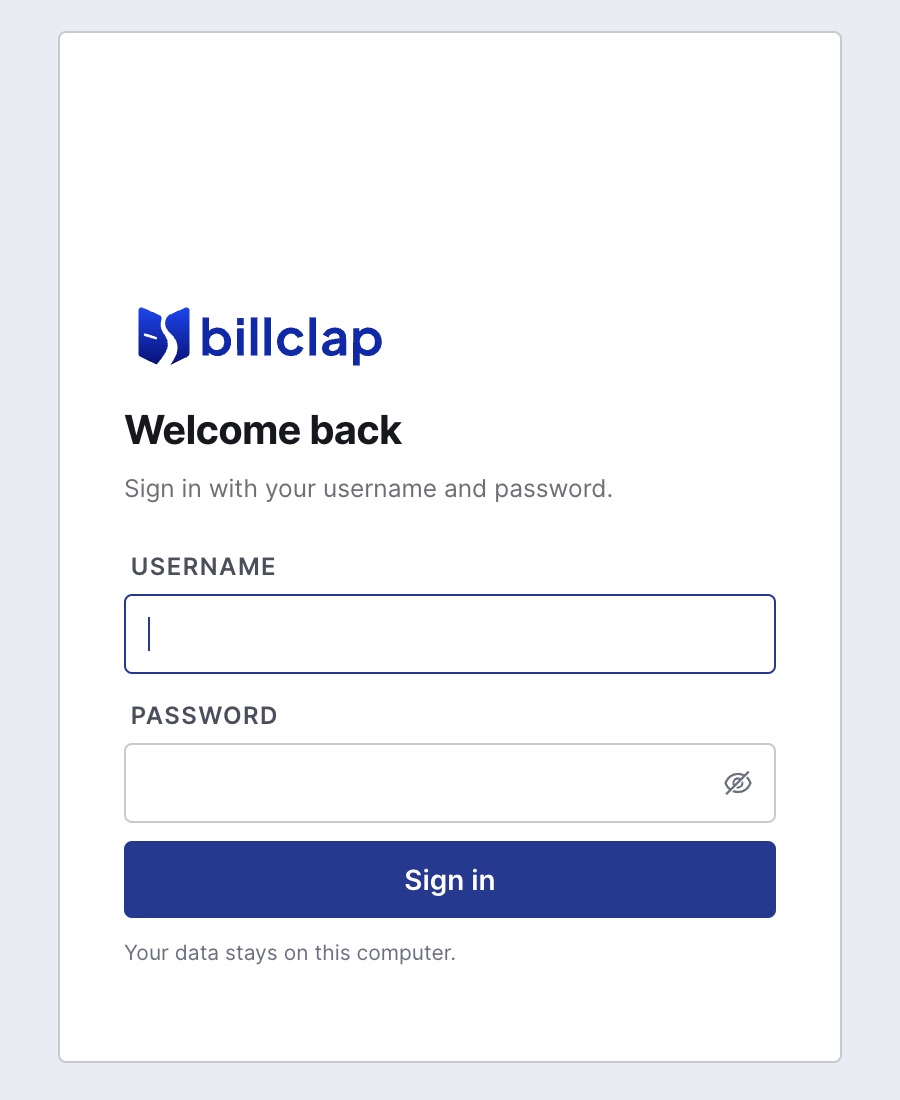
From now on, BillClap Offline opens on Welcome back. Enter your username and password and click Sign in. No internet needed.
Check, renew or move your licence
Go to Settings > License (under Integrations & Support).
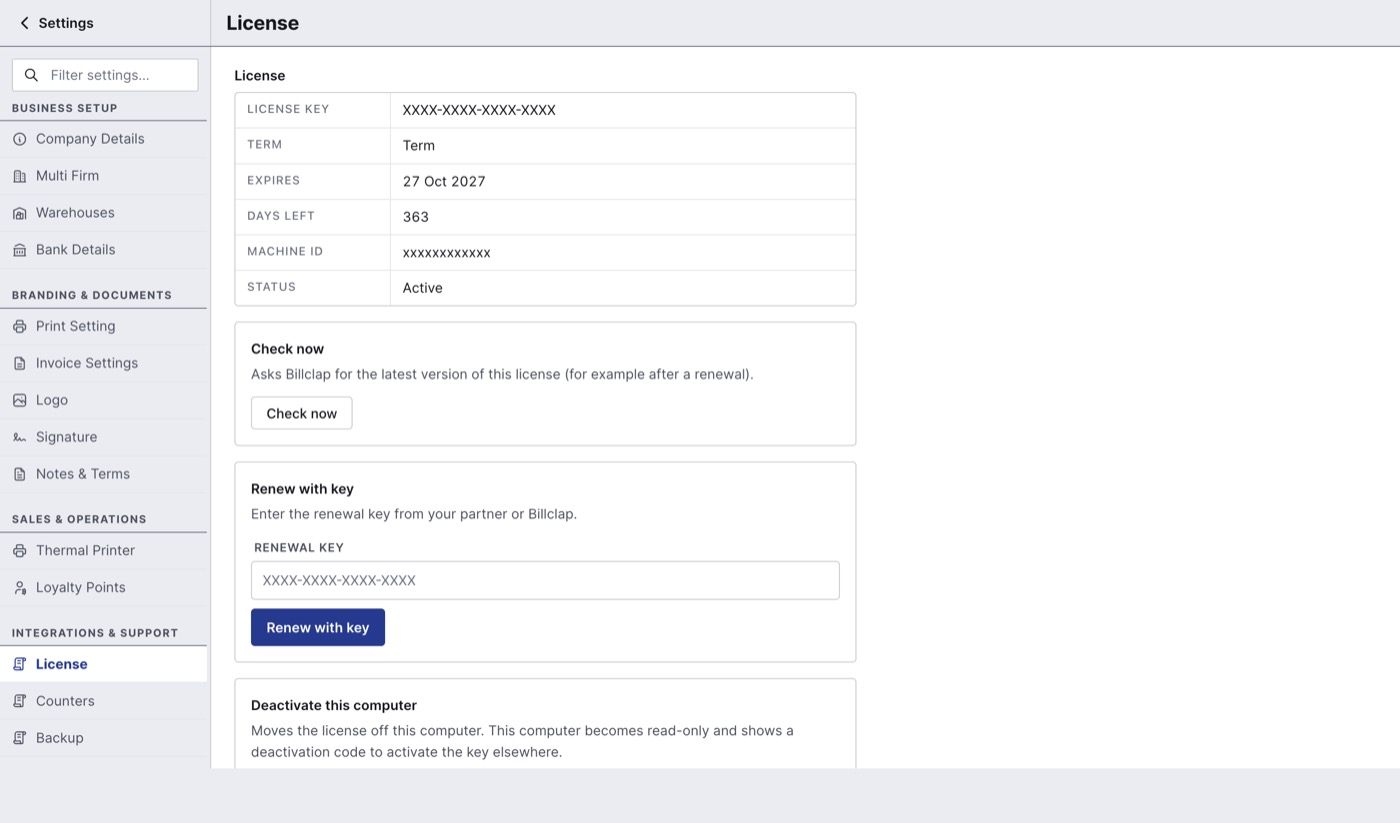
Settings > License.
- Licence details: your licence key, term, expiry date, Days Left, the machine ID of this computer and the status.
- Check now: asks BillClap for the latest version of your licence, for example right after you renew. Needs internet.
- Renew with key: enter the renewal key from your partner or BillClap and click Renew with key.
- Deactivate this computer: moves the licence off this computer so you can activate it on another one. This computer becomes read-only and shows a deactivation code. Take a backup first.
If activation doesn't work
| Message | What to do |
|---|---|
| No internet. Use 'Activate without internet'. | Switch to the Activate without internet tab and follow the steps above. |
| This license key was not found. | Check the key for typing mistakes and try again. |
| This key is active on another computer. | Deactivate it on the other computer first (Settings > License > Deactivate this computer), or contact your partner or BillClap support. |
| This key is not a Billclap Offline license. | The key is for a different product. Ask your partner or BillClap for your Offline key. |
Good to know
- One licence, one PC. A licence works on one computer. For a second counter that keeps its own separate books, buy an Extra PC licence.
- Internet is optional. You can activate without internet, and billing never needs it. Internet only helps with Google Drive backups, licence checks and software updates.
- Keep the computer's date and time correct. If the clock is set back, the licence can stop the app from saving until the date is fixed.
- Lifetime plan: includes 12 months of updates and support. After that the software keeps working, and the yearly Update & Support Pack is optional.
- Moving up from Offline Enterprise Elite to Offline Enterprise Plus: pay the price difference for the same term. You don't need to reinstall.