
How to record purchase bills and pay suppliers in BillClap Offline
In short: When stock arrives, go to Purchases > Purchase Bill > Create Purchase Bill, select the supplier, choose the warehouse, add the items from the supplier's bill and save. Stock goes up and the amount you owe shows in the supplier's ledger. Record what you pay as you pay it.
Enter a purchase bill
- Go to Purchases > Purchase Bill and click Create Purchase Bill.
- Under Vendor Details, search and select the supplier, or click Add Vendor to add a new one.
- At the top right, choose the warehouse the goods are going into.
- Add each item from the supplier's bill with the quantity and the purchase price. For batch items, add the batch number and expiry.
- Match the Issue Date and document number to the supplier's bill so it's easy to find later.
- If you paid something at the time, enter the payment; otherwise leave it unpaid.
- Check that the Grand Total matches the supplier's bill, then click Save.
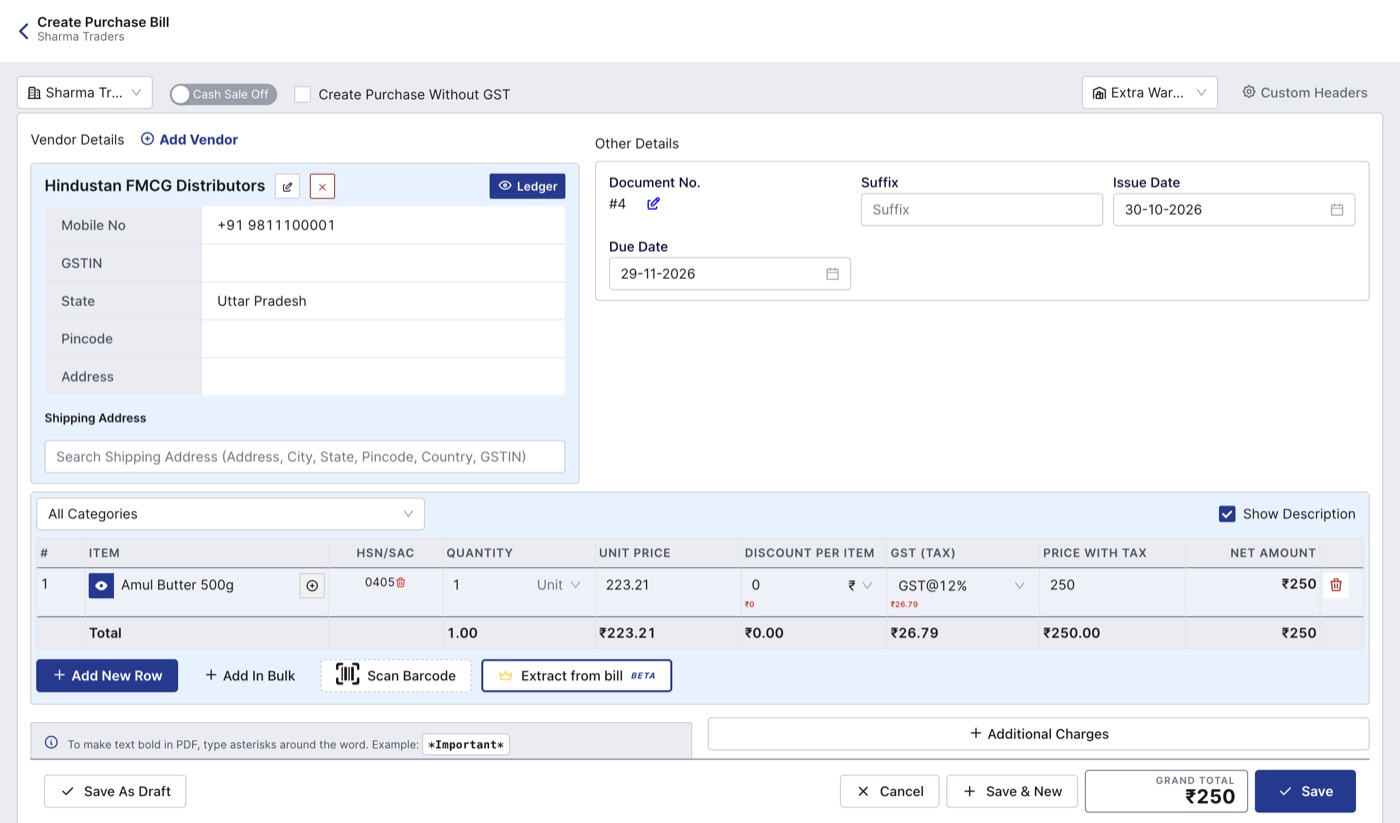
A purchase bill. Stock is added to the warehouse selected at the top right.
Pay a supplier later
- Go to Purchases > Purchase Bill.
- On the unpaid bill, open the More menu and click Add Payment.
- Choose the payment type (Cash, UPI, Cheque, Bank Transfer and so on), enter the amount and save.
You can also see all supplier payments under Payments > Payment Entries > Payment-Out.
See what you owe
Open Parties > Parties Details > Vendors and click the eye icon on the supplier. Their ledger shows every bill, payment and return with a running balance. See How to receive payments and track udhaar in BillClap Offline.
Purchase orders (Offline Enterprise Plus)
To order stock before it arrives, create a purchase order in Purchases > Purchase Order. When the goods come, convert it to a purchase bill and check the warehouse and quantities before saving.
Check before you save
- Check quantities, prices and GST against the supplier's bill. Correcting a saved bill means deleting it and entering it again.
- Pick the right warehouse; that is where the stock will show.
- The Create Purchase Without GST tick is for suppliers who don't charge GST. Leave it off for normal GST bills.