
How to use reports in BillClap Offline: GSTR-1, profit and loss, stock and parties
In short: Click Reports in the left menu. Pick a report, set the date range and download it as PDF or Excel. The four most shop owners need are GSTR-1, Profit & Loss, Stock Summary and All Party Report.
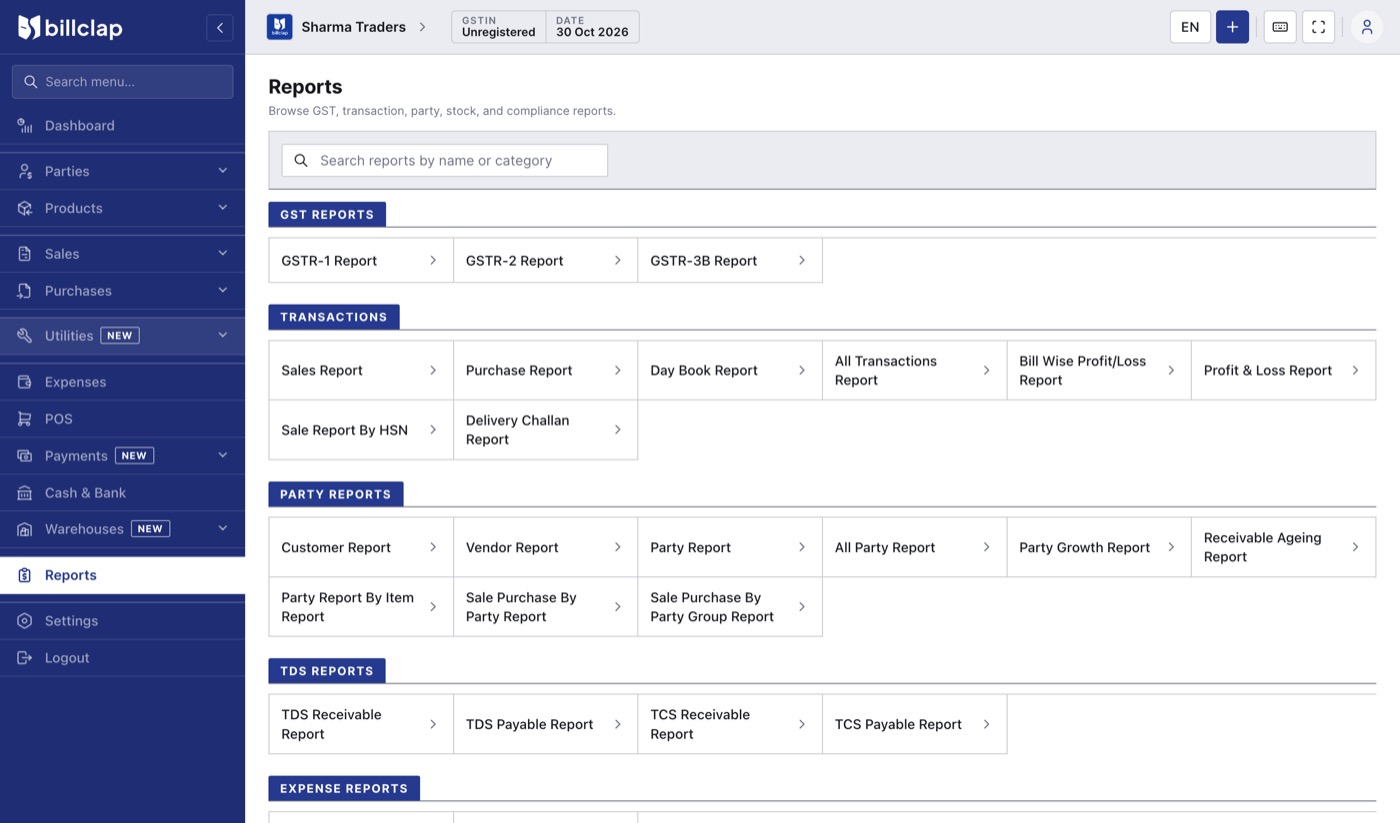
The Reports page. Use the search box to find a report by name.
GSTR-1: sales for GST filing
- Go to Reports > GSTR-1 Report.
- Set the month (for example 01-10-2026 to 31-10-2026).
- Check the tabs: B2B (bills to GST-registered customers), B2CS and B2CL (bills to consumers), CDNR/CDNUR (credit notes) and HSN summaries.
- Send it to your CA with Share with CA, or download JSON (for the GST portal), PDF or Excel.
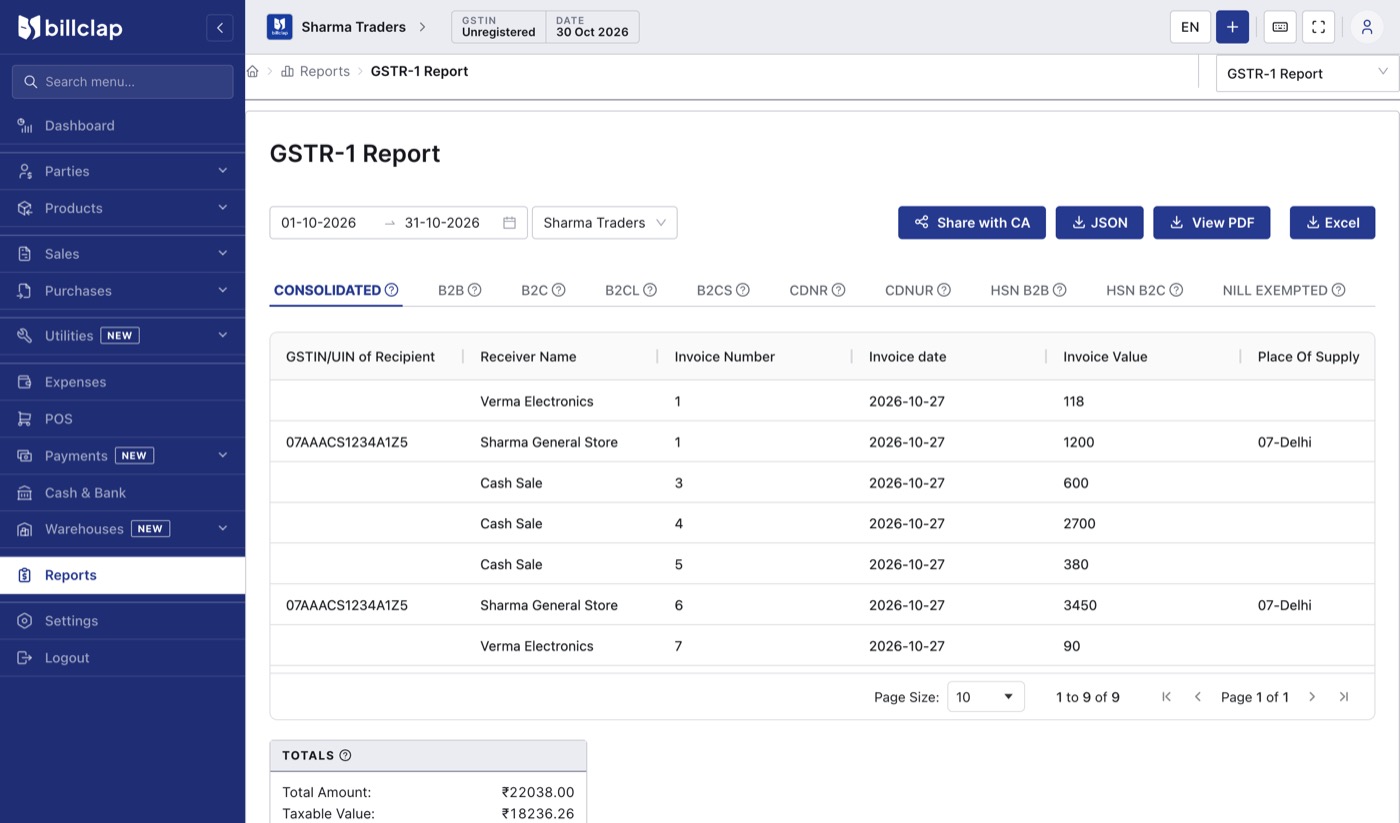
Before filing, check that every B2B customer has a correct GSTIN and every item has an HSN code and GST rate. Small differences of a paisa can appear between reports because of rounding.
GSTR-2 and GSTR-3B reports are also under GST Reports; check them with your CA before filing.
Profit & Loss
Go to Reports > Profit & Loss Report and set the period. It shows Gross Profit and Net Profit, built from sales, returns, purchases, opening and closing stock and expenses.
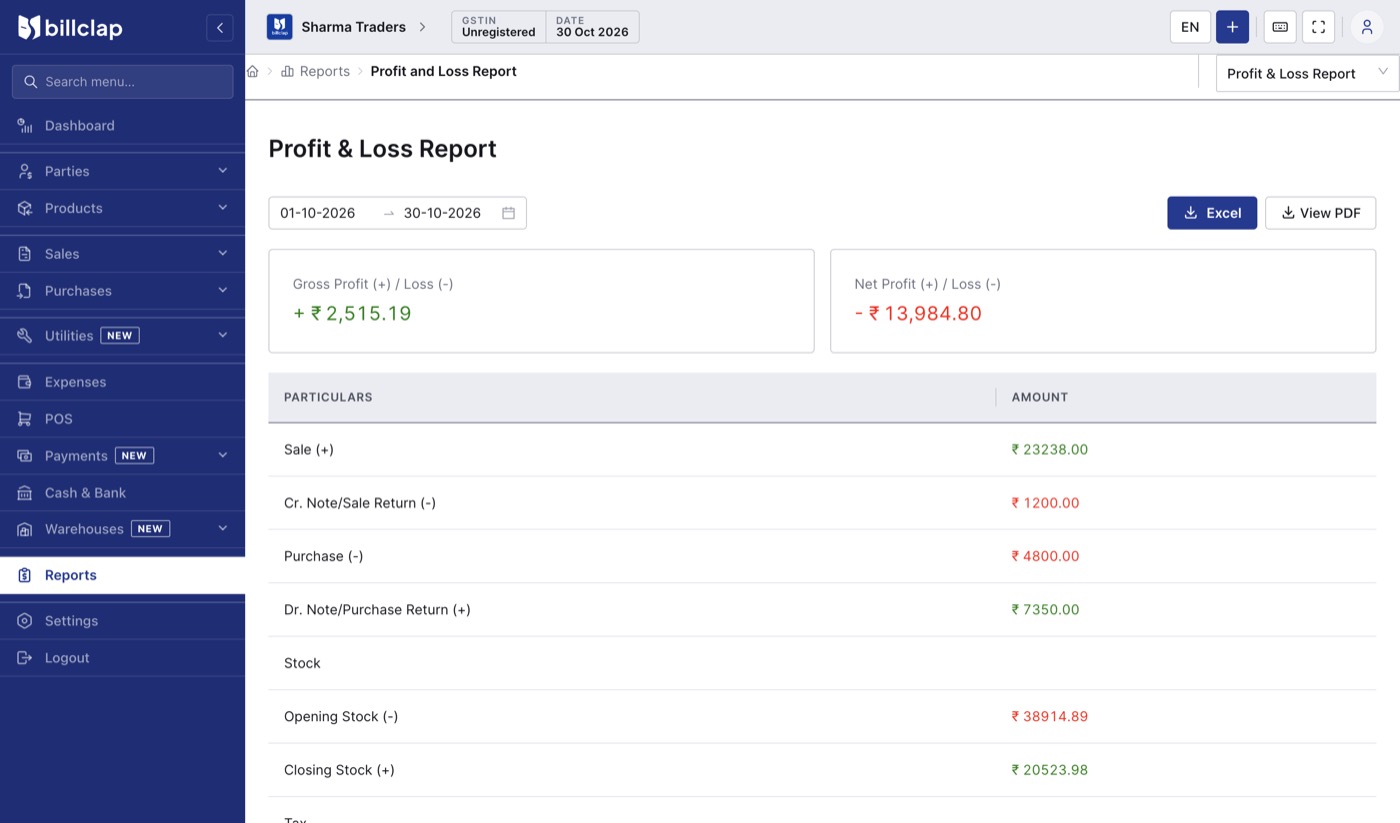
Profit is only as accurate as your purchase prices, opening stock and expenses. Keep those up to date.
Stock Summary
Go to Reports > Stock Summary Report to see each item's purchase price, sale price, quantity and stock value. Choose a warehouse to see one godown, and FIFO or another method for stock value. Read the item rows; the totals box adds up unit prices, so use the Stock Value column for your stock's worth.
Who owes you: All Party Report
Go to Reports > All Party Report. It lists every customer and supplier with what they owe you (Total Receivable) and what you owe them (Total Payable). Choose Receivable Only to get a collection list.
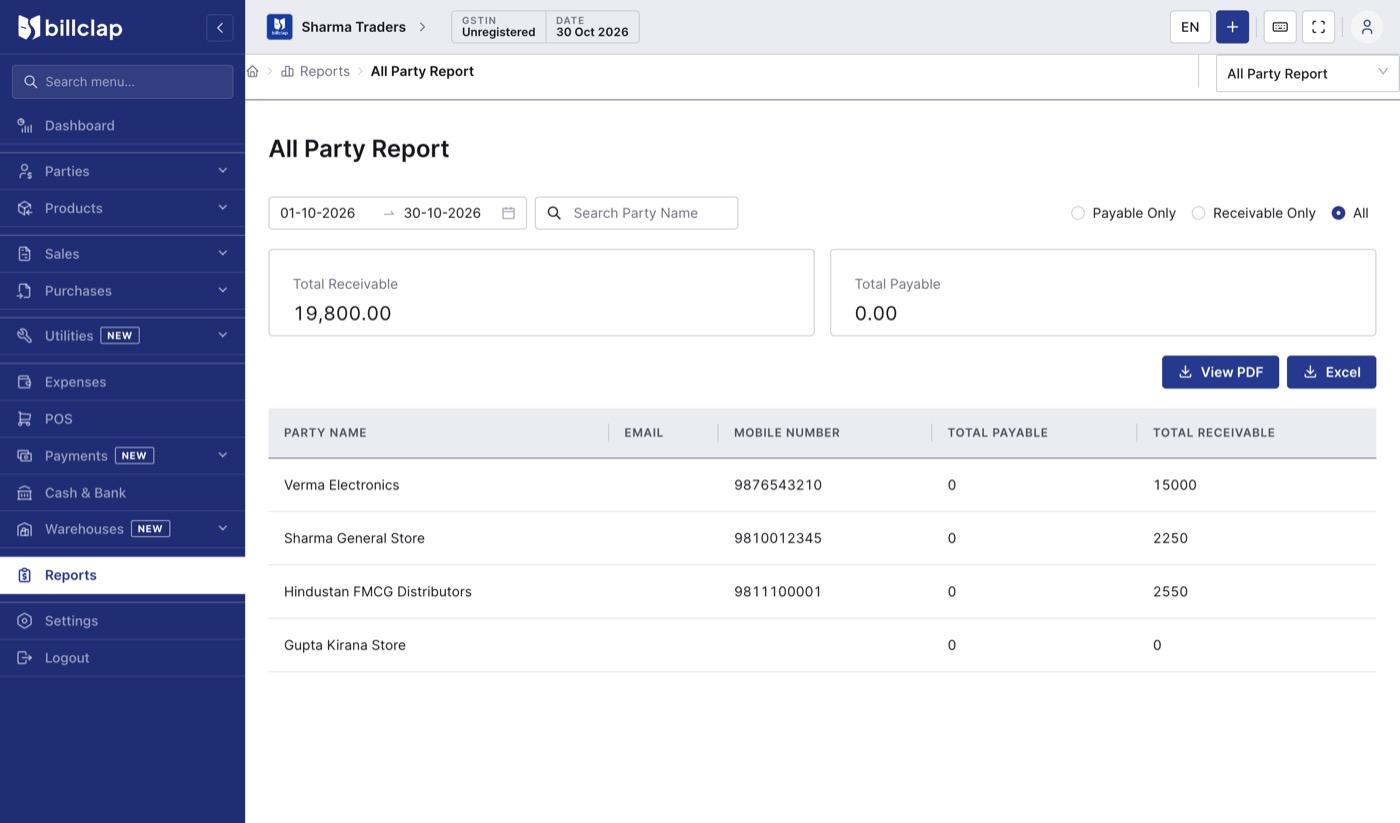
For one party's full history, open their ledger. See How to receive payments and track udhaar in BillClap Offline.
Other useful reports
- Expense Report: expenses by date and category.
- Low Stock Summary Report: items at their reorder level.
- Batch Expiry Report: batches near expiry (for batch items).
- Stock Transfer Report: stock moved between godowns.
- Sale Report By HSN: sales grouped by HSN code.
All reports run on your computer, without internet.