
How to get low-stock alerts in BillClap Offline
In short: Set a Stock Warning level on each fast-moving item. When its stock falls to that level, it shows up in Products > Inventory under Low Stock and in Reports > Low Stock Summary Report. Check it before you call your distributor.
Set a stock warning level
- Go to Products > Products. Click Add Product for a new item, or edit an existing one.
- Open Additional Fields.
- In Stock Warning, enter the quantity at which you want to reorder, for example 10.
- Click Save & Update.
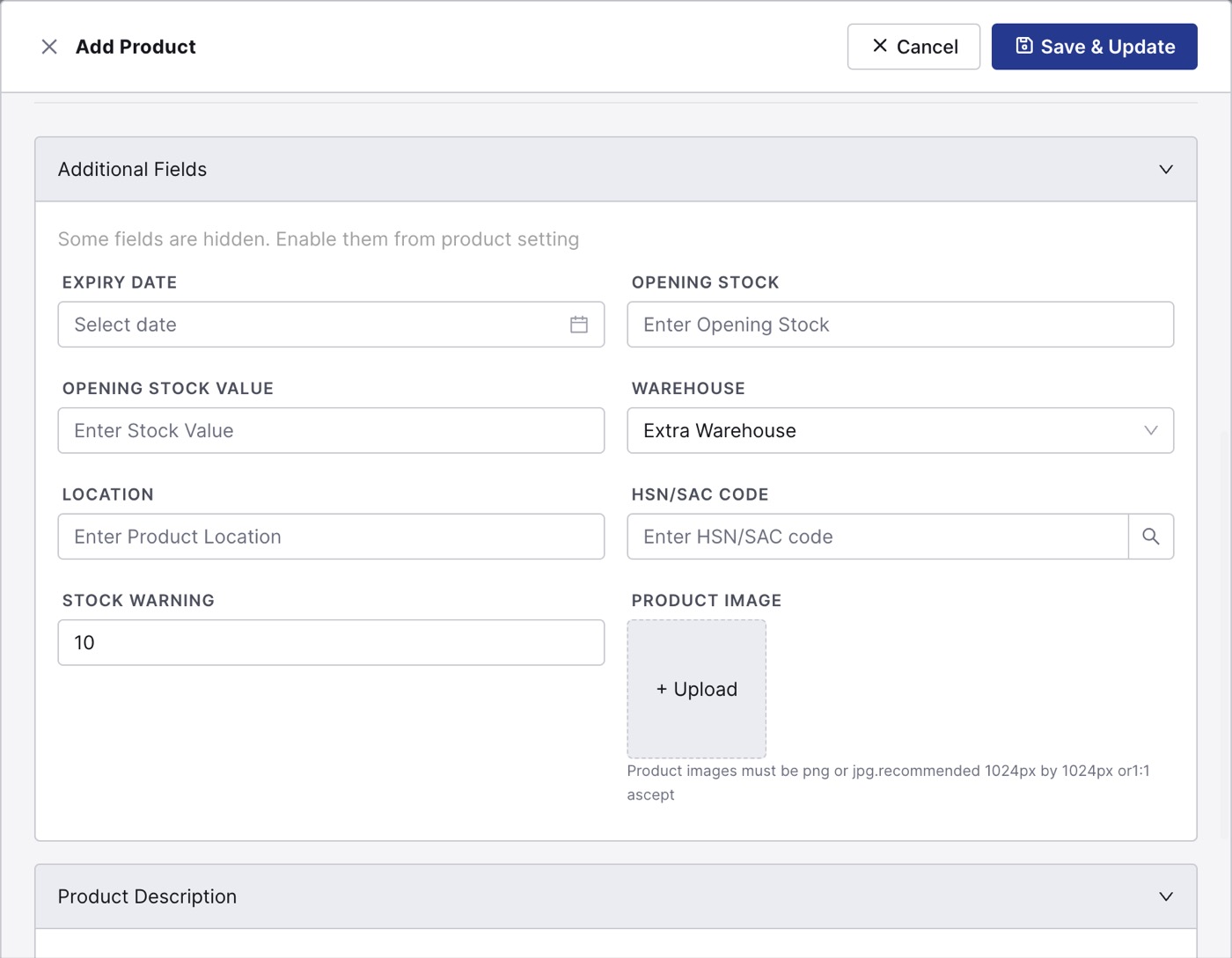
Additional Fields > Stock Warning.
Pick a level that covers the days your supplier takes to deliver, plus a few days' extra.
See what's running low
- Products > Inventory: the Low Stock tile at the top shows how many items are at or below their warning level.
- Reports > Low Stock Summary Report: the full list with stock quantity and warning level. Tick Show only items in stock to hide items that are already at zero, and download it as PDF or Excel to send to your supplier.
Good to know
- The app shows low stock in these places; it doesn't send a phone or pop-up alert. Make checking the report part of your weekly ordering.
- An item showing Out of Stock may have gone below zero if it was sold or transferred without stock. Count it and correct it with Stock In on the Inventory page.