
How to use sale orders and purchase orders in BillClap Offline
In short: With Offline Enterprise Plus, record what a retailer orders from you as a sale order and what you order from a supplier as a purchase order. Orders don't change stock or balances. When goods move, convert the order to an invoice or a purchase bill.
Record a sale order
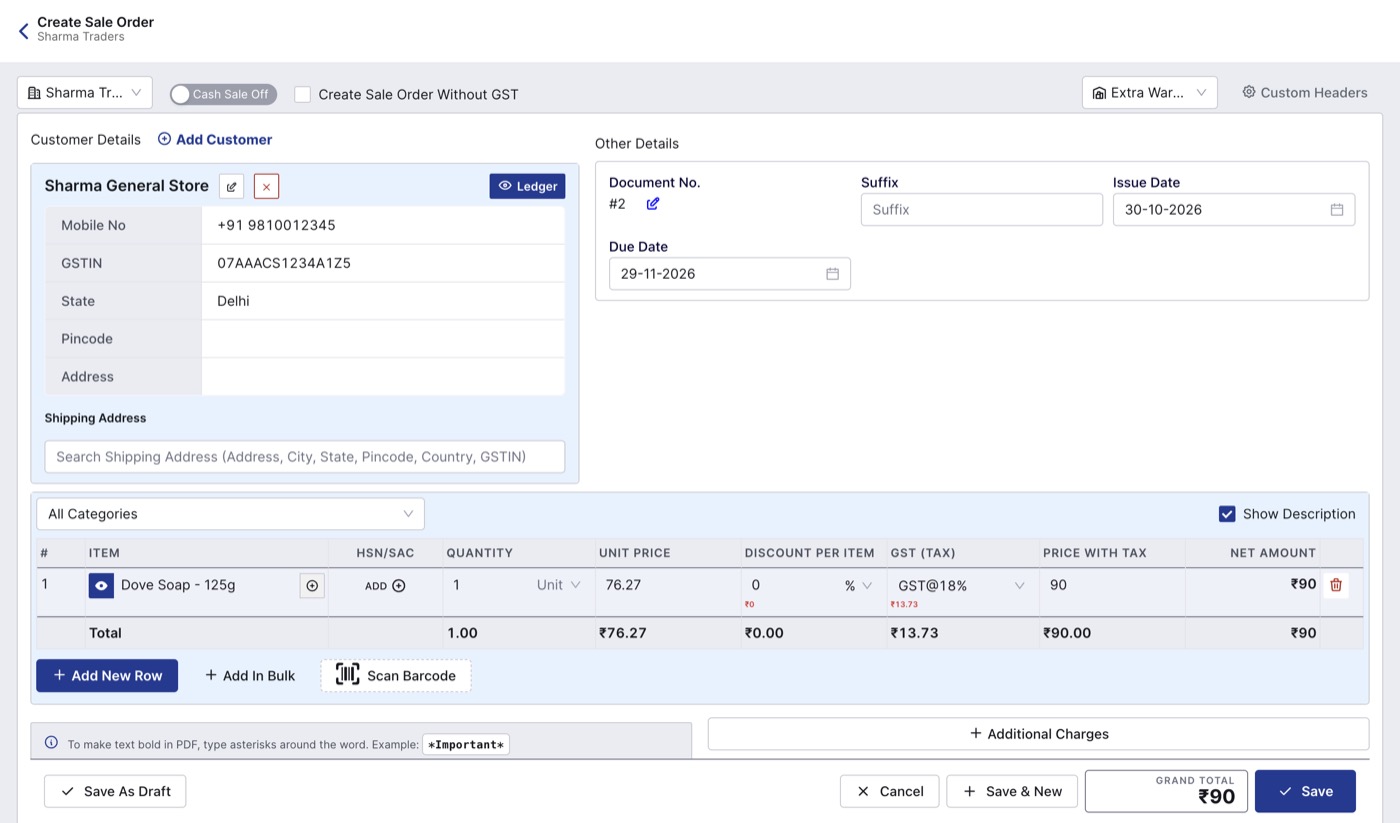
- Go to Sales > Sale Order and click Create Sale Order.
- Select the customer and add the items and quantities they ordered.
- Set the Due Date as the promised delivery date.
- Click Save.
Record a purchase order
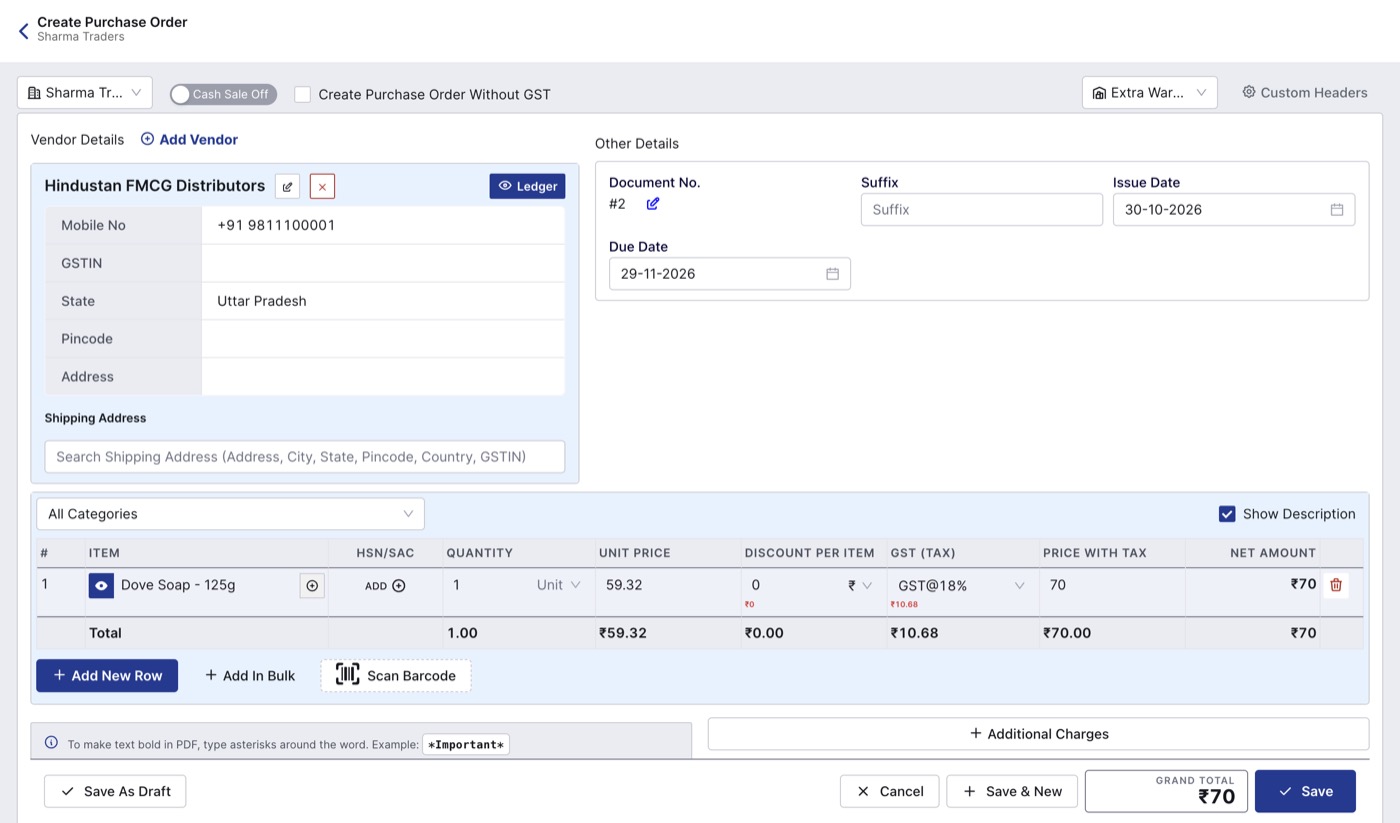
- Go to Purchases > Purchase Order and click Create Purchase Order.
- Select the supplier and add the items and quantities you are ordering.
- Click Save. Share it with the supplier as a PDF.
Convert an order
- Open the order from its list and click PDF View.
- Under Actions, click Convert and choose Sales Invoice (for a sale order) or Purchase Bill (for a purchase order).
- Change the quantities to what is actually being delivered or received.
- Check the warehouse at the top right.
- Click Save.
A sale order can also be made from a quotation (see How to make quotations and delivery challans in BillClap Offline).
Part deliveries
The order doesn't keep track of what has already been delivered. If you deliver part of an order, note the balance quantity in the order's remarks, or create a new order for the balance, so you don't bill the same items twice.
Good to know
- Orders appear in Reports > Sale Order Report and Purchase Order Report.
- Take advance payments against the invoice after converting, not against the order.
- Deleting an order after converting it doesn't delete the invoice or bill, but you lose the link between them. Keep the order.