
How to record expenses in BillClap Offline
In short: Click Expenses in the left menu, then Create Expense. Pick a category such as Rent or Salaries, enter the amount, mark it paid (with the payment type) or unpaid, and click Save & Update. Expenses show up in your profit and loss.
Add an expense
- Click Expenses in the left menu and then Create Expense.
- Check the Expense Date.
- Choose a Category, for example Rent Expense, Employee Salaries & Advances, Electricity, Transportation & Travel or Repair & Maintenance.
- Enter the Total Amount. To list several items (for example stationery), click Add New Item and add each with quantity and cost.
- If you have already paid, leave Mark as Paid on and choose the Payment Type: UPI, Cash, Card, Net Banking, Cheque or EMI. If not, switch it off.
- Add a note, such as "Shop rent for October", and click Save & Update.
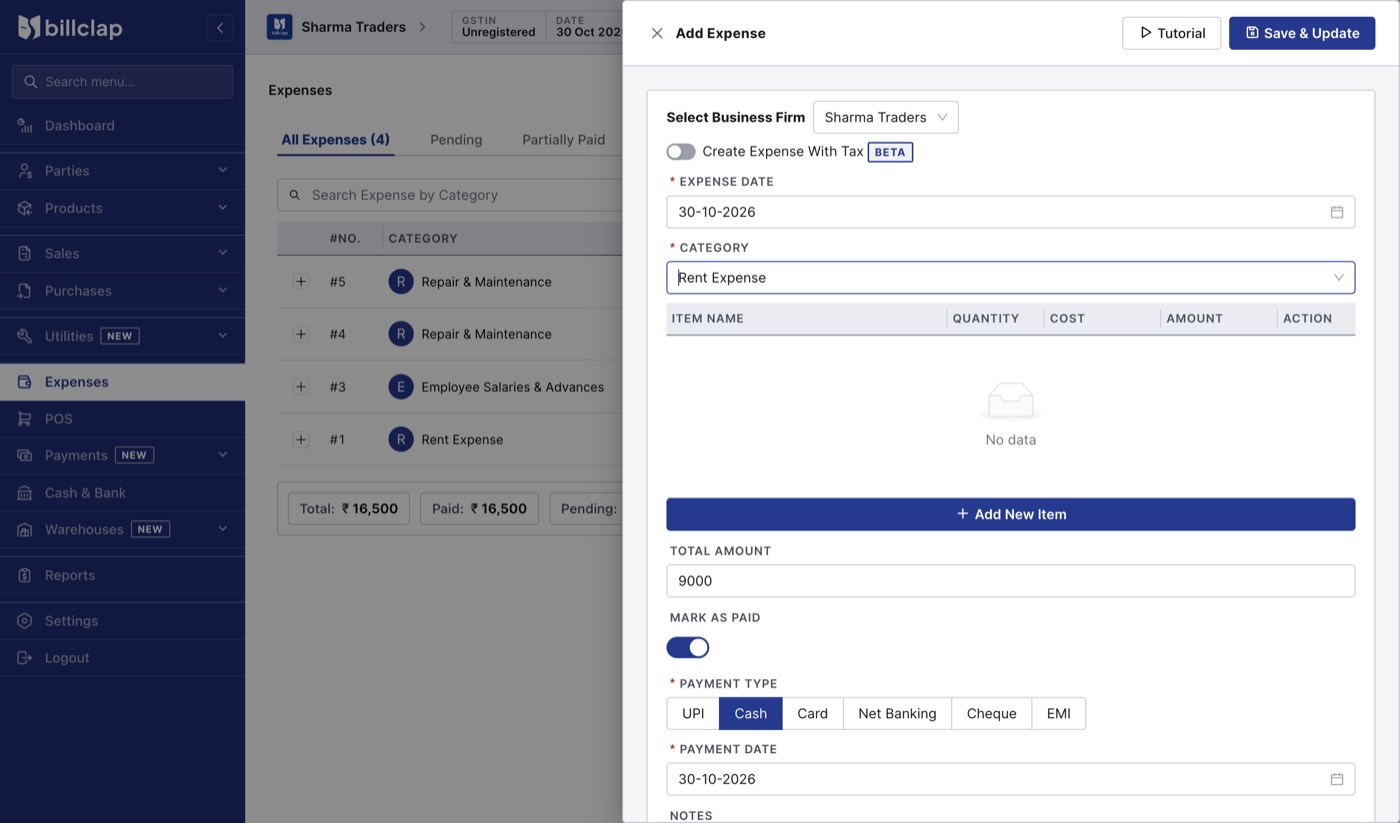
Recording ₹9,000 shop rent paid in cash.
Pay an unpaid expense later
In the Expenses list, click the rupee icon on the expense, enter the amount you are paying now and click Add Payment. Part payments show as Partially Paid.
Need a new category?
Open the Category list on the expense form, type the new name and add it. Check the list first so you don't create the same category twice (for example "Rent" and "Rent Expense").
Check before you save
- Always enter an amount above zero and check the date. A wrong date puts the expense in the wrong month.
- Create Expense With Tax is marked BETA. For expenses where you claim GST input credit, confirm the treatment with your accountant.
Where expenses show up
- The Expenses list, with totals for paid and pending.
- Reports > Profit & Loss and the expense reports.
- The dashboard's total expenses.