
How to bill faster at the counter with POS in BillClap Offline
In short: Click POS in the left menu. Scan or search items, adjust quantity or discount with the function keys, then click Save & Print Bill (or press Ctrl+P). It is built for a queue of walk-in customers and works without internet.
Make a POS bill
- Click POS in the left menu. A new bill (Bill #1) opens.
- Check the business and the warehouse at the top.
- Press F1 (or click the search box) and scan the barcode, or type the item name, code or model number. Click the item in the list to add it.
- Repeat for each item. The Bill Summary on the right updates as you go.
- For a regular customer, press F10 and search by name, mobile or GSTIN. For a walk-in customer, switch on Cash Sale instead.
- Add a Bill Discount in % or ₹ if needed.
- Click Save & Print Bill or press Ctrl+P.
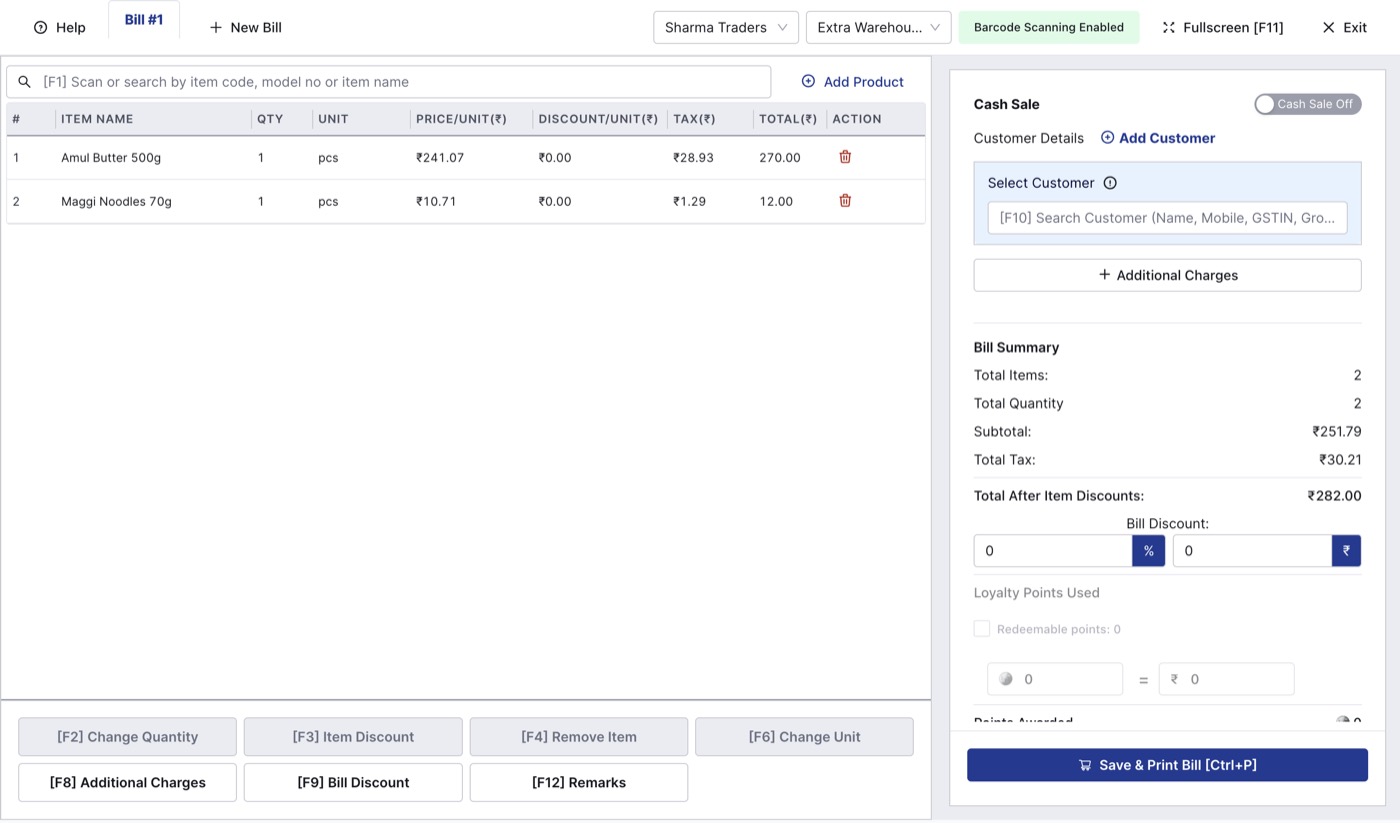
The POS screen: items on the left, customer and bill summary on the right.
Keyboard shortcuts
| Key | What it does |
|---|---|
| F1 | Search or scan an item |
| F2 | Change quantity |
| F3 | Item discount |
| F4 | Remove item |
| F6 | Change unit |
| F8 | Additional charges |
| F9 | Bill discount |
| F10 | Search customer |
| F11 | Full screen |
| F12 | Remarks |
| Ctrl+P | Save & print bill |
Serve two customers at once
Click + New Bill at the top to open another bill tab while the first is still open, for example when one customer goes back for another item.
Good to know
- After searching, click the item in the list to add it. Pressing Enter does not add it.
- Check the total after typing a discount. If you type a rupee discount larger than the bill, the app warns you; correct the amount before saving.
- Click Exit to leave POS. Any bill you have not saved is lost.
- Set up your thermal printer in Settings > Thermal Printer before your first POS bill.
- POS bills appear in Sales > Tax Invoices along with your other invoices.