
How to back up and restore your data in BillClap Offline
In short: Go to Settings > Backup. Set a backup password, switch on automatic backup, choose where to save it (your own Google Drive, an extra folder, or both) and click Backup now. To get your data back, click Restore… on the same page.
Why back up
BillClap Offline keeps your data on your own computer. That keeps it private, but if the computer is damaged, stolen or replaced, a backup is how you get your data back. Set it up on day one.
Open the Backup page
- Click Settings in the left menu.
- Under Integrations & Support, click Backup. You can also type backup in the Filter settings box.
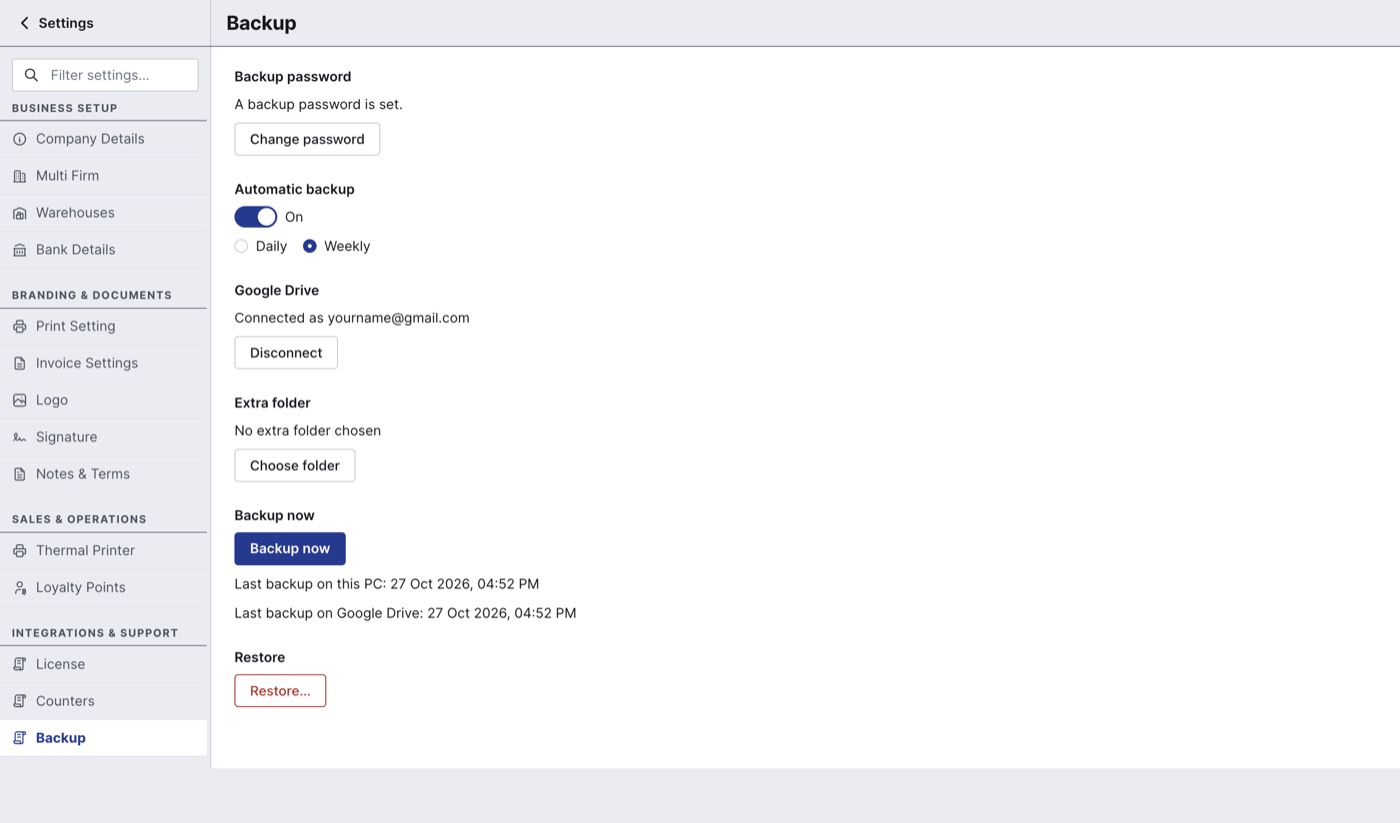
The Backup page: password, automatic backup, Google Drive, extra folder, Backup now and Restore.
Set up automatic backup
- Backup password: set a password. Every backup is locked with it. Write it down and keep it safe: without it, a backup cannot be restored. Use Change password to change it later.
- Automatic backup: switch it On and choose Daily or Weekly. Daily is safer for a busy shop.
- Google Drive: connect your own Google (Gmail) account. The backup goes to your Drive, not to BillClap, and is uploaded whenever the internet is available.
- Extra folder: click Choose folder to keep another copy in a folder you pick, ideally on a USB drive or external disk.
- Click Backup now to take the first backup.
- Check that Last backup on this PC (and on Google Drive, if connected) now shows today's date and time. That confirms the backup worked.
Keeping everything on your premises
Google Drive is optional. If you don't want any copy of your data to leave your shop, don't connect Google Drive and back up only to an extra folder or external disk you control. Keep that disk away from the computer, so one accident doesn't take out both.
Restore your data
Use this on a new computer, or if you need to go back to an earlier backup. Restoring replaces all data on this computer with the data in the backup.
- Install and open BillClap Offline on the computer.
- Go to Settings > Backup and click Restore….
- Choose Restore from Google Drive or Restore from a backup file.
- Pick the backup by its date and time.
- Enter the backup password and click Restore.
- Sign in when asked.
- Open a few bills, your stock and a party ledger to check everything is there.
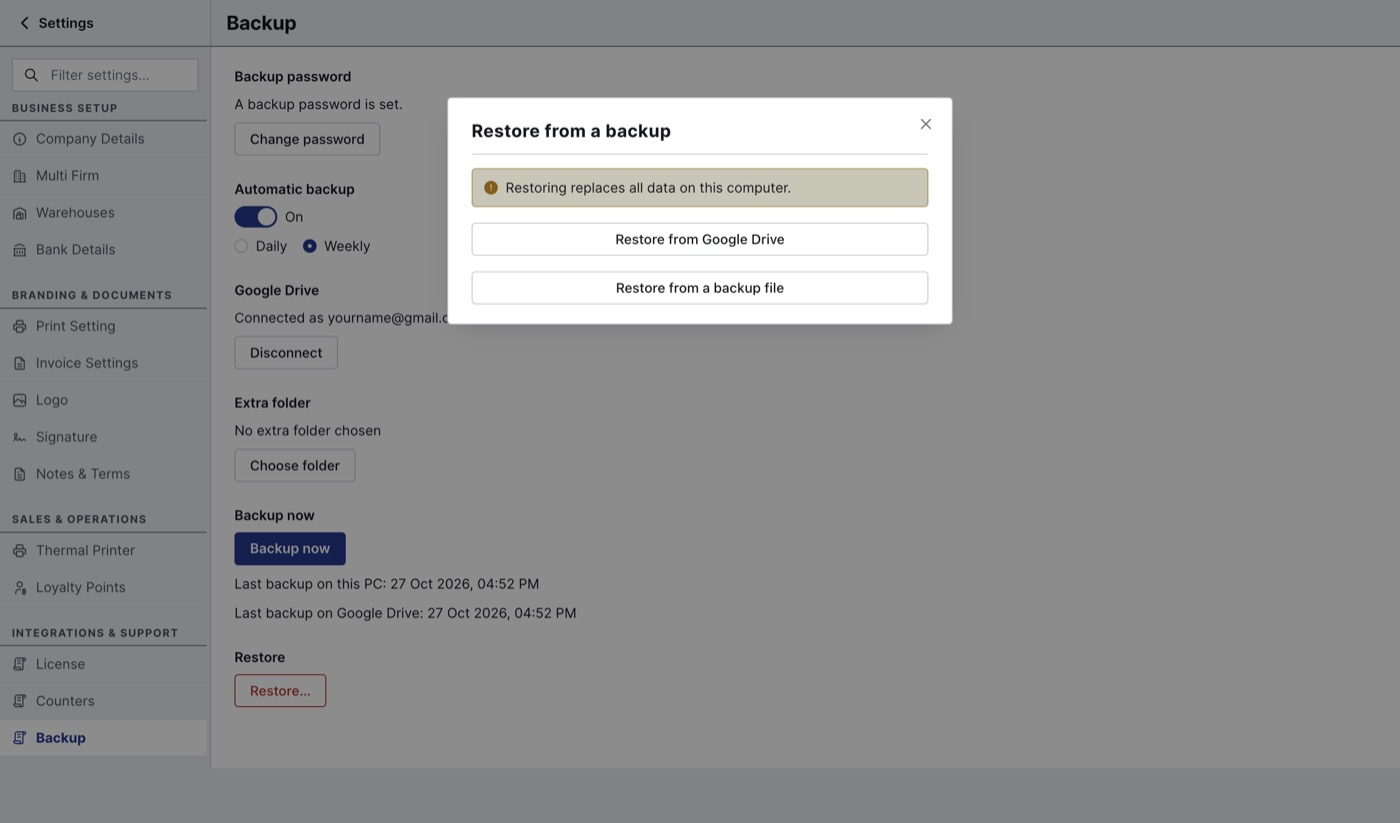
Choose where to restore from. Restoring replaces all data on this computer.
After a restore
- Open Settings > Backup again and check the automatic backup setting (Daily or Weekly) is what you want.
- If you moved to a new computer, stop billing on the old one. Use only the new computer from now on, so your data doesn't split across two PCs.
Good to know
- Backups don't need you to stay online. Automatic backups to Google Drive go up the next time the internet is available.
- Take a manual Backup now before updating the software or moving computers.